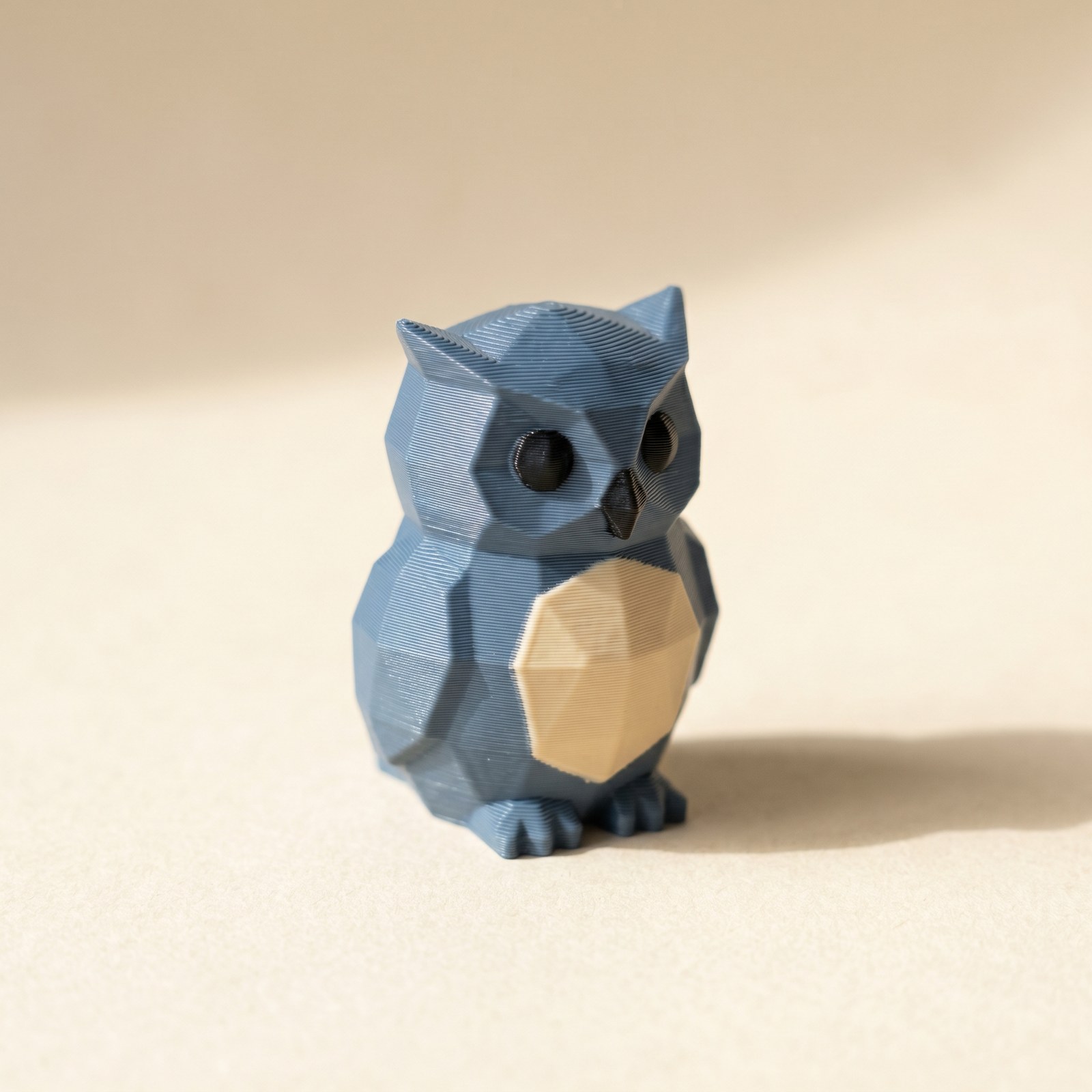
TL;DR: Slicer flush settings cut the cost per filament swap, but AMS purge waste scales with the swap count, and that's driven by your Layerpaint palette order. Put colors that sit vertically adjacent on the model in adjacent palette slots and the swap counter typically drops 15 to 25% for the same paint job. Here's the rule and a worked example.
Where does AMS purge waste actually come from?
Every filament swap purges the old color out of the nozzle so the new one runs clean, and that purge goes to a tower, a wipe shield, or into the part's infill. Slicer settings like lower flush volumes and flush-into-infill cut AMS purge waste per swap, but the number of swaps is fixed by the 3MF you hand the slicer, which is set by the order you build your palette in Layerpaint.
Multi-filament FDM prints lose material at every swap. The toolhead purges the old color out of the nozzle so the new color comes through clean, and that purge has to go somewhere. A purge tower, a wipe shield, or — if your slicer supports it — into the infill of the part itself.
The Bambu Lab multi-color guide recommends dropping flush volumes from the default 1.0 to 0.85, and OrcaSlicer's flush-into-infill toggle reuses purged material instead of throwing it away. We covered the Bambu side of that toggle in Flush Into Infill for painted 3MFs. Both help. But both reduce the cost per swap. The number of swaps is set by the file you hand the slicer.
That number changes when you reorder your palette in Layerpaint, and the AMS purge waste falls with it. The swap counter shows you the result live.
How the swap counter works
Multi-color FDM printers swap filament every time a layer needs a color that isn't currently loaded. The slicer schedules an optimal path within each layer given the colors it sees, but it can't change which color sits in slot 1 of your AMS, MMU, or CFS. That assignment is baked into the 3MF.
Layerpaint counts swaps the way the slicer will. Toggle Show swap bar in the right panel and you get a live per-layer count of total swaps and flush waste. Paint a region, watch the count update. Pick a different chip for that region, watch it update again.
The swap counter only counts what your slicer will actually print. Hidden layers, colors you painted but never used, and triangles that didn't make it past the welder don't show up. What you see in the counter is the real cost.
The lever you have: palette build order
Layerpaint assigns AMS slot numbers in the order you add filaments to the palette. The first chip you add becomes slot 1, the second becomes slot 2, and so on. There's no drag-to-reorder. Once you start painting, those slot assignments are baked in: you can change a slot's color, but you can't shuffle the slot positions without re-painting.
Which means the cheap, large lever is to build the palette in a smart order before you start painting.
The rule: colors that appear vertically adjacent on the model should sit in adjacent slots. Say you're painting a figurine with black base, gold accents, dark red eyes, ivory teeth. The eyes and teeth sit next to each other on the head. The gold is on the chest. The black is everywhere. If you build the palette as black → gold → red → ivory, the slicer hops black → gold → red → ivory → black on every layer that hits the head.
Build it as black → ivory → red → gold instead. Teeth and eyes are now in adjacent slots. Same colors, same triangles, but the swaps cluster the way Bambu Studio and OrcaSlicer want them to. Layerpaint's swap counter typically reads 15–25% lower for the same paint job.
The variance depends on how aggressively your slicer optimizes within a layer. The counter picks the conservative number. What you save in practice will usually beat the prediction by a few percent.
A worked example
I tested this on a low-poly figurine with five colors. First pass: I added filaments to the palette in the order they appeared in the library, then started painting. Swap counter read 87 across 220 layers.
Second pass: cleared the palette, added the same five filaments in a different order — deepest base color first, the two accent colors next to each other, rim-light color last. Painted again. Counter read 61. That's 26 fewer swaps and that much less AMS purge waste for the same finished print. At Bambu's recommended 0.85 flush volume on a 0.4 mm nozzle, the math works out to roughly 12 grams of saved filament on a 60-gram print, or about 20% of total material.
If you've already started painting and you realize the palette order is wrong, you have two options: re-paint, or live with it. Removing a slot unpaints every face that used that color. Removing and re-adding a chip puts it at the end of the slot list. Plan the order before you start.
Pair it with the slicer settings
Once the palette order has cut the swap count, the slicer settings trim the AMS purge waste that remains:
- Reduce flush volumes in your filament profile to 0.85 (Bambu Lab's own recommendation).
- Turn on "Flush into objects' infill" in the printer settings. The purged filament becomes infill instead of going to a tower or wipe.
- Keep the palette order Layerpaint gave you when the slicer asks you to map slots to AMS / MMU positions. If you reorder again at slice time, you'll undo the optimization.
- Check the print orientation too: how the model stands on the plate changes which colors share a layer. See cutting purge waste with print orientation.
Common questions
Does this work for Prusa MMU3 and Anycubic ACE Pro?
Yes. The 3MF format Layerpaint exports stores per-triangle color groups, and the slicer maps those groups to physical slots. Any slicer that reads the Materials Extension uses the same logic. Tested with Bambu Studio, OrcaSlicer, PrusaSlicer, and the OrcaSlicer-FullSpectrum fork that Bambu's recent color-mixing feature was built on top of.
What's the absolute minimum I can get to?
You're bounded by how many distinct colors share a single layer. If four colors all appear on layer 50, you swap at least three times on that layer no matter what order the palette is in. The counter shows you the floor. Below that, you'd need to repaint.
Can Layerpaint suggest the best order?
Not yet. Best order depends on which AMS / MMU / CFS slot is closest to the toolhead in your specific printer, which Layerpaint can't see. The reliable workflow is to think about adjacency once before you start, then use the swap counter to validate as you paint.
Try it now
Drop an STL on the painter, build the palette in adjacency order, and paint. The swap counter on the right shows the AMS purge waste consequences of every choice as you make it. The export to Standard 3MF works in Bambu Studio, OrcaSlicer, PrusaSlicer, and any slicer that reads the Materials Extension.
Your first export is free, then $6.97 for 10 exports or $39.97 unlimited. No subscription. Your mesh stays on your machine.
Happy printing.