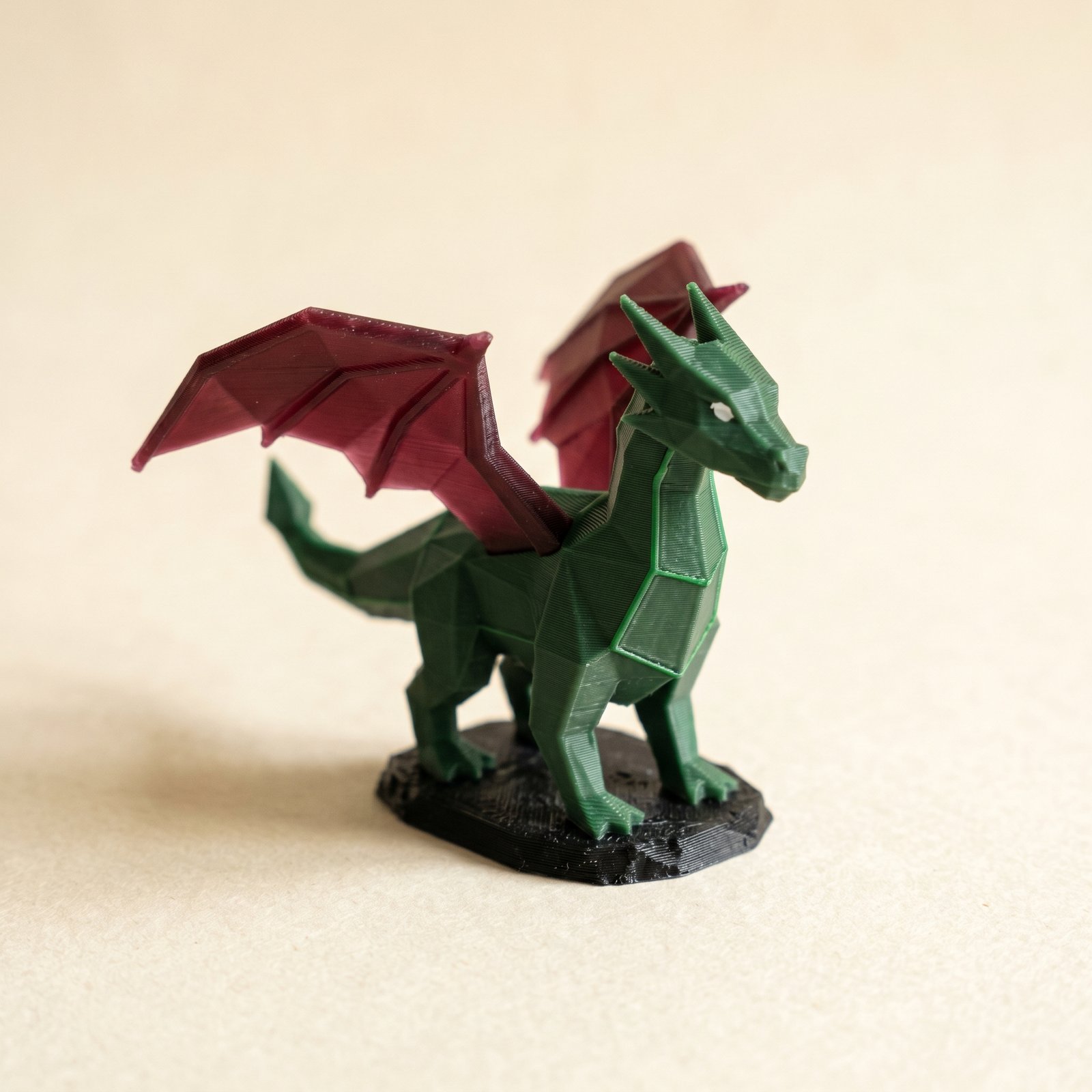
TL;DR: Layerpaint paints per-triangle colors on an STL, OBJ, or 3MF right in your browser, then exports a multicolor 3MF in Standard 3MF form that Bambu Studio, OrcaSlicer, and PrusaSlicer open natively — no install, no upload, no repainting in the slicer. This guide walks the whole job: drop in a model, pick your filaments, paint with the Region tool, refine with Brush and Wand, watch the swap counter, and export.
Why does per-triangle color matter?
A multicolor 3MF assigns a color to every triangle in the mesh, which is exactly what a multi-color printer needs, since it can't guess which faces should be red and which gold. The 3MF Materials Extension stores exactly that: one color group per triangle, so the slicer maps each painted region to a physical filament slot. Without it, the printer treats the whole model as a single color.
Multi-color 3D printers don't "know" which part of a model should be red and which should be gold. They need instructions — specifically, a color assignment for every triangle in the mesh. That's what the 3MF Materials Extension does: it stores a color group per triangle so the slicer can map each region to a physical filament slot.
The problem? Most STL painters either require a desktop install, upload your model to a cloud server, or produce files your slicer can't read. Layerpaint runs entirely in the browser, keeps your mesh on your device, and exports a Standard 3MF that Bambu Studio, OrcaSlicer, and PrusaSlicer all accept natively.
Step 1 — Open the painter and drop in your model
Head to layerpaint.app/app and drag your STL, OBJ, or 3MF file onto the page. Layerpaint loads the mesh, welds duplicate vertices, and detects crease edges automatically. Within a second or two you'll see your model rendered with a neutral grey material, ready for color.
Layerpaint handles STL, OBJ, and 3MF. If your model came as a 3MF with an existing paint job, Layerpaint will restore it — so you can pick up where you left off. Not sure what's actually in the file you downloaded? Drop it on the free STL viewer first and look at it in 3D — it reads STL, OBJ and 3MF, and nothing is uploaded.
Step 2 — Pick your filaments
The palette on the left shows up to 16 color slots. Click any chip to open the filament library — a curated collection of real-world filament colors from Bambu, Polymaker, Prusament, Overture, Sunlu, eSUN, Elegoo, Creality, and even Citadel / Vallejo paint references for miniature painters.
Choose the filaments you actually have loaded in your AMS or MMU. This matters because the swap counter (more on that below) calculates purge waste based on the order of your palette, which maps directly to your physical filament slots.
Step 3 — Paint with the Region tool
Switch to the Region tool (keyboard shortcut 1). Layerpaint has already auto-partitioned your mesh along crease edges — so a helmet, a sword hilt, or a belt buckle becomes a single clickable region.
Click a region, then click a palette color. Done. That entire surface is now painted. For most miniatures and mechanical parts, you can color the whole model in under a minute with just the Region tool.
Adjust the crease angle slider if regions are too aggressive (splitting a smooth surface into too many parts) or too conservative (lumping separate features together). Changes re-partition the mesh in real time.
Step 4 — Refine with Brush, Wand, and Snap
Not every surface breaks cleanly at a crease. For the in-between areas, Layerpaint gives you three precision tools:
- Brush (
2) — paint freehand with an adjustable radius. Use depth control to limit which layer heights get color, and snap-to-crease to keep your strokes from bleeding across edges. - Magic wand (
3) — click to flood-fill a connected flat region. The wand stops at creases, so it's perfect for broad surfaces that the region tool split unnecessarily. - Snap-to-crease brush — hold
Shiftwhile brushing to make the brush snap to the nearest crease edge, giving you razor-sharp color boundaries even on complex organic surfaces.
Step 5 — Check the swap counter
Every filament swap costs time and material. Layerpaint's swap counter shows a live per-layer tally of how many color changes your paint job will require. You can also use the layer scrub to preview exactly which colors appear at each print height — catching problems before you waste filament.
If the swap count is high, palette order is usually the reason: colors that share layers should sit in adjacent slots. Reordering the palette can cut swaps by 20-30% on the same paint job.
Step 6 — Export the Standard 3MF
Hit Export 3MF. Layerpaint builds a multicolor 3MF with per-triangle color groups using the Materials Extension (<m:colorgroup>). This is the same format that Bambu Studio's Standard 3MF Color Parsing dialog expects — no conversion, no re-painting on the slicer side.
The file downloads instantly. Your mesh never left your device.
If you only want the file format changed rather than a paint job, the free STL to 3MF converter turns an STL into a 3MF without any of the above.
Step 7 — Slice and print
Open the 3MF in your slicer:
- Bambu Studio — When you open the file, Bambu Studio detects the color data and maps each palette slot to an AMS position. Verify the mapping, slice, and send to your printer.
- OrcaSlicer — Same flow. OrcaSlicer reads the Materials Extension natively and shows filament assignments in the preview.
- PrusaSlicer — Open the 3MF, assign the colors to your MMU3 / MMU2S / XL toolchanger slots, and slice.
That's it: the multicolor 3MF is sliced and printing.
Which slicers can open a multicolor 3MF from Layerpaint?
Any slicer that reads the 3MF Materials Extension. Bambu Studio, OrcaSlicer, and PrusaSlicer all open a Layerpaint export natively and map each color group to a filament slot — Bambu through its Standard 3MF Color Parsing dialog, OrcaSlicer and its forks (Anycubic Slicer, Creality Print) straight from the import, and PrusaSlicer onto MMU2S / MMU3 / XL slots. No plugin, and no repainting on the slicer side.
Common questions
Does Layerpaint work with the Anycubic ACE Pro or Creality CFS?
Yes. Any slicer that reads the 3MF Materials Extension will pick up the colors. The OrcaSlicer-based forks bundled with the ACE Pro and CFS both support Standard 3MF color parsing.
Can I paint more than 16 colors?
The current limit is 16 palette slots, which matches the maximum most multi-filament systems support in a single print. If you need more, you can paint in batches and combine the prints.
What about symmetry?
Layerpaint supports mirror painting — paint one side and the other side gets the same color automatically. Essential for symmetrical miniatures and mechanical parts.
Try it now
Layerpaint is free to try — no account, no install, no upload. Drop an STL on the painter and start your first multicolor 3MF. When you're ready to export, your first export is free, then $6.97 for 10 exports or $39.97 unlimited. No subscription.
Happy printing. 🎨