To paint a 3MF with several plates in Layerpaint, open the file and check for Switch plate. Use that control to choose the plate you want to paint. When you need a file with all the plates, use Export 3MF.
Save and Save As make a .layerpaint file of the active plate only. They are not a backup of the whole multi-plate job. Keep your original 3MF until you have checked the new export in your slicer.
This guide is for a Bambu Studio or OrcaSlicer 3MF project with more than one plate of models. A plate here means a group of models laid out for a print. You need that project file and a slicer to check the result. Start in the Layerpaint painter on a desktop or laptop.
Check that the plates loaded
- Open your original 3MF in your slicer first. Note the plates that have models on them and what belongs on each.
- In Layerpaint, use Open… to load the 3MF, or drag the file onto the model area.
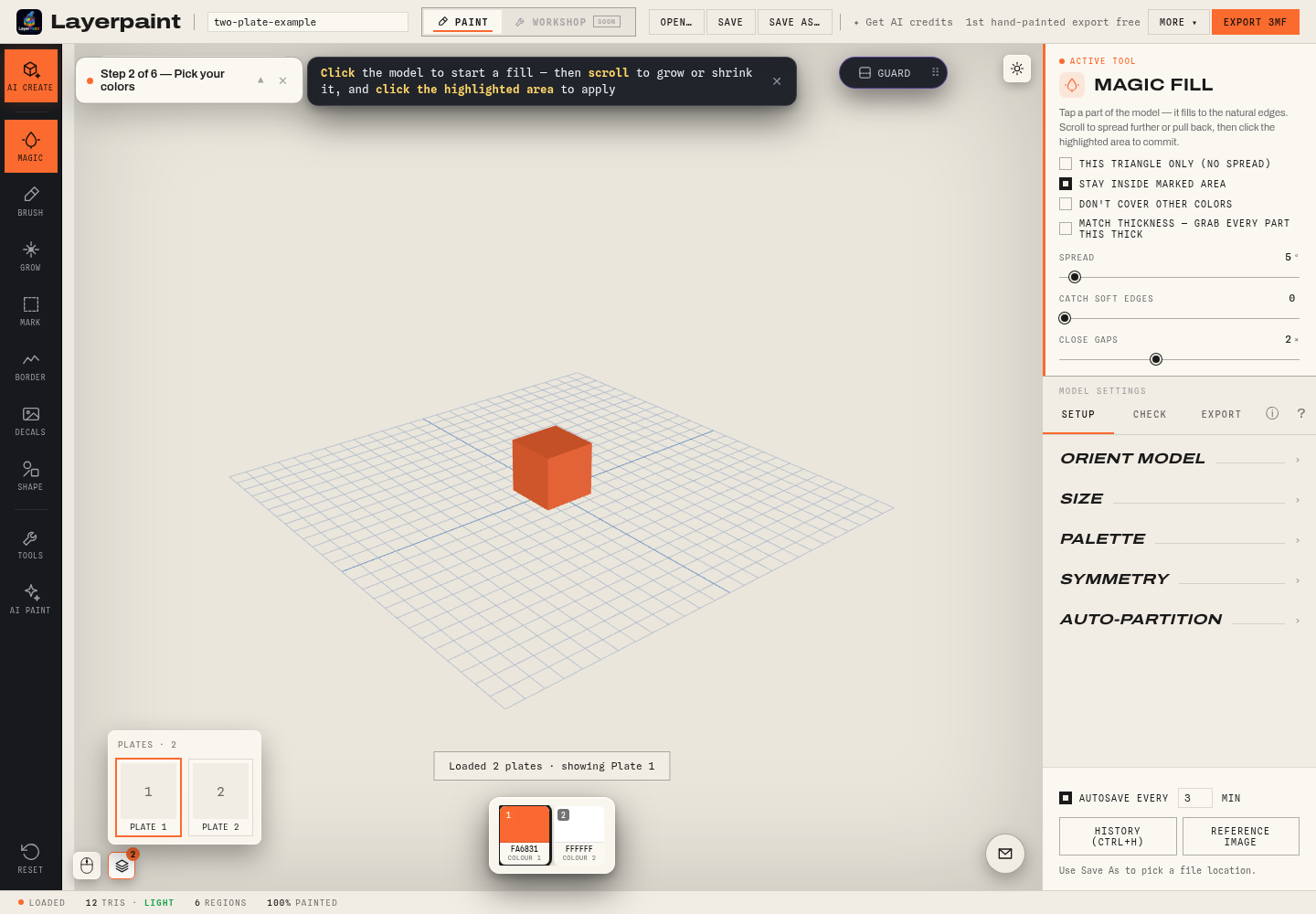
- Look near the bottom left of the model area for the stacked-plates icon. Its label is Switch plate. Click it to see the plate choices.
- Compare those choices with your notes. Select each plate and check the models before you start painting.
The app reads plate groups from Bambu and Orca project data. It skips empty plates. A file with no readable plate groups can load as one combined mesh instead. If the plate choices you need are missing, stop and check the source file in your slicer. A .3mf name alone does not show that the app can read its plate layout.
Paint one plate, then move to the next
Choose a plate, pick a color, and paint the area you want to change. The Brush guide covers brush size and controls. Use Switch plate again to move to another plate. Layerpaint keeps each plate’s paint in the open session when you switch.
For example, suppose your project has a figure on Plate 1 and its base on Plate 2. Paint the figure, switch to Plate 2, and paint the base. Then return to Plate 1 to check the figure. This is a work plan, not a tested print.
Check the model in the main view after each change. The small plate pictures come from the imported file, so they are not proof of your latest paint. Switching plates also starts a fresh undo history for the plate you load. Finish any undo steps before switching.
Export the whole job before closing
Use Export 3MF for the multi-plate file. This export path carries paint from the plates back into the original 3MF archive. Follow the export prompts and check that the file has downloaded. Review the app’s current export terms before you invest time in a large job.
Do not rely on autosave for the whole job: Layerpaint skips autosave while a multi-plate session is open. A manual .layerpaint save holds only the current plate. If you need to keep working on the full job later, keep the exported 3MF and verify it before closing the session.
Check every plate in the slicer
Open the exported 3MF as a project in your slicer. Compare it with the original and your plate notes:
- Are the expected models on each plate?
- Does each painted area have the color you chose?
- Are the printer, filament choices and model positions right for this job?
Slice each plate you plan to print and inspect its preview. Check the actual spool assigned to each color. Layerpaint’s guided export checks cover the active plate only; they do not verify the other plates for you.
Keep the original and the painted export as separate files until these checks are done. For the export controls and next steps, see the 3MF export guide. The workflow above was checked against the live app’s source on October 6, 2026. The example confirms plate loading and switching; it does not establish a print result or support for every 3MF variant.