Start with a list of model parts and the color you want for each one. Use the filament color matcher to find a candidate for each color. Then write down the exact filament name beside the part. Keep that list open when you paint and slice the model.
This guide is for planning a model with several colors. You need a model, a color list or reference image, and a print setup that can use your chosen filaments. The worked plan below is an example, not a tested print.
Give each color a job
Before looking for spools, name the parts you want to color. “Teal body, white eyes, dark pupils” is a more useful plan than three loose color codes. A hex code is a color value such as #2AA198.
For this made-up figure, start with these three targets:
- Body: teal,
#2AA198. - Eyes: white,
#FFFFFF. - Pupils: black,
#000000.
These are chosen design colors. They are not measurements of real filament. If you want the base to share the body color, put both parts on the same line of your plan.
Find one candidate at a time
- Open the color matcher. Paste
2AA198in the hex field beside the color swatch. - Read the top result under Closest filaments. Record its brand, line, color name and hex code.
- Use Brands to narrow the list if you only want certain brands. Click All brands to clear that choice.
- Repeat for white and black. Keep each target code beside its chosen filament, so you can tell the two apart.
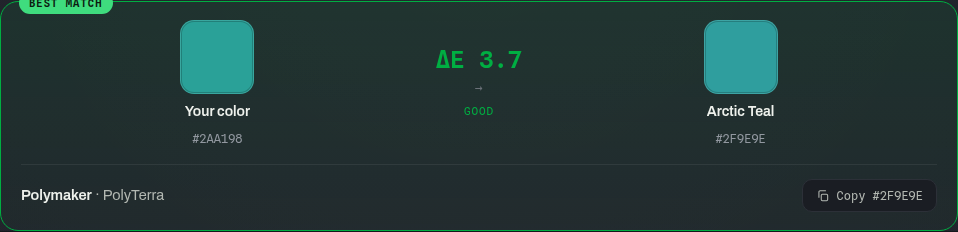
On October 2, 2026, the live tool ranked Polymaker PolyTerra Arctic Teal, #2F9E9E, first for this teal target with all brands selected. Its displayed score was ΔE 3.7. That is a result from the tool’s color library, not a measured print match.
Check the material before choosing the color
The matcher ranks stored color values. Its score does not check whether a filament suits your printer or the other materials in your job. A lower ΔE means a closer match between those stored values; it does not certify the finished print.
The brand filter shows why this matters. For the same teal target, choosing only Bambu returned a color named Teal in the PETG Translucent line. Do not choose that result for a planned PLA job just because the color looks close. Check the maker’s material and printer guidance before buying.
Write a short record for each part: part → target code → chosen brand, line and color → spool you will load. Leave a choice open if you cannot confirm the material or find the spool. The top color result is a candidate, not an order list.
Review the whole palette
Put your chosen colors side by side. For the example figure, ask whether the pupils will stand out from the eyes and whether the body is the teal you want. If you have samples, compare them together before committing to the full model. For an exact color requirement, make a small test print and approve that result first.
You can also use Match from a photo in the tool, then click the part of the image you want to sample. Treat the sampled code as a target from that image. It is not a measurement of the object in the photo.
Carry the plan into the model and slicer
Once you have chosen the filaments, open the Layerpaint painter to color the model. Use the 3MF export guide for the next stage. The matcher is free. Check the app’s current terms for 3MF export before you start.
In your slicer, check which filament is assigned to each part. A preview color and a loaded spool are separate things. For example, PrusaSlicer lets you change a preview color and assign an extruder, as shown in its guide to assigning tools and colors.
Before printing, compare the sliced view with your part list: teal body, white eyes, black pupils. Then check the actual spools and their assignments. Keep the plan with the model so you can use the same choices next time.