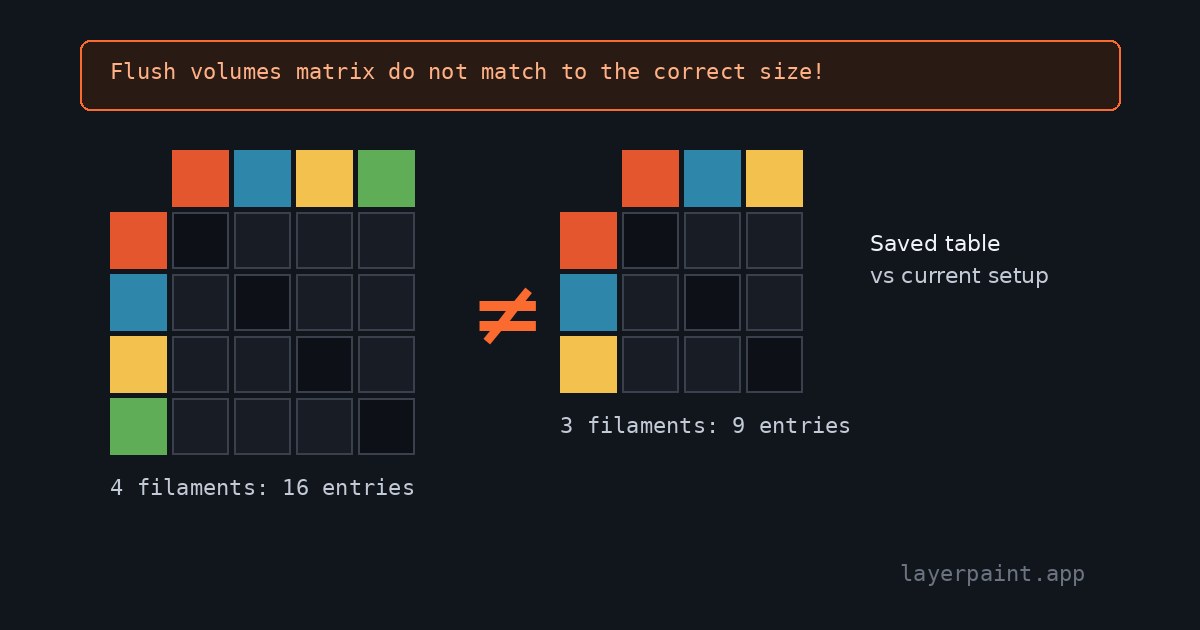
Quick answer: “Flush volumes matrix do not match to the correct size!” means the saved flush table has the wrong number of entries for your current printer, nozzle and filament setup. Save a copy of the project, check the printer and filament list, then rebuild the table from the Flushing volumes dialog. Changing purge amounts won’t fix it, because that doesn’t change the table’s size.
What the error means
A flush table stores a purge amount for every change from one filament to another. When Bambu Studio builds the G-code, it runs a size check on that table. If the number of saved values doesn’t fit the current setup, slicing stops with this error.
The count is simple. Four filaments means four rows and four columns in one nozzle block: 16 entries. Three filaments means nine. Multi-nozzle setups need more than one block.
So the error usually shows up when the project’s filament count or printer setup changed but the saved table didn’t follow.
Check the project in this order
- Keep the original. Save a separate copy before you touch printer settings or flush values. Note the slicer version and the exact error text.
- Check the printer setup. Compare the selected printer and nozzle setup with the machine you’re printing on. If you switched printer profiles just before the error, that’s your prime suspect.
- Check the filament list. Count the filaments in the project list, not the spools in the printer. Keep any entry a painted area still uses.
- Rebuild the table on the copy. In Bambu Studio, open Flushing volumes. Write down any custom values first. Click Re-calculate, accept the dialog, then slice again. Accepting the dialog writes the table back at the current size.
If the error clears, check the sliced colours and filament assignments before you print. If it doesn’t, keep the failed copy for the next step. Don’t guess purge values just to make the message go away.
OrcaSlicer: a known profile bug
OrcaSlicer issue 15222 reports this exact error after a printer-profile reset in a development build. Starting a new project didn’t help.
The merged fix explains why: turning on Single Extruder Multi Material could leave the table sized for the previous extruder count. The fix checks the table against the current setup.
If your error started after that change, check your version against the fix and the release notes. A merged fix doesn’t mean your installed release has it yet.
If the model came from Layerpaint
A Layerpaint 3MF carries the colours and filament types, but no flush table. The slicer builds that table itself once the file is in your project, so repainting the model won’t fix a size error. Keep your painted source file as well as the exported 3MF. Re-export with Export 3MF only if you need to change colours, then check the printer and filament setup in your slicer again. The 3MF export guide covers that step.
Still won’t slice?
Gather the project copy, slicer version, printer profile, filament count and exact error. Note whether it started after an import, a profile change or a reset. Report it to the slicer’s project with a file you’re allowed to share.
If the table is the right size but every value is zero, that’s a different problem. See the flush multiplier zero fix.
Checked against the Bambu Studio source and the OrcaSlicer bug report and fix, October 2026.