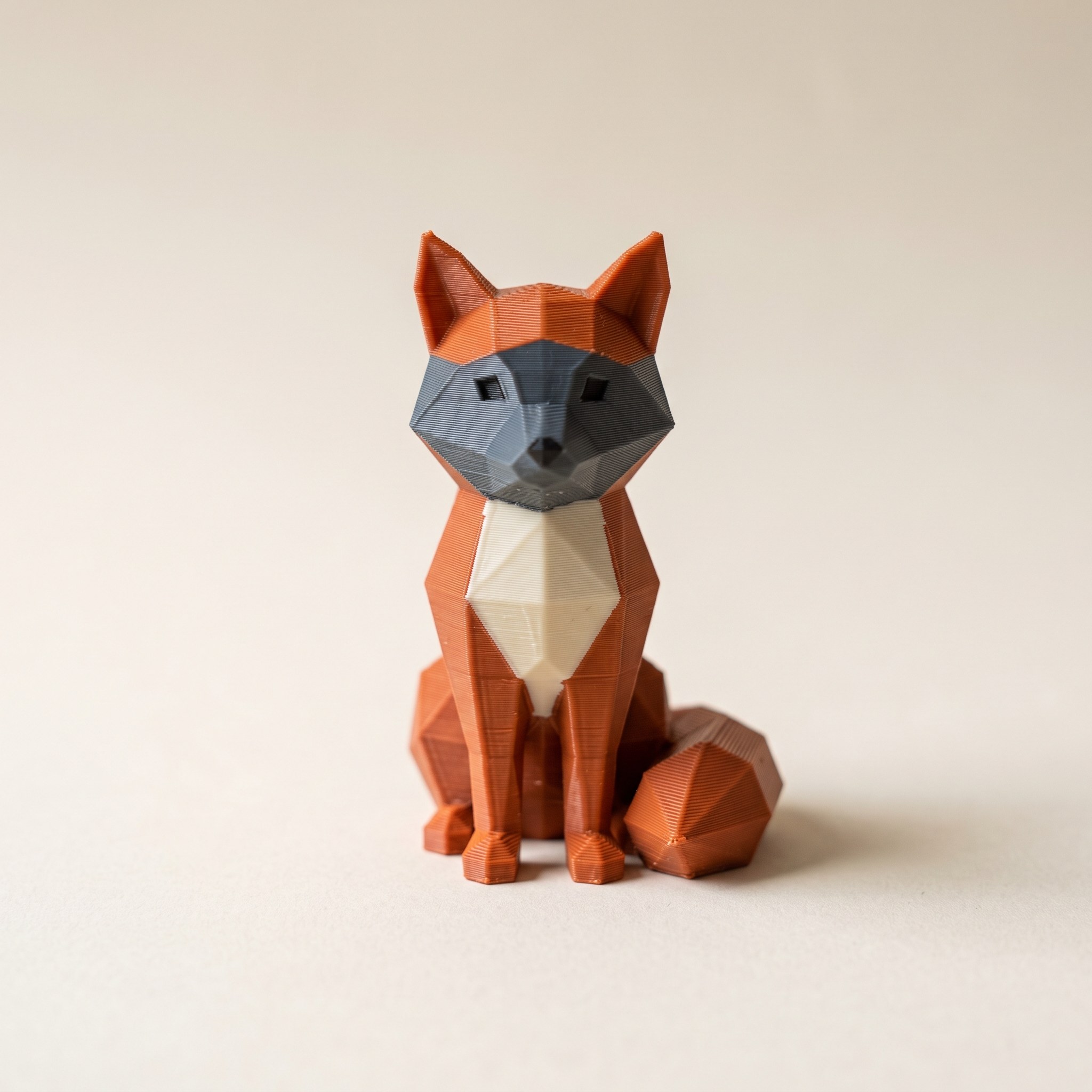
TL;DR: A 3MF file is a ZIP archive built for 3D printing: one package holding the mesh plus the units, colors, and materials that STL throws away. Every major slicer opens it natively. This guide covers what's inside the archive, how to open or convert a 3MF file, and why a "project" 3MF saved by your slicer behaves differently from a standard one.
What is a 3MF file?
A 3MF file (3D Manufacturing Format) is a ZIP archive that stores everything a 3D print needs in one package: mesh geometry, real-world units, per-triangle colors, materials, a thumbnail, and metadata such as author and license. The 3MF Consortium published the format in 2015 as a replacement for STL, which stores bare triangles and nothing else. Bambu Studio, OrcaSlicer, PrusaSlicer, and Cura all open 3MF files natively, and both MakerWorld and Printables distribute models in the format.
The format exists because STL, written in 1987, predates everything a modern printer does. An STL has no units, so your slicer has to guess whether a model is 20 millimeters tall or 20 inches. It has no color and no material data, and it repeats every vertex once for each triangle that touches it. The 3MF Consortium (Microsoft, HP, Autodesk, Prusa Research, and most of the slicer vendors) designed 3MF to fix all of this in one format: an XML description of the model, zipped, with published extension points for anything a vendor needs to add.
What's inside a 3MF file
Rename a copy of any .3mf to .zip and open it. The file that matters is 3D/3dmodel.model, an XML document containing the whole model. Three things are worth noticing in there:
- The
<model>element declares aunitattribute, millimeter by default. That one attribute is why a 3MF file never imports at the wrong scale. - Vertices are listed once and referenced by index instead of repeated per triangle the way STL repeats them. The same mesh usually ends up a fraction of its STL size once zipped.
- Painted models carry a
<m:colorgroup>block from the 3MF Materials Extension: a list of colors plus a per-triangle reference into that list. This is the entire mechanism behind printing a multicolor model from a single file.
Alongside the model XML you'll often find a PNG thumbnail (the preview your slicer shows before loading) and a metadata block naming the author and license.
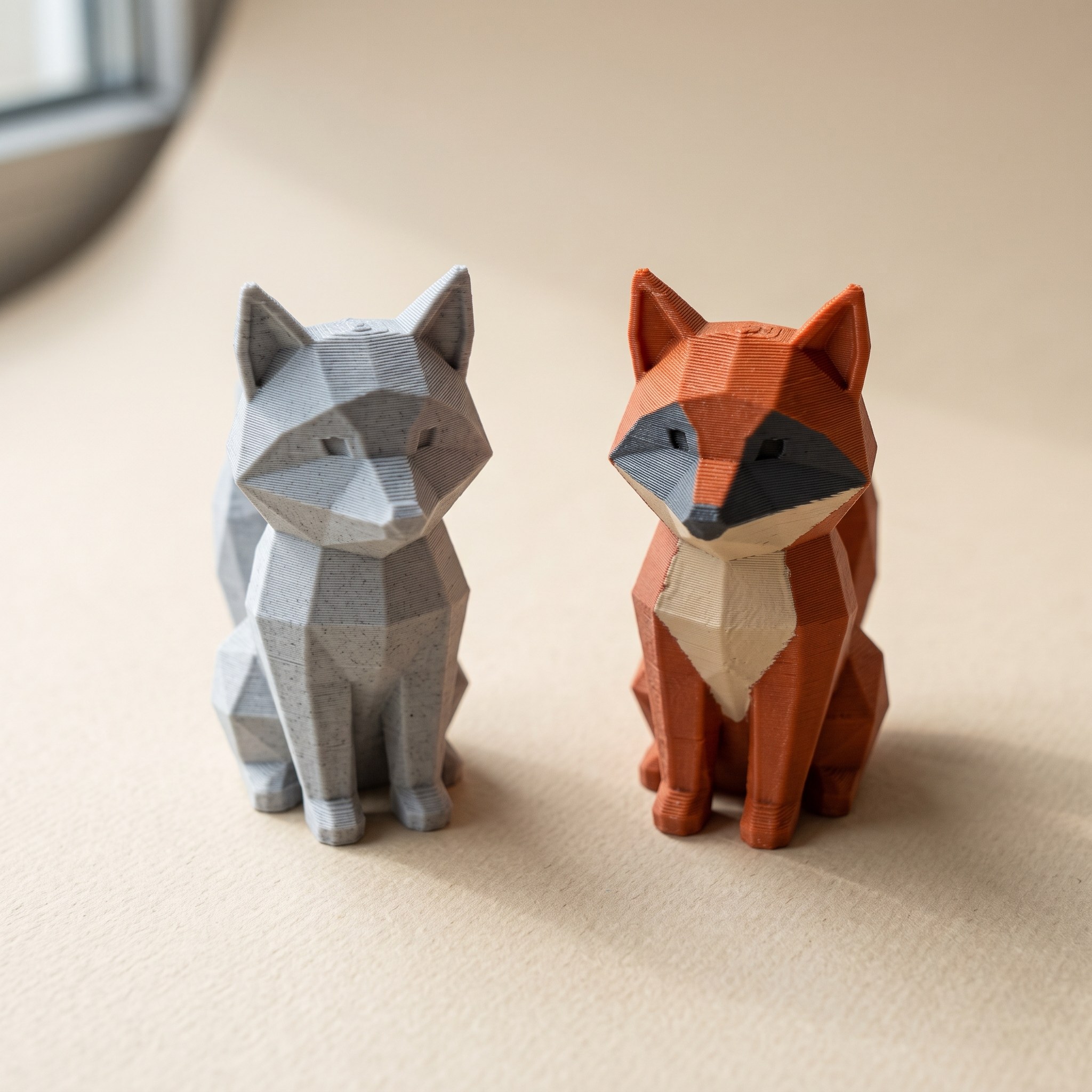
The rename-to-zip trick is the fastest way to check whether a downloaded 3MF file actually contains color data. No <m:colorgroup> in 3D/3dmodel.model means the model loads in a single color, whatever the listing photos promised.
How do you open a 3MF file?
Drag it into any modern slicer. Bambu Studio, OrcaSlicer, PrusaSlicer, and Cura all read 3MF files directly without a plugin. To look at a model without installing anything, use a browser viewer: Layerpaint's free STL viewer opens 3MF, STL, and OBJ locally and never uploads the mesh. And because a 3MF file is a ZIP archive underneath, renaming a copy to .zip lets you inspect the raw contents in any file manager.
For a quick look before you commit filament, drop the file on the free STL viewer. It reads 3MF, STL, and OBJ in the browser, and the mesh stays on your device.
One dialog worth knowing about: when Bambu Studio imports a 3MF file with color groups that it didn't save itself, it shows the Standard 3MF Color Parsing prompt and maps each color group to an AMS slot. That's the normal path for painted files, not an error. The walkthrough in your first multicolor 3MF covers the whole paint-to-print flow, dialog included.
Project 3MF vs standard 3MF
Here's the part that trips people up: two files can both end in .3mf and behave nothing alike.
A standard 3MF sticks to the published spec. Geometry, units, materials, colors. Any compliant slicer reads it the same way. A project 3MF is what Bambu Studio or PrusaSlicer writes when you hit Save: the same container, plus that vendor's own extensions carrying plate layout, print profiles, and machine settings. Prusa's write-up on the format is open about this design: the project file is a superset, and other slicers simply skip the parts they don't understand.
That's why a MakerWorld print profile opens in Bambu Studio with plates and settings intact, but only the models survive a trip into a different slicer. Neither file is broken. They're two dialects of the same container.
Layerpaint exports the standard kind, with colors written to the Materials Extension, precisely so the file opens in every slicer instead of just one.
Converting a 3MF file
Conversion runs in the browser in both directions. The free 3MF to STL converter unpacks the archive and hands you plain triangles for tools that only read STL. Color and units don't survive that trip, since STL has nowhere to put them. The STL to 3MF converter goes the other way and wraps your mesh in the newer container. For when each format is the right choice, 3MF vs STL has the full comparison.
Common questions
Is a 3MF file better than STL?
For printing, yes. It's smaller, it carries units so scale is never ambiguous, and it stores the colors and materials a multi-filament printer needs. STL still wins on support in older mesh software, which is why both formats persist.
Why does my 3MF file open without print settings?
It's a standard 3MF. Print settings aren't part of the core spec; they only ride along in project files saved by a specific slicer. A geometry-only 3MF file isn't missing anything. It carries the model and leaves the settings to you.
Can one 3MF file hold multiple objects?
Yes. The core spec supports multiple objects, each with its own position on the build area, which is how slicer project files remember your plate arrangement. An STL can contain several shells too, but with no names and no positions, so most slicers import it as a single object you then have to split apart.
How do I add color to a 3MF file?
Paint it. Layerpaint loads an STL, OBJ, or 3MF in the browser, lets you assign a filament color to each region of the mesh, and exports a standard 3MF file with the color groups written in. If the file already had a Layerpaint paint job, it restores it so you can keep editing.
Try it now
Layerpaint runs in your browser, and your model never leaves your device. Drop in a 3MF, STL, or OBJ, paint it per region in minutes, and export a standard 3MF that Bambu Studio, OrcaSlicer, and PrusaSlicer open with the colors intact. Your first export is free. After that, one-time unlocks start at $6.97, or $39.97 covers unlimited exports forever. Start at layerpaint.app/app.