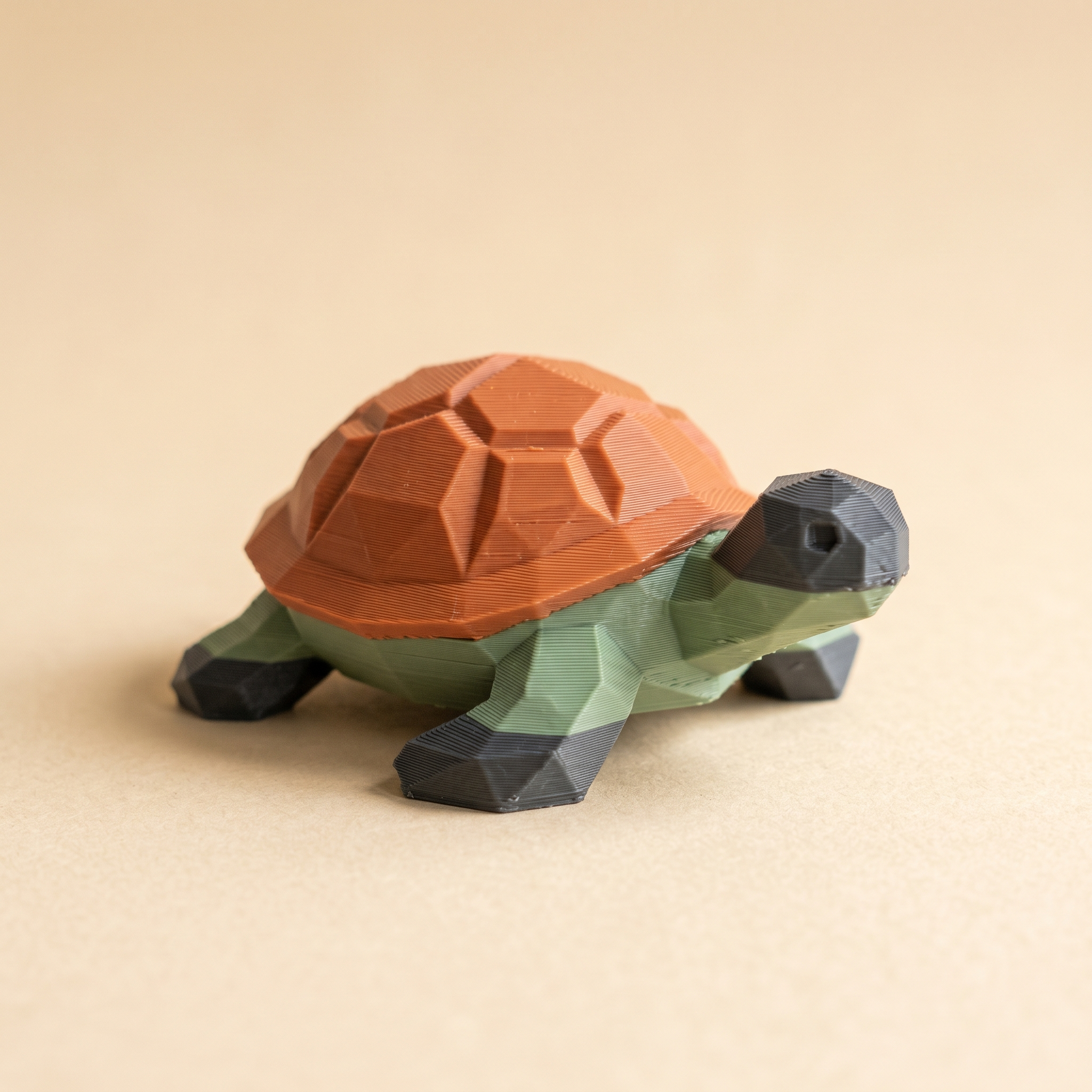
TL;DR: A painted 3MF swaps filament far more than a single-color print, and each swap dumps purge into a tower beside the part. Turn on flush into infill and 'Flush into objects' in Bambu Studio and that purge goes into the model's walls and infill instead, often shrinking the tower to nothing. Here's where to find them, how much they save, and when to leave them off.
Why does a painted 3MF swap filament so much more than a single-color print?
Per-triangle painting splits a mesh into many small color zones, and every new color on every layer is one filament change. A six-color figure can pass 80 swaps over a four-hour print, and at Bambu's default 90 to 120 mm³ flush per swap that's 8 to 10 g of filament sent to a purge tower beside the part — sometimes heavier than the model itself.
Per-triangle painting splits a mesh into many small color zones. Each new color on each layer is one filament change. A six-color chibi figure with bow accents, hair highlights, and a separated base can pass 80 swaps over a four-hour print. The Standard 3MF tells Bambu Studio exactly which AMS slot belongs to which face, so the slicer purges between every region.
Bambu's default flush volume is around 90–120 mm³ per swap on PLA. Eighty swaps puts roughly 8–10 grams of filament into a purge tower next to the part, plus the print time to lay that tower one layer at a time. On small parts the tower can outweigh the actual model.
The two flush into infill settings that route purge into the part
Open the painted 3MF in Bambu Studio. Accept the Standard 3MF Color Parsing dialog. Switch the right-hand panel to the Process tab and scroll to Others. Two checkboxes sit together:
- Flush into objects — sends transition filament into the inner walls of objects on the build plate, hidden behind the outer wall.
- Flush into objects infill — sends transition filament into the sparse infill region, where it does not show from the outside on a sealed part.
Both can be on at the same time. The slicer prefers to flush into infill first, then walls, then falls back to the tower for any leftover volume. Bambu's wiki page on reducing filament-change waste documents both options.
Apply it to a Layerpaint 3MF in three clicks
- Export your painted file from Layerpaint with Export 3MF.
- Drag it into Bambu Studio. Accept the Standard 3MF Color Parsing prompt so the slot mapping locks in.
- In the Process tab, under Others, tick both Flush options. Re-slice.
The slicer preview is the easiest verification. Scrub the layer slider and watch the purge tower shrink, or vanish entirely on parts with enough infill volume.
Ticking these boxes does not change the Flush volume itself. Bambu still uses the same amount of filament to purge between two colors. It just sends that filament somewhere useful. If you want the full saving, also drop the per-pair Flush volume in the Filament settings to the minimum that still produces clean transitions. Calibrating flushing volumes for a painted 3MF covers how low each pair can go.
How much filament this actually saves
A typical Layerpaint job with five active filaments and 50 swaps:
- Tower-only default: 5–7 g of dedicated purge filament plus the print time for the tower itself.
- Flush into objects infill on: 1–2 g of leftover purge tower, the rest absorbed by sparse infill.
- Both options on, infill set to 15%+: most prints get a zero-height tower. Bambu hides everything inside the part.
The savings scale with infill density. Below 10% infill the slicer runs out of places to flush into infill fast, so the tower comes back. The number of swaps is the other lever: reordering your palette cuts how much purge each layer generates in the first place.
When to leave the toggles off
Both options route a different color of filament through the part. Sometimes that color photographs through to the outside. Cases to skip:
- Translucent or clear filament. PETG-T, glass-clear PLA, polycarbonate. The wrong-color infill reads through the wall.
- Light pastel exterior over a saturated interior. A deep purple flush bleeding through a pale yellow wall shows up as patchy shading.
- Thin walls under 0.8 mm. Three perimeters or fewer and infill color photographs through under direct light.
- Lithophanes, lampshades, and anything backlit. The part is supposed to let light through. A pocket of off-color filament inside the wall becomes a visible defect.
For risky parts, keep Flush into objects infill on (it lives deep inside the model) and turn Flush into objects off (it targets the inner wall, which sits much closer to the surface).
Common questions
Does OrcaSlicer have the same flush into infill settings?
Yes. OrcaSlicer ships with the same two flush into infill toggles in the same Process tab under Others. Naming is identical. The savings on a Layerpaint 3MF are the same.
What about PrusaSlicer for MMU3 or XL?
Different feature name, same idea. PrusaSlicer has Wipe into infill and Wipe into object as per-object checkboxes. Right-click the object in the 3D view, then enable them from the context menu. Works for MMU3, MMU2S, and the XL toolchanger.
Will this change the painted colors on my 3MF?
No. The face-to-slot mapping in your Layerpaint export is untouched. Only the destination of the purge filament moves. Your blue stays blue and your red stays red.
Try it now
Open a painted file from the painter, export the 3MF, drop it in Bambu Studio, and turn on flush into infill. Watch the purge tower drop in the slicer preview. Layerpaint is free to paint with; your first 3MF export is free; after that, $6.97 for 10 exports or $39.97 unlimited, no subscription. The waste savings on the slicer side are free either way.