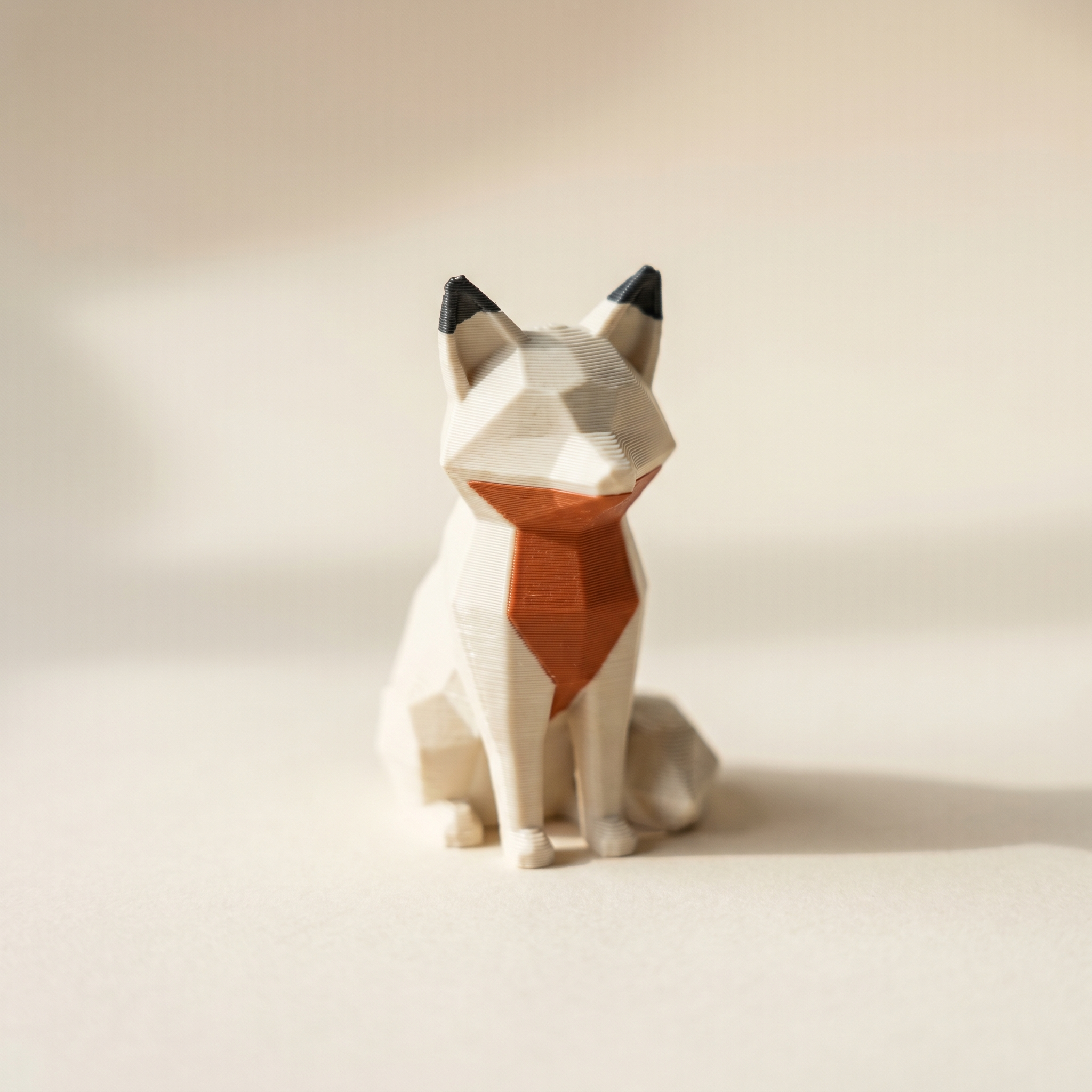
TL;DR: If Bambu Studio's Standard 3MF Color Parsing dialog puts your colors on the wrong parts, it's almost always a slot-order mismatch, not a broken file — the slicer pairs color groups to AMS slots by order, not by hex. Here are the three failure modes and the painting-side habit that prevents all of them.
What is the Standard 3MF Color Parsing dialog actually doing?
It reads the colorgroup block in the 3MF — each group is a hex value plus a list of triangle indices — and assigns each group to an AMS slot by order, not by hex value. Group 0 goes to slot 1, group 1 to slot 2, and so on. If your painter wrote the groups in a different order than your loaded filaments, the colors land on the wrong parts even though the file itself is correct.
When you open a painted 3MF in Bambu Studio, the Standard 3MF Color Parsing dialog reads the <m:colorgroup> block inside the file, defined by the 3MF Materials and Properties Extension. Each color group is a hex value plus a list of triangle indices. Bambu Studio takes those groups, lines them up against your loaded AMS filaments, and assigns each group to a slot.
That is the part that goes sideways. The slicer matches groups to slots by order, not by hex value. Group 0 goes to AMS slot 1, group 1 to slot 2, and so on. If your painting tool wrote the groups in a different order than the filaments you have loaded, your fox ends up wearing the wrong outfit.
Symptom 1 — colors are present but on the wrong parts
This is the most common failure, and it is almost always a slot order mismatch. The 3MF is fine. The painted regions are fine. The 3MF color parsing step is just pairing color group 0 with whatever filament happens to be sitting in AMS slot 1 today.
Fix it in the dialog: click each slot and remap it to the correct filament, the same way Bambu's multi-color printing guide maps filaments manually. Bambu Studio remembers the mapping for that file. It is annoying once. If you find yourself doing it on every export, the real fix is to set up your palette to match your AMS load order before painting. More on that below.
Layerpaint writes color groups in palette order. Slot 1 in your palette becomes group 0 in the 3MF. If your AMS has matte black in slot 1 but your Layerpaint palette has cream in slot 1, Bambu Studio dutifully paints the cream regions in black. The file is correct; the loaded filaments are out of order.
Symptom 2 — only the base color appears, the rest is unpainted grey
This one usually means the file is not a Standard 3MF. Bambu's "Standard 3MF" parser only reads the Materials Extension <m:colorgroup> elements. A Bambu Studio project 3MF stores colors differently and will not round-trip through other painters. A file exported from a tool that only writes vertex colors, with no color-group block, also lands here.
Two checks:
- Open the 3MF as a zip and look at
3D/3dmodel.model. If you do not see<m:colorgroup>entries, the painter never wrote them. - Make sure the filename ends with
.3mf, not.bambustudio.3mfor a renamed project export.
If you painted in Layerpaint, the export already uses the Materials Extension and a <paint> block for round-tripping. The "Standard 3MF" path is the only one that ships out the front door.
Symptom 3 — the dialog never opens at all
If Bambu Studio loads the mesh as plain grey without prompting, two things to verify. First, your Bambu Studio version: the Standard 3MF Color Parsing prompt landed in 1.9 and improved through 2.x. Older builds silently dropped color groups they did not recognize. Second, the loaded filament count: if you have only one AMS filament configured, the dialog still appears but offers nothing to map. Load at least as many filaments as your file uses before opening it.
The painting-side prevention
You can avoid most slot-order rework by lining up your palette to your AMS slots before you paint:
- Open layerpaint.app/app and drop in your mesh.
- In the palette, add chips in the same order your AMS is loaded. Slot 1 first, slot 2 second, and so on. Removing a chip later unpaints every face that used it, so commit to the order up front.
- Use the filament library to pick the actual brand and SKU you have spooled — Bambu, Polymaker, Prusament, Overture, Sunlu, eSUN, Elegoo, Creality, or Hatchbox. Hex values write into the 3MF, so Bambu Studio's auto-match against your loaded filaments is much more likely to land on the right slot.
- Paint, export, open in Bambu Studio. The Standard 3MF Color Parsing dialog should match slot-for-slot with no remap needed.
Toggle Show swap bar on the right panel after you paint. The per-layer swap counter doubles as a sanity check on slot order: if your bottom layers swap every other layer, your palette order does not match the natural color stacking of the model.
Common questions
Does this affect OrcaSlicer and PrusaSlicer too?
Same Materials Extension, same matching behaviour. OrcaSlicer pops a similar import dialog. PrusaSlicer maps groups to MMU3 or XL toolchanger slots by order. The fix is the same: paint in the order you load.
What if I already painted in the wrong order?
Open the project file in Layerpaint, then remap inside the slicer once. Layerpaint does not yet support reordering palette slots after painting — removing a chip clears every face that used it. Use the slicer's per-slot dropdown as the one-time fix.
Why not just store the hex codes and skip the dialog?
The dialog exists because Bambu Studio cannot assume your loaded filaments match the painter's hex codes exactly. Two cream filaments from two brands are visually identical but live in different slots. The order-based map is a deliberate compromise.
Try it now
Layerpaint runs in your browser. Free to try, no upload, no account. When you are ready to export a Standard 3MF that Bambu Studio reads on the first try, your first 3MF export is free — after that it's $6.97 for 10 exports or $39.97 unlimited. No subscription.
Working with plain STL instead? Use our free 3MF ↔ STL converter — drag in a 3MF or STL, preview it in 3D, and download the other format. No upload, no signup.
Open the painter at layerpaint.app/app and paint in slot order. The dialog will stop fighting you.