Start with an STL, OBJ or 3MF model. Open it in the painter, choose AI Paint, then add a photo or type the colors you want. A photo guides the paint on an existing model. It does not build a new model in this tool.
AI Paint uploads your model and any reference photos for AI processing. Use files you are willing to send. You can paint by hand if you want to skip that upload.
The first AI generation is free, shared across the AI tools. It is not one free turn per tool. The app tracks this allowance by IP address, so a shared network may have used it. An AI-painted print file needs paid export access, even if the AI generation was free. AI credits and export credits are separate.
Open the painter and load your model. The steps below describe the full desktop painter.
Add photos or a prompt
- Click Open… and choose your STL, OBJ or 3MF file. Wait for the model to appear.
- Click AI Paint. To use photos, click a plus slot marked Front, Back, Left or Right and choose a PNG or JPEG. You can add up to four views.
- To use words instead, leave the photo slots empty. Type the colors and parts, such as green scales, gold horns, red crest, cream belly. This is a sample prompt, not a tested result.
- Set Colors for the paint job. The slider runs from 2 to 8. Start with the number of colors you plan to use.
- Click Paint it. Read any warning before you go on. Wait for the colors to appear on the model.
Photos override the prompt. When a photo is attached, the AI ignores the words in the prompt box. Remove all photos if you want to paint from words.
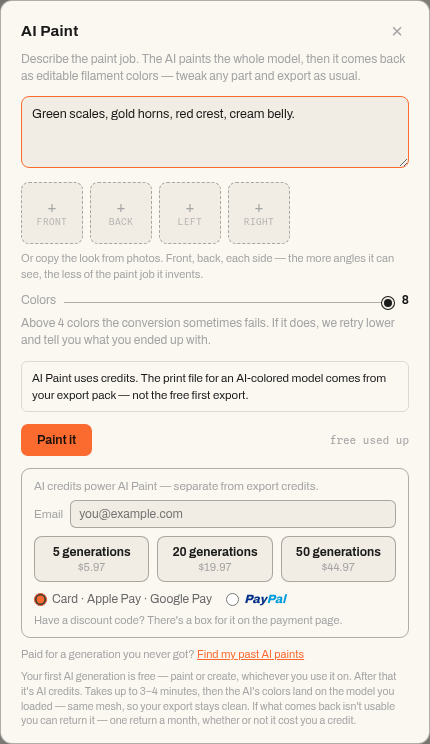
A photo can guide the look; it is not a promise of an exact match. Check parts that the photo does not show. The app may return fewer colors if it cannot convert the result at your chosen count.
Check and edit the paint
The returned colors become paint you can edit in the app. Turn the model to check its back and sides. Choose a color and use Brush to drag paint over a spot. Press Ctrl+Z (or Cmd+Z on Mac) to undo an edit.
Save a .layerpaint project with Save As… to keep an editable copy. This guide shows the setup controls. It does not show a completed AI run or a printed test.
What AI Paint costs
Prices checked in the live app on October 8, 2026, in US dollars:
- 5 AI credits: US$5.97.
- 20 AI credits: US$19.97.
- 50 AI credits: US$44.97.
After the shared free turn, an AI Paint run costs one AI credit. Buying AI credits does not pay for print-file exports. Check the export offer in the app before you buy.
Save the print file
When you are happy with the paint, click Export 3MF. AI-painted models need an export pack or paid unlimited export access. The free first hand-painted export does not apply.
The print file is a Standard 3MF. Follow the 3MF export guide to open it in your slicer and check the color assignments. Preview the sliced layers before printing. Paint on screen is not proof of a successful print.
Open the painter to try AI Paint, or read the AI Paint tool guide.