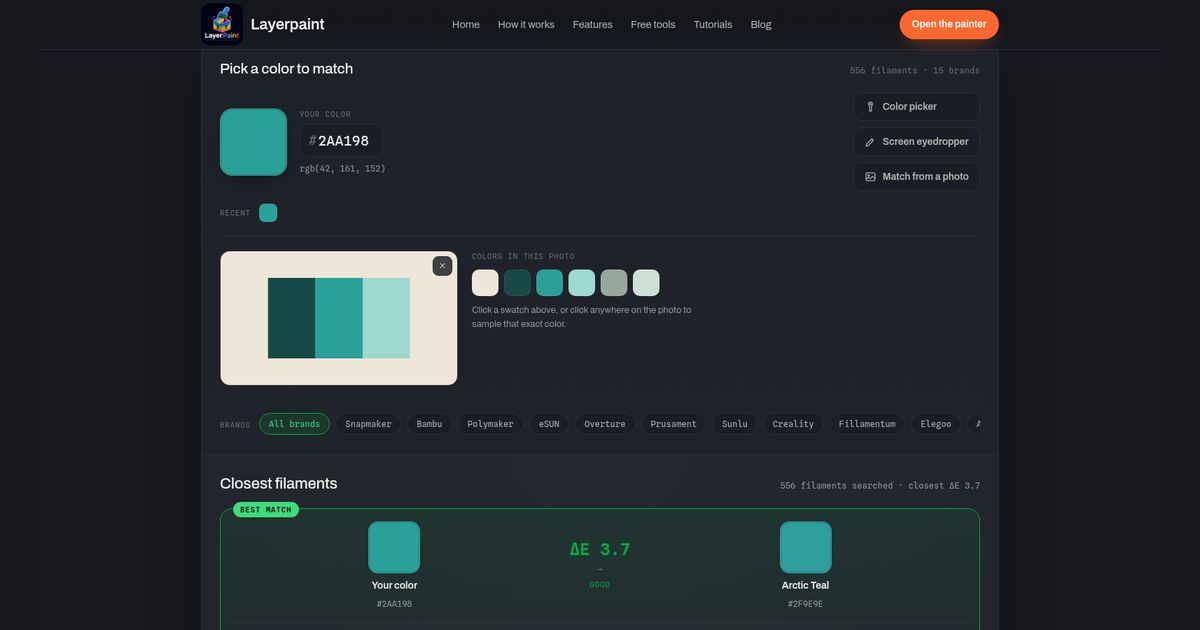
To match a filament color from a photo, open the filament color matcher, choose Match from a photo, and click the color you want in the image. Use the results to build a shortlist. Check a real filament sample before you rely on a close match.
Start with one part of the object, such as the green face of a badge. Decide whether you want the color shown in the picture or a match to the object itself. A photo alone cannot settle both questions.
Choose the part of the photo to sample
Keep the object in view and choose a clear patch of its main color. Avoid the background, a bright reflection, or a deep shadow unless that is the shade you want. Click a few nearby spots and compare the results before choosing one.
Light affects how a color looks. X-Rite explains this in its guide to color perception. Camera white balance also affects the colors in a photo; its ColorChecker Passport manual explains why a reference helps. The matcher reads the image you give it. It does not tell you how the object looks under a different light.
If you have the original logo file and its color code, use that code instead of sampling a photo of the logo. A hex code is a six-digit screen-color value, such as #2AA198. The hex palette guide covers that starting point.
Load the image and compare samples
- Open the matcher and click Match from a photo. Choose an image from your device.
- Click the patch you want in the image. Read the code beside Your color.
- Look at Closest filaments. Compare the named shades and their product lines.
- Click a nearby patch of the same object. Note whether the code and top result change.
- Choose the sample that shows the shade you mean. Copy the code beside Your color into your notes so you can return to it.
The photo sampling runs in your browser. The image is read locally. The page also offers swatches under Colors in this photo. These are extracted from the image; they are not a list of the object's materials. A background color can appear there too.
A click changes the target color
This browser check used a drawn image with three flat green patches. It is a sampling example, not a photograph or a test of printed plastic. Clicking the middle patch set the target to #2AA198. Clicking the light patch set it to #9ED8CF.
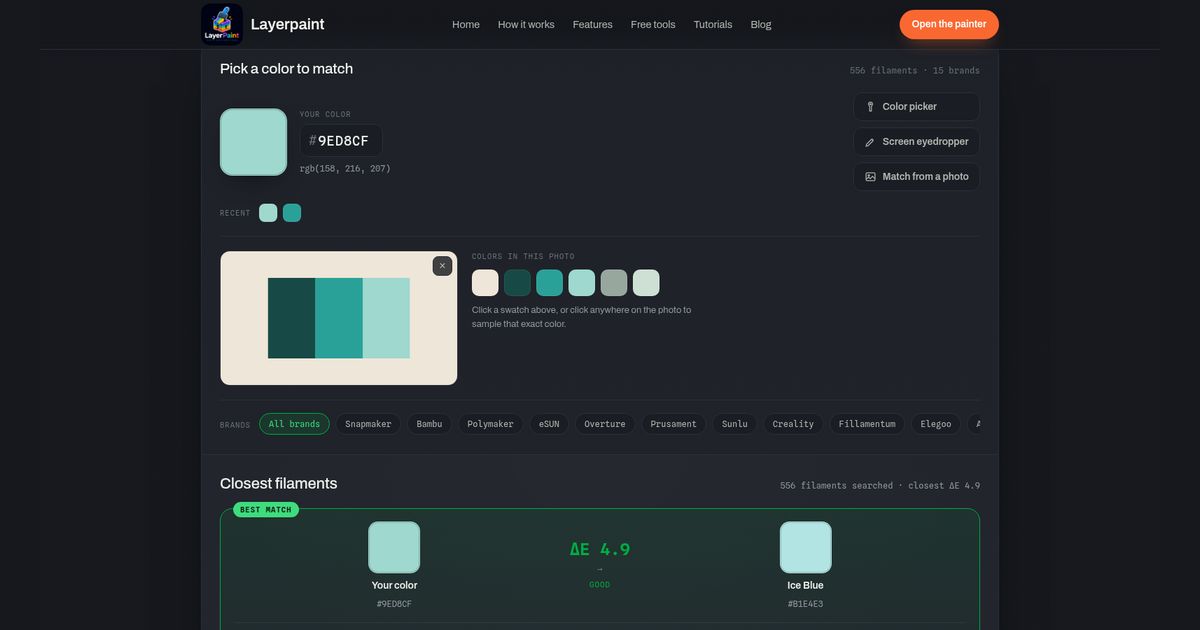
You can repeat the check with the sample image. Save it, load it through Match from a photo, and click the middle and light patches in turn. Read Your color after each click. This checks how sampling works; it does not prove that a spool matches either patch.

Read the result as a shortlist
The matcher ranks stored filament colors against the color you selected. Its ΔE number is a color-difference score. Within these results, a lower score means a closer match between those stored values. It does not measure the spool on your desk.
Use Brands to narrow the list if you only want certain makers. This changes the set being searched. A top result within one brand may differ from the top result across all brands.
For a part that must match an object in your room, compare a real sample beside that object in the light where it will be used. If you are replacing a known spool, the cross-brand filament guide is a better next step than taking a new photo.
Open a model with your chosen colors
Click Use this filament on the top match, or the + button on another result. Your choices appear under Filaments for this print. From there, choose Paint a model in these filaments to carry the palette into Layerpaint.
You still need a model to paint. Choosing a color from a photo does not turn the pictured object into a 3D model. Check the painter's current export terms before that separate step.
Open the matcher and compare two samples from your image. Keep the color code and filament name together in your notes.