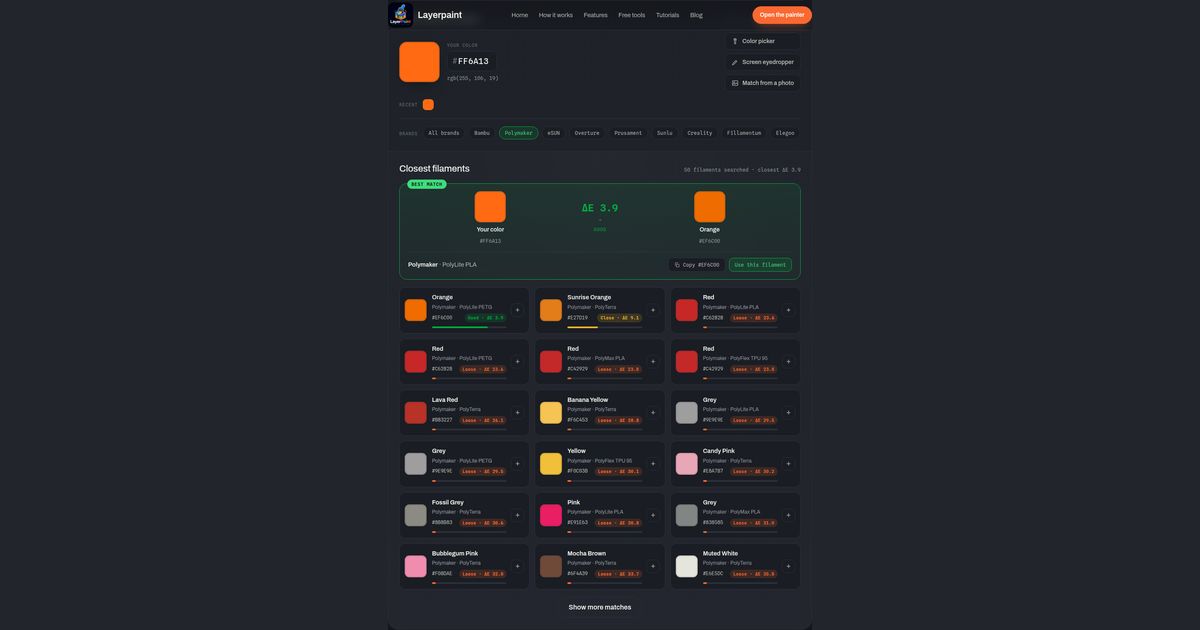
To match filament color across brands, start with the old spool’s hex color code. Paste it into the filament color matcher, then select the brand you want to try. Treat the results as a list of samples to try.
This is useful when you want to replace one color in a model you already print. You need the old filament’s brand, line, and color name. A hex code helps too. If you are choosing a whole set of colors from scratch, use the palette planning guide.
Start with the old spool’s color
Look for a hex code on the maker’s product page. It looks like #FF6A13: a hash sign and six letters or digits. Keep the exact product name beside it. A name such as “Orange” alone does not tell you which line or material you used.
For example, Bambu’s PLA Basic page lists Orange as #FF6A13. We use that published code below. It is a reference color, not a measurement of a printed part.
If you have no code, use Match from a photo in the matcher. Choose an image, then click the color you want in that image. This gives you a target from the photo. It does not measure the spool itself. If a close match matters, keep the old print for the sample check below.
Match filament color in the other brand
- Open the matcher. Paste
FF6A13into the field beside Your color. - Under Brands, click All brands to clear any old choices. Then click Polymaker.
- Read the top result under Closest filaments. Write down its brand, line, color name, and code.
- Check the next results too. Read the material name before you pick a spool.
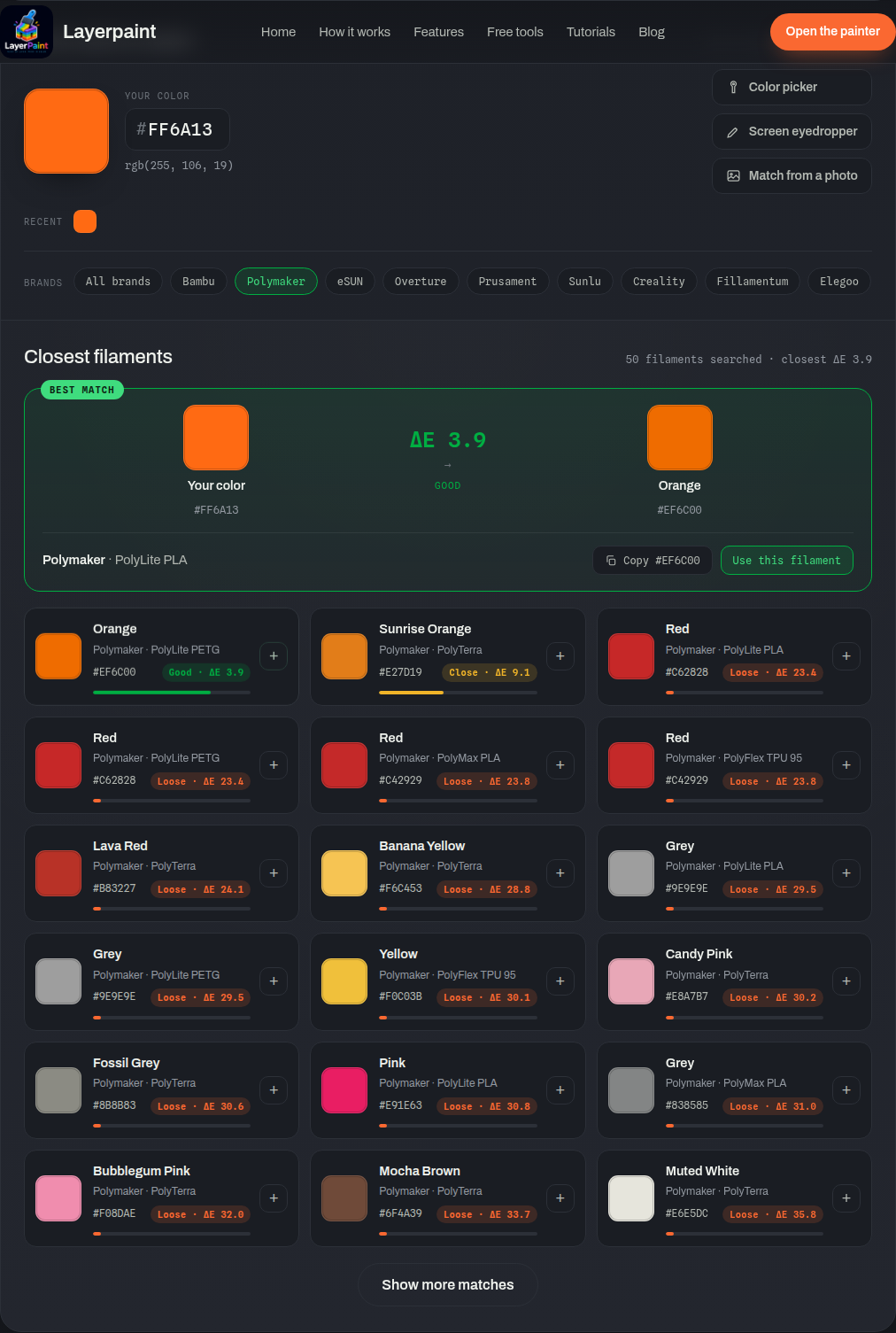
In the live tool on October 16, 2026, this search put Polymaker PolyLite PLA Orange first. Its library code was #EF6C00, with a displayed ΔE of 3.9. The next result was PolyLite PETG Orange, with the same code and score.
A matching score does not mean a matching material
ΔE is the tool’s color difference score. Lower scores mean closer stored color values. The matcher sorts those values; it does not test a spool or check your printer.
The two orange results show the limit. They tie for color in this library, but one is PLA and one is PETG. Do not treat them as the same material. Prusa’s material guide lists different heat and print-bed guidance for PLA and PETG.
If you need to replace PLA, keep PLA as a requirement while you read the list. Check the maker’s guidance for the exact product, your printer, and your intended use. Also check that a seller has the spool you need. A result in the color library is not a stock check.
Check a sample before the full print
For a replacement that must sit beside an old part, compare a small print in the new filament with that old part. Use settings suited to the new filament and the finish you want for the final model. Look at both pieces together where the finished model will be seen.
Decide what counts as close enough before you match filament color for a whole set of spools. For a hidden base, you may accept a small change. For a replacement panel beside an old panel, you may need a closer match. These are choices for your project, not promises from the tool’s score.
Record the old spool, its target code, the new spool, and whether you accept the sample. For this orange example, we haven't printed the two spools side by side, so treat PolyLite PLA Orange as a candidate until your own sample says otherwise.
Use the chosen spool in your model
Once you accept a color, keep its exact name with your model notes. If you are painting a new model, open Layerpaint and use that color plan. Your first export of a model you color yourself is free.
If the model is already painted, check its filament choices in your slicer before printing. PrusaSlicer, for example, treats preview colors and assigned tools as separate controls. Check the actual spool as well as the color on screen.
Common questions
Can I match filament color without a hex code?
Yes. The matcher has a Color picker, a Screen eyedropper and Match from a photo, so you can set a target from an image or from something on screen. A photo gives you a target, not a measurement of the spool, so check a printed sample before you rely on it.
Which brands can I search?
In our October 2026 capture, the brand filter listed Bambu, Polymaker, eSUN, Overture, Prusament, Sunlu, Creality, Fillamentum and Elegoo, with All brands to search the whole library. With Polymaker selected, the tool searched 50 filaments for the orange target.
Is the closest match always the right spool?
Not on its own. The score compares stored color values only. To match filament color for a real replacement, also match the material, check the finish, and print a small sample beside the old part.
Find a color candidate in another brand, starting with the code from the spool you want to replace.