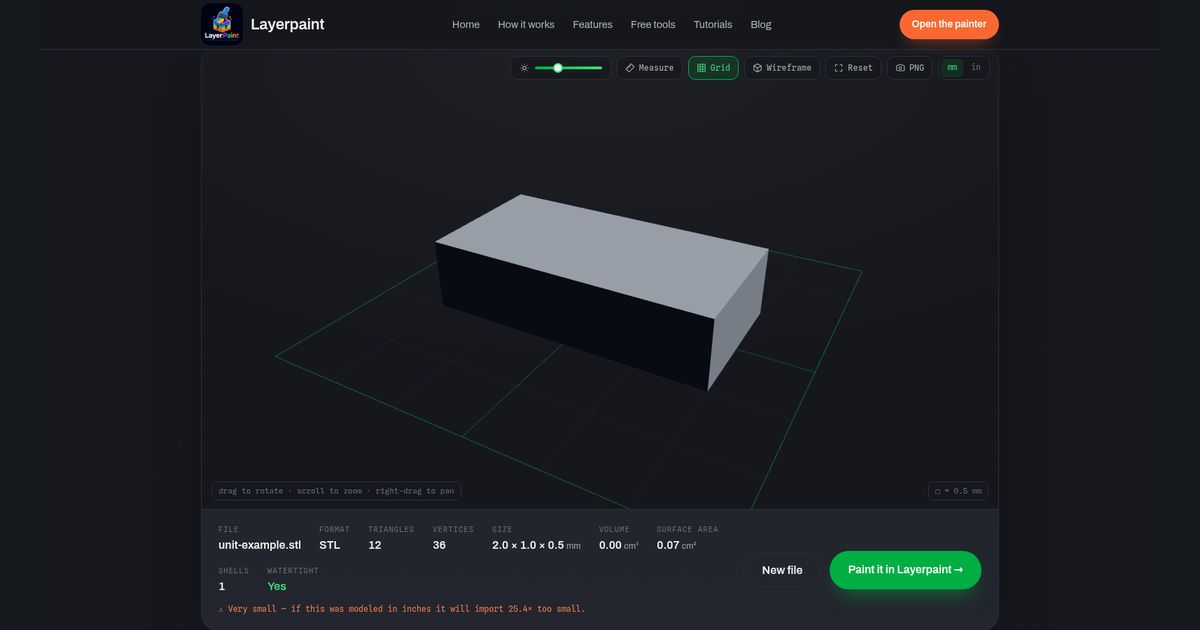
Start here: If an STL file is too small, compare one known length with the size shown in your viewer. If a part meant to be 2 inches wide shows as 2 mm, it needs a 25.4× size change. Changing the viewer from mm to in only changes how you read that size.
Open the free STL viewer, choose your file, and read Size below the model. Keep the original file while you check it. You need a known width, depth or height from the design or its maker. If you do not know a target size, ask the maker before resizing.
Why can an STL open at the wrong size?
STL stores the points that form a model, but does not state their physical units. A width of 2 could have meant 2 inches to the designer. A tool that reads it as millimeters will show 2 mm. The STL format paper by Hiller and Lipson describes this missing unit information.
That makes an inch-to-mm mix-up one possible cause. A small model is not proof of that cause. Check a known length before you change the size.
Read the size, then check the ratio
- Load the STL in the viewer. Read the three values beside Size. They are the model’s overall X, Y and Z spans.
- Match one value to a known span of the same model. Compare overall width with overall width, not with a hole or a gap inside the part.
- Put both lengths in the same unit. Divide the intended length by the displayed length. The result is the scale factor.
For example, suppose the maker says the width should be 2 inches. NIST defines one inch as exactly 25.4 mm, so the target width is 50.8 mm. If the viewer shows 2 mm, the scale factor is 50.8 ÷ 2 = 25.4.
If the viewer already shows 50.8 mm, the width is right for that example. Leave its size alone. If the ratio is different, ask the maker to confirm the intended size and export units; do not apply 25.4 just because the part looks small.
Does switching to inches resize the STL?
No. In the Layerpaint viewer, the mm / in control changes the readout. It does not change the model’s size.
The screenshots use a test box with X, Y and Z spans of 2 × 1 × 0.5. The live viewer showed 2.0 × 1.0 × 0.5 mm. After switching to inches, it showed 0.08 × 0.04 × 0.02 in, rounded for display. Switching back restored the mm readout.
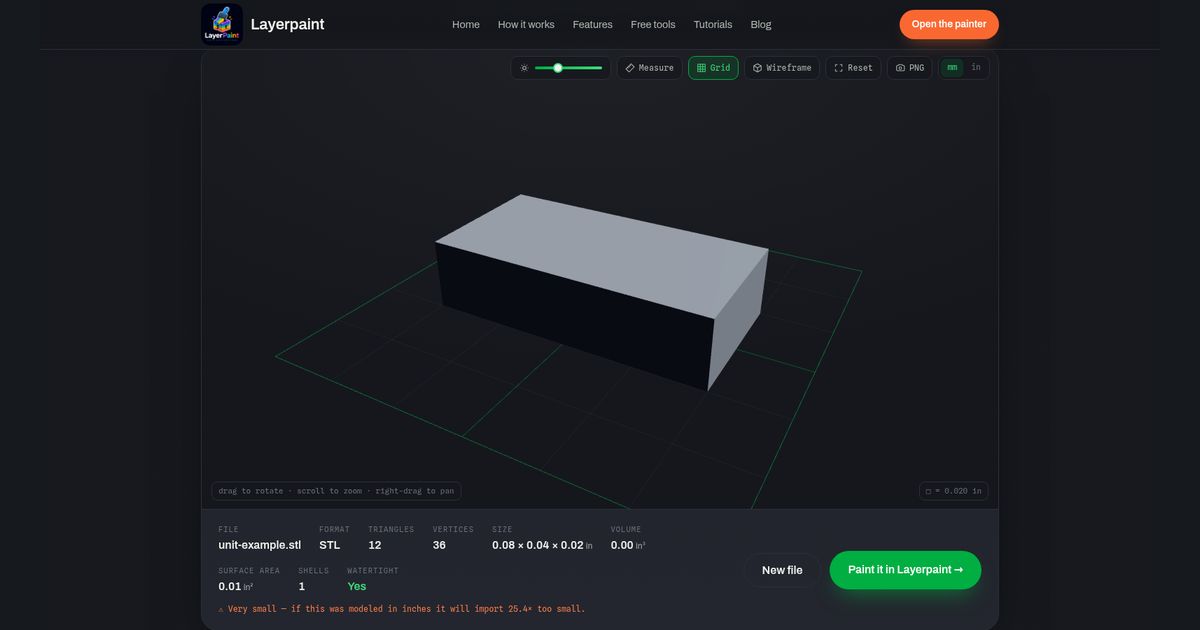
If the model is tiny, the viewer also warns: “Very small — if this was modeled in inches it will import 25.4× too small.” Treat that as a prompt to check units. The viewer can’t know what size the designer meant.
Resize a confirmed inch-to-mm mismatch
If you can re-export from the design app, choose millimeters for the STL export and check the new file. For example, SketchUp’s STL export guide describes its export unit choices.
To resize the file in Layerpaint instead, start with the STL loaded in the viewer:
- Select Paint it in Layerpaint. The viewer passes the loaded file to the painter.
- In the painter’s right panel, select Setup, then expand Size. Select mm to read the values used in this example.
- Keep Scale all axes together checked. For the confirmed 25.4× mismatch, enter 2540 in Scale %, then select Apply size.
- Read all three size fields again. For the test box, the new values were 50.8 × 25.4 × 12.7 mm.
2540% means 25.4 times the old size. Entering 25.4% would shrink it. Apply the change once, then check the result before doing anything else.
Check the result before painting or printing
Compare the new size with the intended size. If only one feature is wrong while the overall size is right, stop: scaling the whole model changes every length. That is a different task from fixing units. See the guide to STL editing choices.
Once the size is right, you can paint the model in Layerpaint. Follow the 3MF export guide when you’re ready to save a print file, then check the dimensions once more in your slicer.