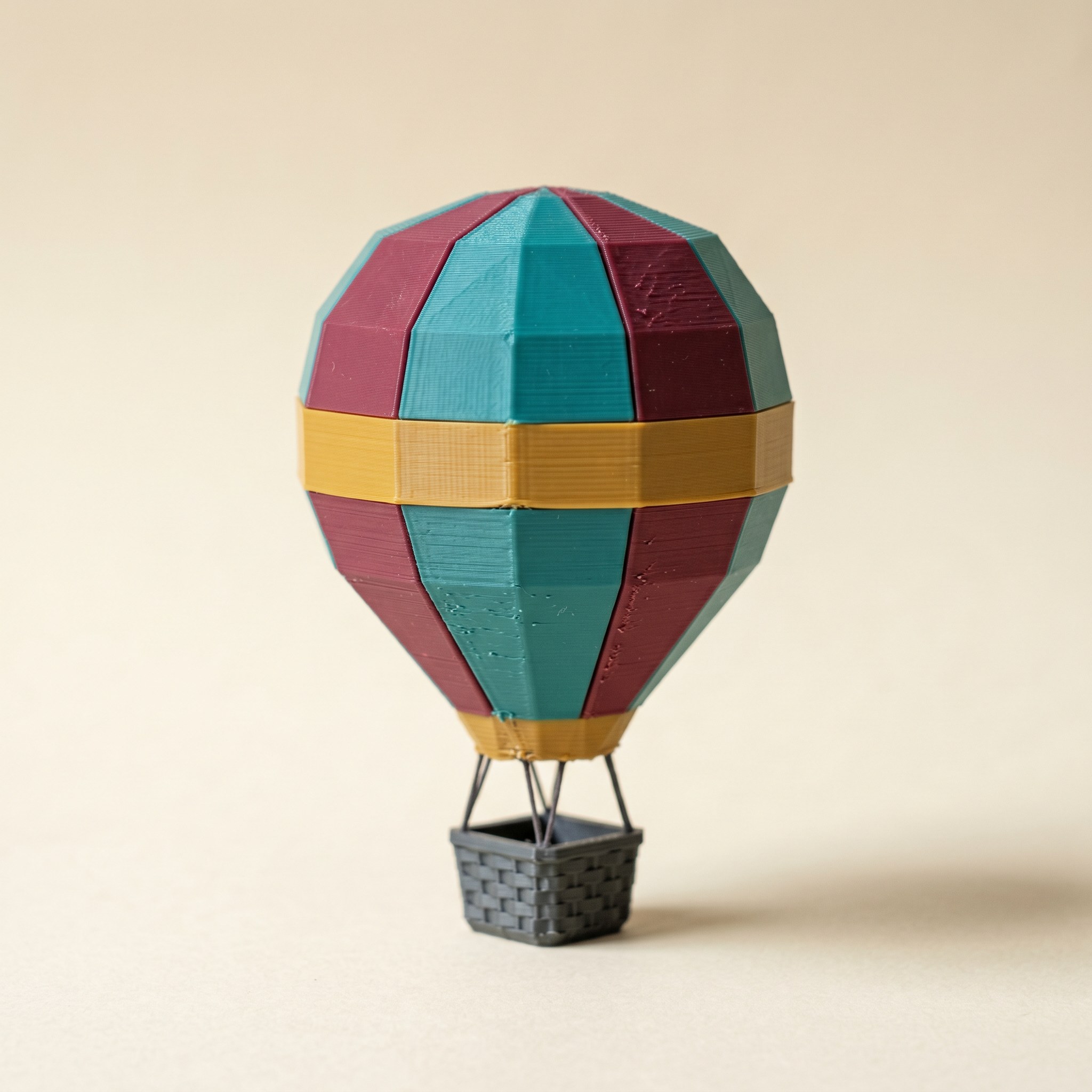
TL;DR: Stand a painted part one way on the bed and the colors swap on almost every layer; stand it another way and one color can finish before the next starts. Same paint, fewer swaps, less filament purged. Layerpaint's swap bar estimates the waste in grams for a given orientation, and when one up-axis clearly beats the others it offers the switch. The figure is a ballpark for ranking orientations, not your slicer's exact purge. Here's how to read it and where the other levers are.
Why does build orientation change purge waste?
Every filament swap happens at a layer boundary. The printer reaches a height where the color changes, purges the old filament, then carries on. How many of those boundaries you hit depends on which way the part stands. Lay a two-tone figure on its side and most layers cut through both colors, so it swaps layer after layer. Stand it upright and one color can finish before the next starts, which collapses dozens of swaps into a handful. Layerpaint slices the part at each candidate up-axis and counts the swaps, so the cheapest orientation is a number, not a guess.
Picture a chess knight. Standing, the cream base finishes before the burgundy body starts: one swap. On its back, every layer crosses both colors, so it swaps the whole way up. Same paint, very different purge.
See the waste before you slice
Open your painted model, go to the Check tab, and turn on Show swap bar in the Layers section. Layerpaint slices the mesh into layers and draws a vertical bar down the left of the viewport, one stripe per layer, reading bottom-up from the build plate. Amber is one swap on that layer, orange is two, red is three or more. A tall red column marks a stretch where the colors trade off on nearly every layer.
The status line under the toggle reads the totals: layer count, total swaps, and an estimated flush waste in grams. That gram figure is the one to watch. Turn on Scrub through layers and a marker tracks down the bar, so you can line a red band up with the feature causing it.
Set Flush volume to match your slicer first. The field sits just above the toggle and defaults to 200 mm³, Bambu Studio's stock per-swap purge. If you've trimmed your flush in OrcaSlicer, or you're running an H2C with the Vortek kit, enter your real number so the grams track your machine.
Is that gram number my slicer's actual purge?
No, and reading it that way will mislead you. Layerpaint multiplies the total swap count by one flush volume and PLA's density, about 1.24 g/cm³. Real slicers use a flush matrix with a separate volume for every color pair, because purging a light filament after a dark one costs far more than the reverse. So treat Layerpaint's figure as relative: solid for comparing two orientations or making a go or no-go call, not a stand-in for the slicer's own estimate. For the true grams on a print you've decided to run, calibrate per-pair flushing volumes in the slicer.
The estimate moves the right way whenever the swap count does, which is all you need to rank orientations. For the real number on a print you're committing to, calibrate flushing volumes in OrcaSlicer or Bambu Studio and read them off the slice.
Let Layerpaint pick the up-axis
With the swap bar on, Layerpaint scores the part standing on each axis in the background. If switching the up-axis would cut the estimated flush waste by at least 30%, a prompt appears on the Export tab, in the Build orientation section: "Rotating to X-up would cut flush waste from 9.1 g to 5.4 g." Hit Apply and it re-aims the build plate and recounts. Your paint, boundaries, and selections stay put, since the up-axis only changes how the part is sliced, not the mesh.
To see which way a model is actually sitting before you reason about any of this, drop it on the free STL viewer and turn it over.
It only speaks up when the win is worth it: under a 30% saving, or under half a gram of waste, it stays quiet rather than push a rotation that barely helps. Dismiss one and it won't re-offer that axis.
The cheapest axis on the swap count isn't always the best way to print. The suggester counts filament swaps and nothing else, so check it doesn't drop every overhang onto supports or run a seam across a face you wanted clean. And since the up-axis isn't baked into the export, set the same orientation on the plate in your slicer to actually bank the saving.
When orientation isn't enough
Build orientation is one lever. If the bar is still mostly red after the best axis, two companion posts cover the rest. Cutting AMS purge waste by reordering your palette attacks the swap count from the palette side, so colors that meet in the print share neighboring slots. Hiding the purge in Bambu's flush into infill spends the waste you can't dodge on the inside of the part. Stack all three and a forty-swap miniature gets a lot cheaper to print.
Common questions
Does the up-axis change the exported 3MF?
No. The Up axis setting only tells Layerpaint which way the part stands for the swap and layer count. The export writes your geometry and per-triangle colors as they are, with no rotation baked in. To get the saving on the print, set the matching orientation on the plate in your slicer.
Why is my swap bar mostly red?
Red stripes are layers with three or more swaps, so several color boundaries cross that height. Often it's a part standing in a way that stacks features side by side instead of top to bottom. Try the up-axis Layerpaint suggests first. If it's still red standing upright, the colors genuinely interleave by height, and the fix is palette order or accepting the purge.
Does this help a single-nozzle printer with no AMS?
More than anywhere. With no AMS every swap is a manual change or a long purge, so cutting the swap count is the whole game. An up-axis that lets each color finish before the next starts can turn a print full of swaps into a few clean breaks. The by-height approach in multi-color printing without an AMS is built on exactly that.
What filament density does the estimate use?
About 1.24 g/cm³, standing in for PLA. ABS is a touch lighter and PETG a touch heavier, so the absolute grams shift slightly on those materials. The ranking between orientations holds regardless, since every candidate is scored at the same density.
Try it now
Open the painter at layerpaint.app/app, drop a painted model, open the Check tab, and turn on Show swap bar. The grams show up there, and the up-axis suggestion lands on the Export tab, with no account and no upload. Your first 3MF export is free; after that, $6.97 for 10 exports or $39.97 unlimited, no subscription. Stand the part the right way before you slice and keep the filament on the spool. 🎨