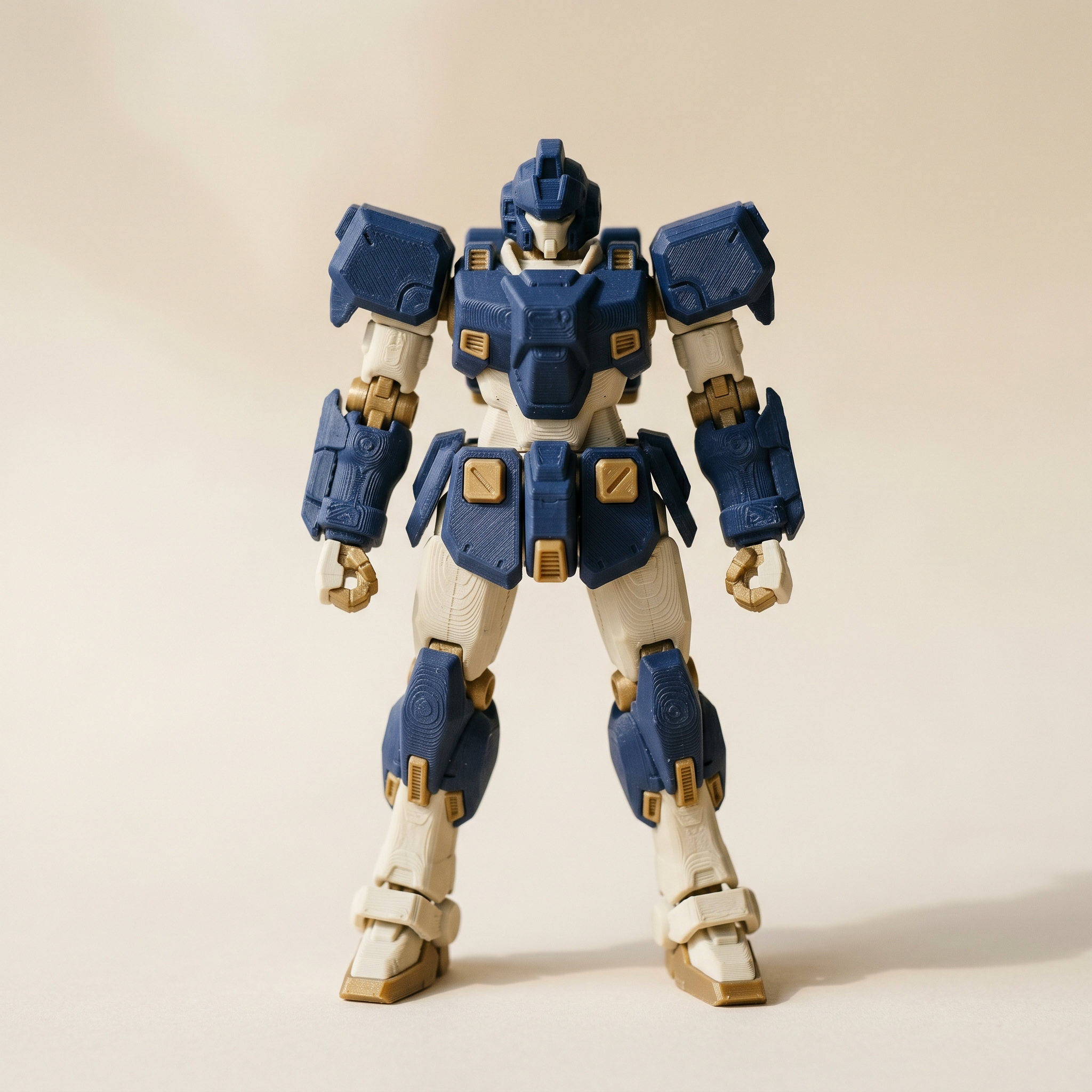
TL;DR: Mirror painting pairs every triangle with its partner across an axis, so painting one side colors the other automatically — every tool (Region, Brush, Wand, Plane) mirrors, with no separate brush. Here's how to pick the right axis, a clean order for symmetric figures, and what mirror doesn't copy.
What does mirror painting actually do?
Open the Symmetry panel, pick an axis (X left-to-right, Y top-to-bottom, Z front-to-back), and Layerpaint pairs every triangle on one side with its partner on the other, reporting the match rate — for example '14,832 / 14,832 faces paired, 100%'. After that, every paint action (Region, Brush, Wand, Grow, Plane, Direction) colors the partner face too. There's no separate mirror brush; you paint as normal and the reflection just happens.
Open the Symmetry section in the right-hand panel. The dropdown has four options: Off, X (left ↔ right), Y (top ↔ bottom), and Z (front ↔ back). Pick one and Layerpaint pairs every triangle on one side of the model with its partner on the other side. The status line below the dropdown reports the result, for example Mirror on X. 14,832 / 14,832 faces paired (100%).
After that, every paint action paints the partner face too. Region clicks, Brush drags, Wand floods, Grow, Plane, Direction. There is no separate "mirror brush" tool. Paint as normal and the mirror just happens.
When mirror pays for itself
The obvious cases:
- Humanoid figures and miniatures — armor plates, leg guards, gauntlets, hood halves. Mirror on X, paint the right side, the left side fills.
- Mechs and vehicles — chest panels, side skirts, wing armor, wheel covers. Anything that mirrors port-to-starboard.
- Stylized organic models — chibi characters, dragons, animal figures with bilateral symmetry. Big time saver on torso, legs, ears.
Not sure whether your model is actually symmetric? Turn it over in the free STL viewer before you set the mirror plane.
If the model has no symmetry (a single hand prop, an asymmetric weapon, a topology study), mirror buys nothing.
Pick the right axis
Layerpaint doesn't guess. Most figures and mechs in standard upright orientation mirror across X. Vehicles laid down for printing may need Z. Mirrored over Y is rare. You only need it for top-to-bottom symmetric builds like some abstract sculptures or lattice prints.
Switch axes by reopening the dropdown. Layerpaint rebuilds the pair map almost instantly and updates the count. If the count comes back low, try a different axis. The model is probably oriented differently than you assumed.
The pair map works by reflecting each face centroid across the axis midpoint and looking for a neighbour within roughly 0.1% of the bounding box. A model that is geometrically symmetric but slightly tilted in its STL orientation will pair badly. If you control the source mesh, axis-align it in Blender or your slicer's transform tools before painting.
A clean workflow for symmetric figures
Order matters, because each paint action overwrites the partner's color. Plan the broad strokes first and the asymmetric details last.
- Load the model. Tune the crease threshold so the auto-partition splits along armor seams. Click Region in the toolbar. Whole panels become one-click fills.
- Set the Symmetry axis. Check the pair count. Aim for 95% or better. Lower means the model isn't well-aligned.
- Add your palette in print order. The chip order maps to AMS or MMU slot order, so put your highest-volume color first.
- Region tool, broad fills first. Paint the right side. The left side fills automatically. Cover the body, head, large armor plates.
- Brush for transitions where auto-partition cuts through a smooth surface. Drag to paint, Shift+drag to erase, Ctrl+scroll to resize. Mirror still applies.
- Wand for connected flat panels. Click a panel and it floods across the surface, stopping at edges sharper than your wand angle. The partner panel paints at the same time.
- Turn mirror Off before painting asymmetric details: a single eye, an off-side weapon, a chest emblem on one shoulder. Otherwise the mirror will recolor the opposite face when you don't want it to.
Set the dropdown back to Off for that last step. Switch it back on when you return to symmetric work.
When the pair count is below 100%
A face only pairs when its reflected centroid lands within tolerance of another face. Reasons one might not:
- The model is intentionally asymmetric (one shoulder pauldron, an asymmetric helmet crest, a sidearm holster).
- The mesh is dense and the two sides triangulated differently. Same shape, different triangles.
- The model is rotated a few degrees off the world axis.
For the first case, finish the symmetric majority with mirror on, then turn it off and clean up the asymmetric remainder by hand. For the second, the gap is usually small enough that the Region tool catches both sides in one click anyway. Adjacent unpaired clusters often share a region in the auto-partition.
What mirror doesn't do
Mirror painting copies the color assignment, not the auto-partition boundaries or any hand-drawn boundaries you've added with the Crease tool. If you draw a custom boundary on the right side, the left side won't get a matching line. For most symmetric models the auto-partition is already symmetric, so this rarely bites. Draw boundaries on both sides if you care.
The Symmetry axis is a session setting and doesn't get saved into the .layerpaint project file. Reopen a project and the dropdown reverts to Off. The per-face colors you already mirrored stay applied; you just need to set the axis again if you want the next paint action to mirror too.
The mirror also doesn't change anything about export. The 3MF stores the final per-face palette assignment. Whether you painted one click at a time or with mirror on, Bambu Studio, OrcaSlicer, and PrusaSlicer see the same color groups.
Common questions
Can I use two axes at once?
No. Mirror is one axis at a time. For a model with both bilateral and front-back symmetry, paint with X first, switch to Z, then re-paint any regions that still need a second reflection.
Does mirror work with the Wand and Plane tools?
Yes. All paint-producing tools go through the same mirror step: Region, Brush, Detail, Wand, Grow, Plane, Direction, and Fill borders. Anything that writes a color gets reflected onto the partner face.
What if the model has an asymmetric weapon held in a symmetric hand?
Paint the hand and the figure with mirror on. Then turn mirror off and paint the weapon. The hand keeps its symmetric coloring; the weapon stays one-sided.
Try it now
Drop a symmetric STL on the painter, switch the Symmetry dropdown to X, and watch the pair count. Paint one side. The other side fills as you go. Your free first export gives you a Standard 3MF that Bambu Studio, OrcaSlicer, and PrusaSlicer all read natively, with no repainting on the slicer side.
Happy printing.