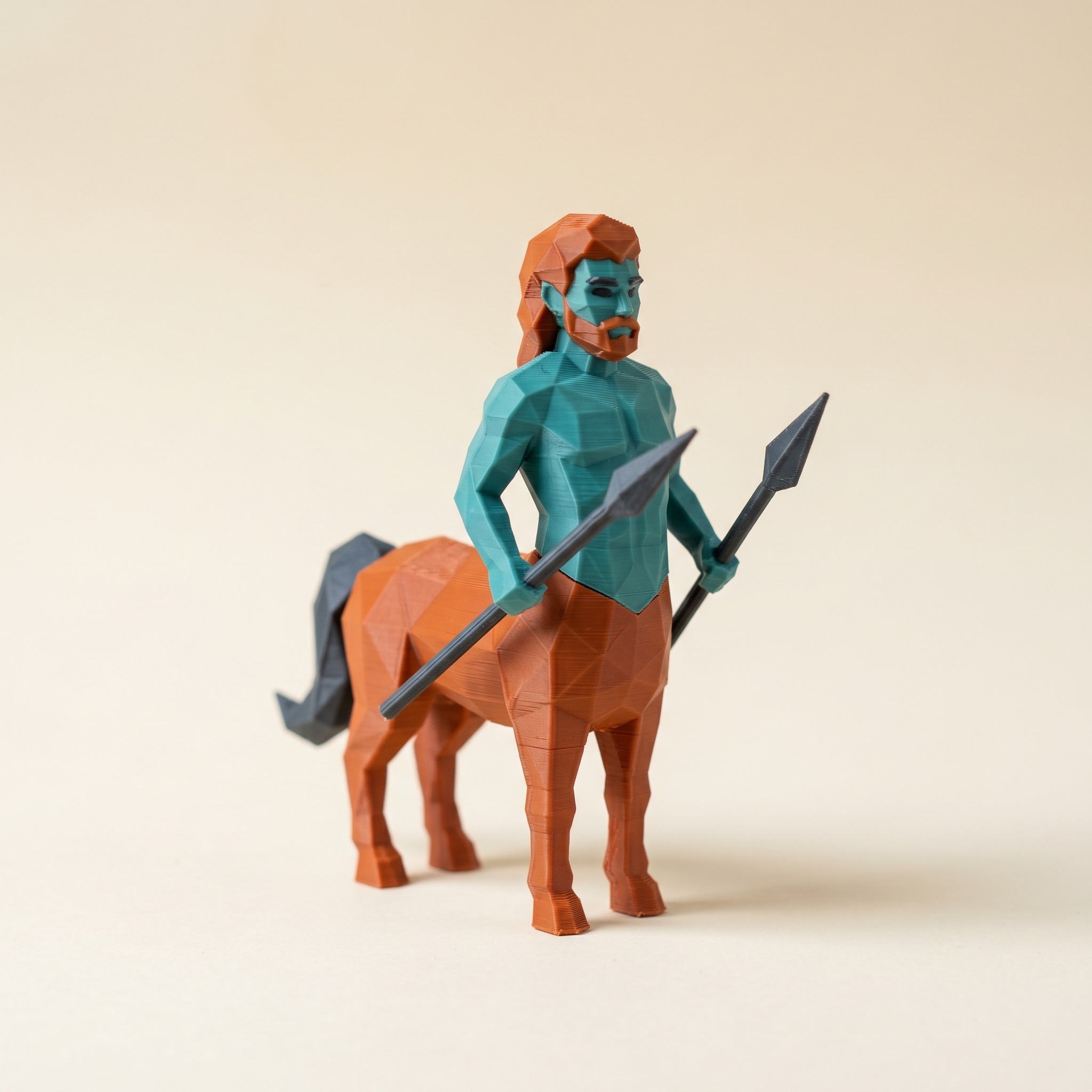
TL;DR: ElegooSlicer is an OrcaSlicer fork, so the Elegoo Centauri Carbon 2 reads the Standard 3MF color groups Layerpaint exports with no plugin and no repainting. Paint with the Canvas's four slots in mind, drag the file onto an empty plate (never File → Open Project), and map the slots in the filament panel. Below: the palette budget that fits four slots, the export, the plate-drop rule, and where the purge waste goes.
Can the Elegoo Centauri Carbon 2 print a Layerpaint 3MF?
Yes. ElegooSlicer is an open-source fork of OrcaSlicer, which descends from Bambu Studio, so all three read the 3MF Materials Extension the same way. The
<m:colorgroup>block Layerpaint writes into the file is exactly what the slicer uses to color each triangle, with no plugin and no repainting after import. The one real constraint is hardware: the Elegoo Centauri Carbon 2's Canvas unit holds four spools, so your palette has to fit four filaments, including the fallback for unpainted faces.
The Elegoo Centauri Carbon 2 Combo sells for $419 with the Canvas multi-color unit, which is why a lot of people suddenly own a four-color printer and a folder full of single-color STLs. Layerpaint fills that gap. You paint per-triangle colors in the browser, export a Standard 3MF, and ElegooSlicer treats it like any other multi-color model.
Step 1 — Paint with four slots in mind
Open the painter, drop in your STL, and build your palette before any detail work. Two things matter here:
- Your budget is three painted colors plus the unpainted fallback. Layerpaint reserves the first color entry in the export for faces you never painted. If you paint every face on the model, all four Canvas slots are yours.
- Slot order comes from the order you add chips. There's no drag-to-reorder, and removing a chip unpaints every face that used it. Add chips in the order your spools sit in the Canvas, and settle the palette before you start painting. Palette order also changes how much purge waste you generate, so it's worth a minute of thought.
The filament library includes Elegoo's own colors alongside Bambu, Polymaker, Prusament, and the rest, so you can preview with the actual spools you'll load.
Step 2 — Check the swap count, then export
Before exporting, flip on Show swap bar. It slices the model into layers and shows total filament swaps plus flush waste per layer. Each layer is one stripe at the left edge of the viewport, amber for one swap, red for two or more. A four-color figure with red stripes stacked through the torso is going to purge a lot of filament. Fix that now, not in the slicer.
Then hit Export 3MF. The file carries one color group per triangle via the 3MF Materials Extension, and your mesh never leaves your device.
Step 3 — Drag the file onto an empty plate
The same rule that applies in OrcaSlicer applies in ElegooSlicer: do not use File → Open Project. Opening as a project can overwrite your printer and filament setup, and a partial import reassigns colors to whatever slots already exist. Set up your Elegoo Centauri Carbon 2 profile and the four Canvas filaments first, then drag the Layerpaint file onto an empty plate. The color data comes through and the slicer prompts you to map color groups to filament slots. The OrcaSlicer walkthrough covers the failure modes in detail; they're identical in the fork.
Step 4 — Map the Canvas slots
After the import, check the filament panel. Slot 1 will be the grey sentinel Layerpaint emits for unpainted faces; your real palette starts at slot 2. That's intentional. It keeps unpainted faces from silently merging into a painted color. If your model has no unpainted faces, you can delete the slot 1 filament without affecting the print.
The slicer pairs each color group to the closest loaded filament by hex value, not by order. Two similar filaments can swap, and a palette color you haven't loaded maps to whatever's nearest. The fix is one click per slot: click the colored chip in the filament panel and reassign it.
Load the Canvas with filaments that actually match your Layerpaint palette before importing. The closer the hex values, the more often the automatic mapping lands right on the first try.
Step 5 — Cut the purge waste before slicing
ElegooSlicer inherits OrcaSlicer's flushing-volume math, including the option to flush into the object's infill instead of a purge block. The flush-into-infill setup we covered for Bambu Studio works the same way here: hidden purge ends up inside the model where nobody sees it, and the poop pile next to the printer shrinks. Combine that with a palette ordered light-to-dark and a four-color print stops being a filament tax.
Slice, send it over, and print.
Common questions
Do I have to use ElegooSlicer, or can I use OrcaSlicer?
Either works. The file is a Standard 3MF, and both slicers read the color groups identically. ElegooSlicer ships with Elegoo Centauri Carbon 2 profiles out of the box, which is the main reason to start there. If you'd rather stay in OrcaSlicer, the same plate-drop flow applies once you have a CC2 printer profile set up.
What if my paint job uses more than four colors?
Orca-based slicers cap the import at the slot count your printer profile allows, so extra colors collapse into the nearest existing slots. Reduce your Layerpaint palette to fit the Canvas before exporting, or split the model into two prints. Painting with the hardware in mind beats fixing a six-color file after the fact.
Will the same file print on a Bambu AMS or Prusa MMU3 later?
You can confirm that for yourself: the STL viewer reads the same 3MF in a browser, with no slicer involved.
Yes. There's nothing Elegoo-specific in the export. The same 3MF opens in Bambu Studio, OrcaSlicer, and PrusaSlicer, and maps to an AMS or MMU3 the same way it maps to the Canvas.
Try it now
Layerpaint is free to try — no account, no install, no upload. Drop an STL on the painter, build a four-chip palette, and watch the swap bar before you commit. When you're ready to export, your first export is free, then $6.97 for 10 exports or $39.97 unlimited. No subscription.
Happy printing. 🎨