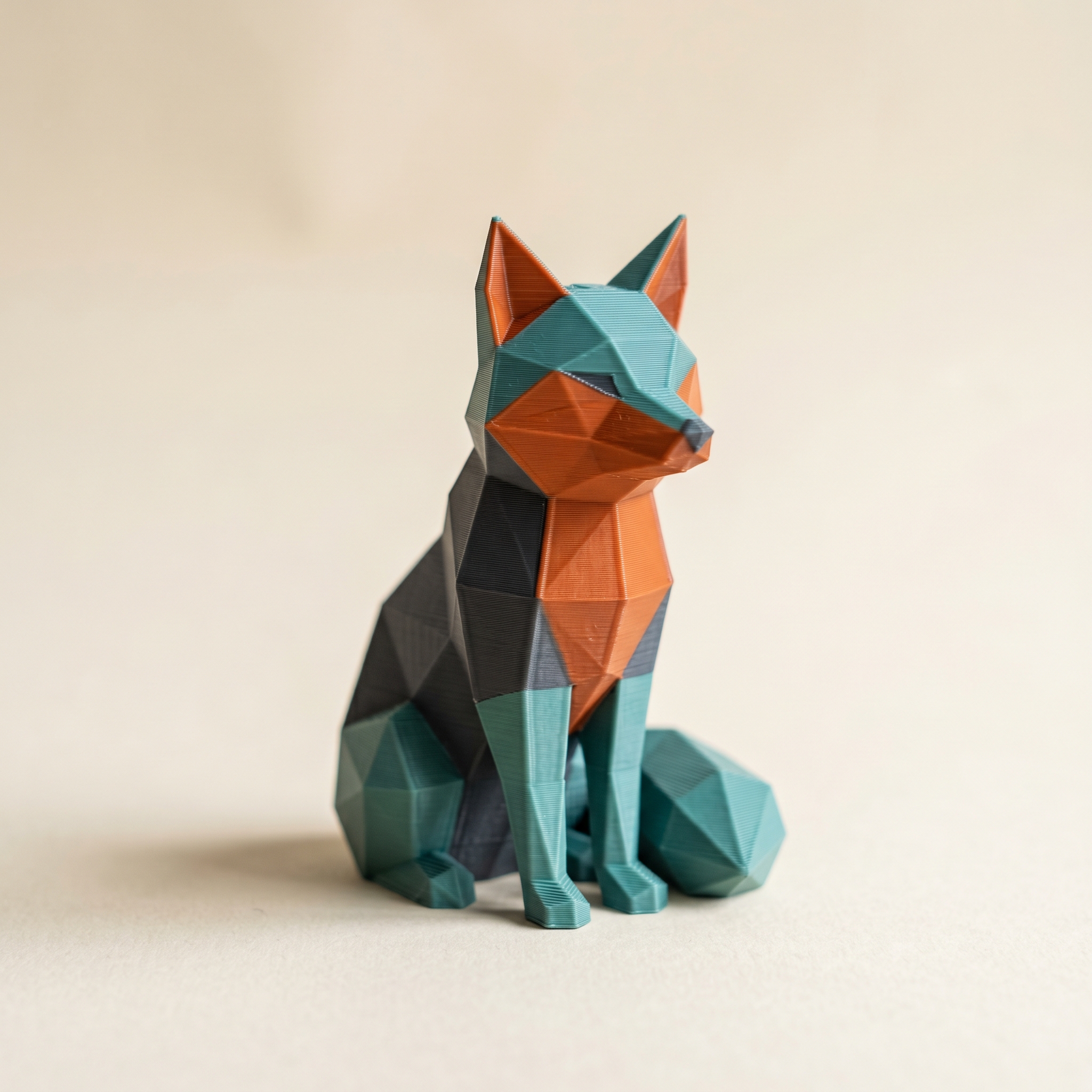
TL;DR: Export a Standard 3MF from Layerpaint, import it into Snapmaker Orca, and map each painted color to one of the Snapmaker U1's four toolheads. Because every color rides its own nozzle, there's no purge tower to flush, so reordering your palette won't cut waste the way it does on an AMS. Below: how the toolchanger reads your color groups, why swap order stops mattering for purge, and the four-color cap to paint to before you export.
Why doesn't the Snapmaker U1 use a purge tower?
The Snapmaker U1 is a toolchanger. It has four separate toolheads, each preloaded with one filament. When the print needs a new color, the machine parks the current toolhead and picks up another, so there's no single nozzle to flush between colors and no purge tower eating filament. A swap costs a few seconds of tool-change time, not a block of wasted plastic. That structure is why the palette-order math you'd do for a Bambu AMS doesn't carry over to the U1.
On an AMS or an MMU, one hotend prints every color, so each swap has to purge the old filament before the new one starts. On the Snapmaker U1 the colors never share a nozzle. The trade-off is the four-toolhead ceiling, which shapes how you paint before you ever open the slicer.
Export a Standard 3MF from Layerpaint
Paint your model the usual way, then hit Export 3MF. Layerpaint writes a Standard 3MF with one color group per triangle using the Materials Extension (<m:colorgroup>). It's the same file you'd open in Bambu Studio or OrcaSlicer. There's no Snapmaker-specific export to pick. The colors live in the mesh, not in a slicer project, so any OrcaSlicer-based slicer can read them.
If you haven't painted a model yet, the start-to-finish paint walkthrough covers picking filaments and laying down color with the Region tool. Come back here once you have a painted model ready to export.
Import the file into Snapmaker Orca
Snapmaker Orca is Snapmaker's fork of OrcaSlicer, so it reads the Materials Extension the same way OrcaSlicer does. Drag the 3MF onto the plate, or use File → Import → Import 3MF. Use Import, not Open Project. Opening a colored 3MF as a project can overwrite the print settings you've tuned for the U1, the same gotcha that bites people loading MakerWorld files.
Orca shows your painted colors in the Edit Filament panel. The top half lists the source colors from the file. The bottom half lists the filaments loaded in your U1. Orca matches each source color to the closest loaded filament and assigns it a toolhead number for you.
Orca matches by closest color, not by palette position. Two near-identical colors, a matte cream and a silk cream say, can land on the wrong toolhead. Check the Edit Filament panel against your Layerpaint palette before you slice, and use the dropdown to swap any toolhead that's wrong.
This is the same import-and-verify flow as opening a Layerpaint 3MF in plain OrcaSlicer. The only U1 difference is that the slots you're mapping to are physical toolheads, not lanes in an AMS.
Does palette order matter on a toolchanger?
Not for waste. On a Bambu AMS, the order of your filament slots decides how often the shared hotend flushes between colors, so reordering the palette can cut purge volume. The Snapmaker U1 gives every color its own nozzle, so there's nothing to flush and no purge volume to trim. Palette order still sets which toolhead each color maps to, and a high swap count still adds tool-change time to the print. But rearranging colors to chase a lower purge number is effort the U1 won't pay back.
On a Bambu setup, reordering the palette to cut purge waste is one of the best moves you can make. Bring the same model to a Snapmaker U1 and that optimization goes quiet. What still helps is keeping the swap count sane, since each tool change adds a few seconds. Layerpaint's swap counter, which you turn on with Show swap bar, tallies the color changes each layer needs, so you can still see whether a paint job will make the toolchanger work hard.
Paint to four colors before you export
The Snapmaker U1 has four toolheads, so it prints up to four colors in one job. Layerpaint's palette holds more than that, which is useful for a multi-batch plan, but a U1 print needs the palette trimmed to four. Decide your four colors before you paint. Removing a palette slot after the fact unpaints every face that used it and shifts the slots below it up. There's no drag-to-reorder either. Slot order is just the order you added the chips.
Paint with the four filaments you actually have loaded in the U1. Matching your Layerpaint palette to the loaded toolheads up front means Orca's auto-mapping lands right and you skip the manual correction step. If you need a fifth color, split the model and print it in two passes.
Common questions
Do I need the bl2u1 converter for a Layerpaint file?
No. That converter exists to translate full Bambu Studio project files, with their machine profiles and support settings, into U1 form. A Layerpaint export is a Standard 3MF carrying geometry and color groups, not a Bambu project, so Snapmaker Orca imports it directly. Use File → Import to keep your U1 settings intact.
Will my painted color print all the way through the wall?
The painted color follows the model surface. How deep it reaches into the wall is the slicer's call, set by your perimeter and wall settings in Snapmaker Orca, not by Layerpaint. For crisp color edges, a sharp per-triangle boundary in Layerpaint gives Orca the cleanest line to follow.
Can the U1 print more than four colors?
Not in one job. Four toolheads means four filaments at a time. Paint a four-color version, or split the model into sections, print each on its own, and assemble afterward.
Why import the file instead of opening it?
Opening a colored 3MF as a project can pull in print settings that aren't tuned for your U1 and overwrite your current profile. Importing adds just the painted model to your existing U1 setup. It's the same reason MakerWorld 3MFs are best brought in through File → Import.
Try it now
Paint a model in the painter, trim the palette to your four U1 colors, and export a Standard 3MF. Drag it onto a Snapmaker Orca plate and the colors map straight to your toolheads. Free to try. Your first export is free, then $6.97 for 10 exports or $39.97 unlimited. No subscription.
Just need to convert between formats? Our free 3MF ↔ STL converter handles that — no paint tools, just drag, preview, and download.
Happy printing. 🎨