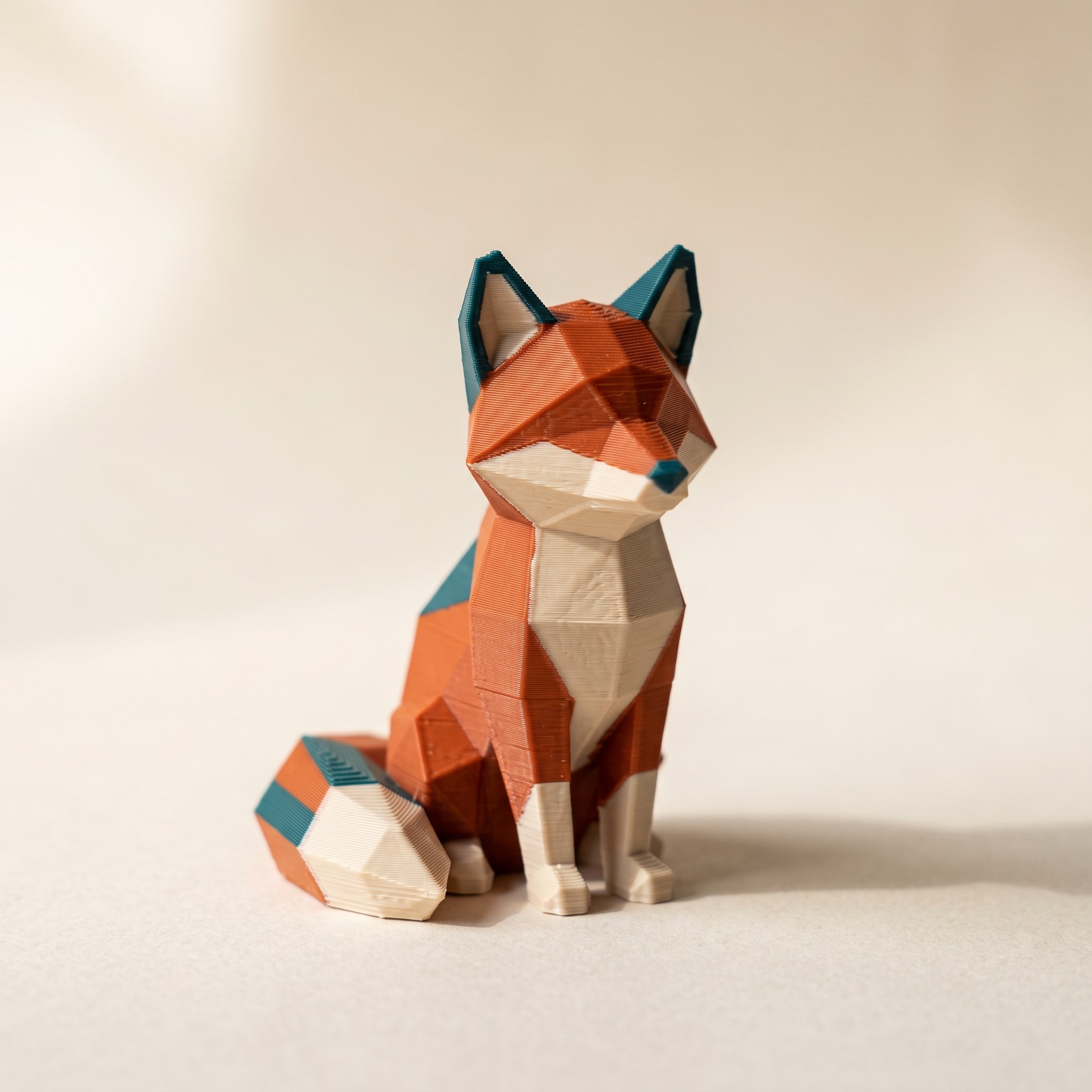
TL;DR: A MakerWorld multicolor 3MF is a full Bambu Studio project, not just a model. Open Project in Snapmaker Orca loads the Bambu printer profile and G-code along with the mesh, which clobbers your U1 settings and can crash the slicer. Use File → Import → Import 3MF/STL instead: it loads the geometry and the color paint data only, keeps your U1 machine and filament profiles, and the colors map cleanly to your four toolheads. Below: the five steps, and why the same trap exists in every Orca-family slicer.
Why does a MakerWorld multicolor file break on a Snapmaker U1?
A 3MF downloaded from MakerWorld is a complete Bambu Studio project: printer profile, filament profiles, process settings, sometimes sliced G-code. Open Project in Snapmaker Orca loads all of it, replacing your Snapmaker U1 configuration with settings meant for a Bambu machine. That mismatch produces the crashes and the colors that refuse to map. File → Import reads only the geometry and the color painting, so your U1 profiles stay untouched and the model slices normally.
This fix comes straight from the Snapmaker community. A user laid out the Import method in a thread on the Snapmaker forum, and the replies confirm it repeatedly. Jeep13 wrote "This was driving me crazy. This solved everything." Zothor answered "I created my account here just to say thank you." A third user, Romonaga, runs printers from three different brands and had been fixing clobbered settings by hand every time until this thread.
Step 1 — Download the 3MF, not the STL
On the MakerWorld model page, choose the 3MF download. The color painting lives inside the 3MF. An STL carries geometry only, so if you start from the STL there is nothing to import but a gray mesh. A MakerWorld multicolor file keeps its paint data inside the 3MF itself.
Step 2 — Use File → Import, not Open Project
In Snapmaker Orca, go to File → Import → Import 3MF/STL... and pick the downloaded file. Do not double-click the file and do not use Open Project. Import strips the Bambu project baggage and keeps two things: the mesh and the per-face color assignments. Your printer profile stays Snapmaker U1 and your filament list is left alone.
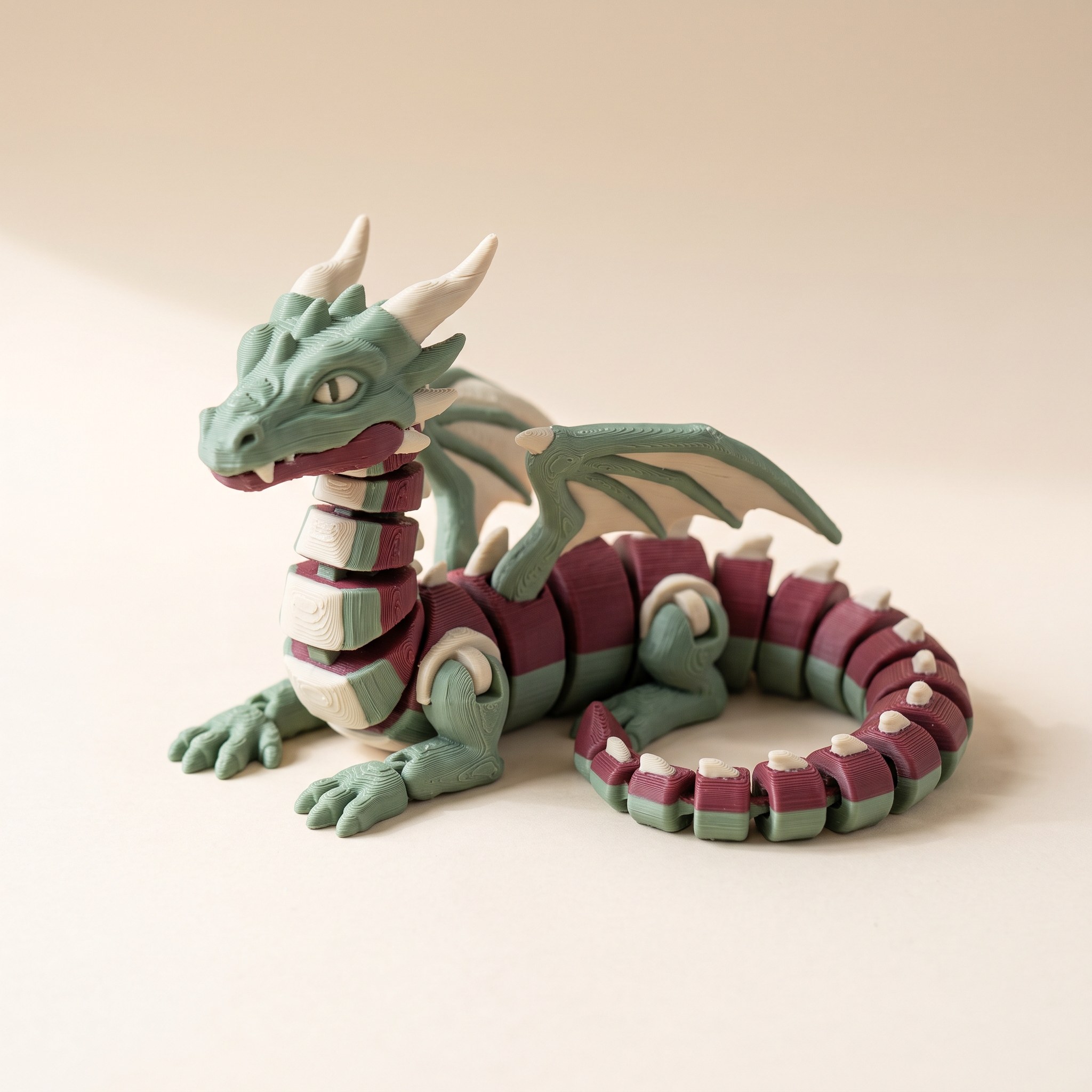
Step 3 — Map the imported colors to your filaments
After the import, the model's colors appear in the filament list. Assign each one to the filament loaded on the matching toolhead. The U1 gives you four toolheads, so a four-color MakerWorld multicolor model maps one to one. If the model uses more colors than you have toolheads, you can merge the closest shades, the same way you'd handle more paint colors than AMS slots on a Bambu machine.
Not sure what's actually inside the file you downloaded? Drop it on the free STL viewer first. It reads STL, OBJ, and 3MF in the browser, shows the colors, and nothing gets uploaded.
Step 4 — Check that your U1 profiles survived
Before slicing, glance at the printer dropdown. It should still say Snapmaker U1, with your usual process preset. If it names a Bambu printer, the file came in as a project after all. Delete the plate and redo the import. This thirty-second check saves the classic failure: a print sliced with another machine's purge and temperature settings.
Step 5 — Slice and check the preview
Slice, then look at the preview with the color scheme set to Filament. Each region should show the toolhead color you assigned. If a region prints in the wrong color from here, the problem is mapping, not the import. Reassign and reslice. From this point the job behaves like any native multicolor print on the U1.
The same trap exists in every Orca-family slicer
Creality Print, Anycubic Slicer Next, and Elegoo Slicer are all built on OrcaSlicer, and all of them make the same distinction between opening a project and importing a model. The Open-Project-clobbers-settings behavior is documented on the OrcaSlicer GitHub as a general problem, not a Snapmaker quirk. Whatever multi-material printer you run, the rule holds: a downloaded MakerWorld multicolor project gets imported, never opened.
If the model is your own, the problem doesn't have to exist at all. Layerpaint paints an STL in the browser and exports a Standard 3MF with per-triangle color groups and no printer profile inside. There is nothing to clobber. The Snapmaker U1 walkthrough shows the whole flow from paint job to four mapped toolheads, and the OrcaSlicer version covers the rest of the family.
Common questions
Does Import keep the painted colors?
Yes. Import 3MF/STL reads the geometry and the color paint data. What it drops is the project layer: printer profile, process settings, and any embedded G-code. That's exactly the part you don't want from a file built for someone else's machine.
What if the MakerWorld multicolor model has more than four colors?
Merge the closest shades onto shared toolheads after the import, or repaint the extras. The mapping logic is the same as fitting a big palette into four AMS slots, and the tradeoffs are covered in the AMS-slots post linked above.
Does this fix work in Creality Print or Elegoo Slicer?
Yes. Every Orca-family slicer has the same File → Import path and the same Open Project trap. Import loads model and colors, Open Project loads someone else's printer setup.
Why does Open Project exist at all?
It's the right choice for your own saved projects, where the embedded profiles match your machine. It only goes wrong when the project was saved for a different printer, which is true of nearly every file on MakerWorld.
Try it now
Want the colors to be yours instead of the designer's? Layerpaint is free to try. It runs in the browser, your mesh stays on your device, and there is no account to make. Drop an STL on the painter, color it per region, and export a Standard 3MF that Snapmaker Orca imports with every color intact. Your first export is free, then $6.97 for your next 10 exports, or $39.97 unlimited. No subscription.
Happy printing. 🎨