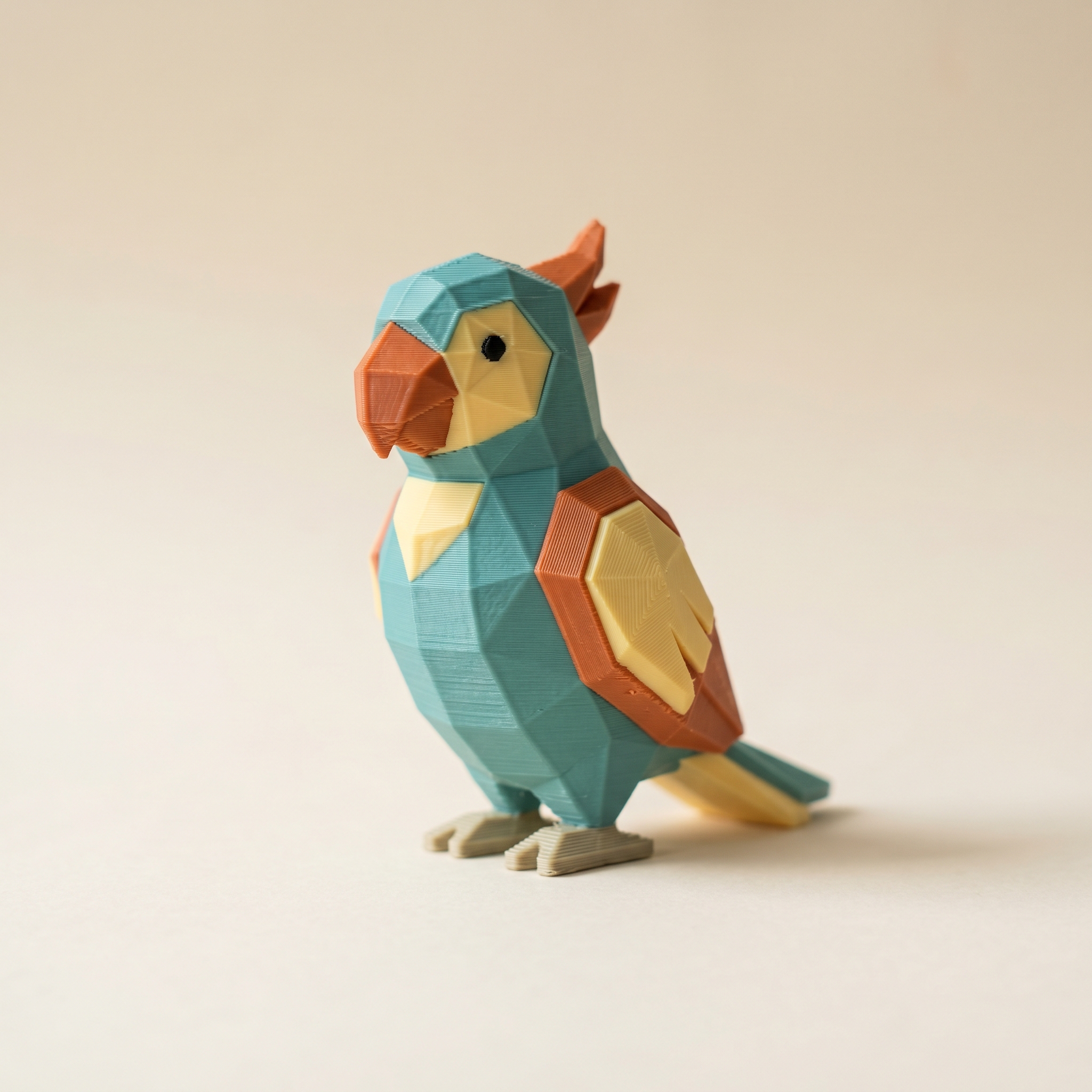
TL;DR: A four-slot AMS can print a six-color paint job once you decide where the two extra colors go. Merge the weakest colors into their neighbours with Layerpaint's Swap color control, point two color groups at the same filament in the slicer's import dialog, or buy more slots. Below: how to spot which colors aren't earning their place, how to merge them without repainting, and when each route makes sense.
Why do AMS slots run out before paint colors do?
Layerpaint gives you up to 16 palette chips and writes one color group per painted chip into the exported 3MF. The slicer then wants a filament for every group, and a standard four-slot AMS gives it four to offer. A six-color file still opens fine. Bambu Studio shows it in the Standard 3MF Color Parsing dialog like any other painted export. But two of those colors need a decision: share a filament with a neighbour, get merged in the painter, or wait for more hardware.
The mismatch sneaks up on you because painting is free. An accent here, a second shade of grey there, and the palette quietly outgrows the printer. People have asked Bambu for years to print five or more filaments through a single AMS (it's a long-running request on the Bambu Studio tracker), and the answer hasn't changed: more slots or manual changes. So the useful question isn't how to stretch the AMS. It's which of your six colors actually earn a slot.
Find the colors that aren't earning a slot
When you're deciding which colors to merge, the filament color matcher shows you which of your filaments are close enough that nobody will notice.
Spin the model and ask what each color does at arm's length. Two patterns show up over and over.
Two shades doing one job. Cream next to warm white, or two greys a step apart. They read as one color on the printed part, and the printed part is the one that counts.
An accent that's all slivers. Open the Check tab and toggle Show discard risk. Painted patches narrower than your nozzle's extrusion width get silently dropped by the slicer, so if most of a color lights up in that overlay, the slot is buying you almost nothing. The Process discards button merges flagged patches into the color with the longest shared border, which is what the slicer would have done anyway, except now you get to see it.
How do you merge two palette colors without repainting?
Use Swap color, in the Palette section of the Setup tab. Pick the color you're retiring in the left dropdown, the color that absorbs it on the right, and click Swap color. Layerpaint repaints every face of the first color with the second in one step. The retired chip is now unused, so hover it and click the × to remove it. The whole merge is a single undo if you regret it.
Order matters. Don't remove the chip first: removing a palette chip unpaints every face that used it, and you'll end up doing the brushwork you were trying to avoid. Swap first, then remove.
If you might want the six-color version back someday, save the .layerpaint project before merging. Swap color is the same control you'd use to recolor a painted 3MF without repainting it, so a saved project can be re-merged any way you like later.
Keep all six and decide at import
Maybe the paint job deserves its six colors and only this print is constrained. Then leave the file alone and merge in the slicer instead. Bambu Studio's Standard 3MF Color Parsing dialog asks which filament each color group should use, and nothing stops you pointing two groups at the same filament. The file keeps six groups, the print uses four spools, and the 3MF on disk never changes. OrcaSlicer's import dialog behaves the same way.
The catch is that you make this choice again on every import, and with six rows in the dialog it's easy to fat-finger a mapping. If colors come out scrambled rather than merged, that's usually slot order, not the merge. The fixes are in our post on the parsing dialog assigning the wrong colors.
When the answer is more slots
If every color earns its place, merging is the wrong tool. A second AMS takes a Bambu setup to eight slots. Machines with more native channels exist too; we've walked through painting seven colors for the H2C with the Vortek kit. And at the other end, with no AMS at all, every color change is a manual swap at a layer pause. That sounds worse than it is when the colors separate cleanly by height.
Just don't shrink a good paint job to fit hardware you're already planning to replace.
Palette order maps to slot order. Layerpaint writes color groups in the order chips sit in your palette, so add chips in the same order the filaments sit in your AMS. The import dialog then matches slot for slot and you skip the remap entirely.
Common questions
How many colors can Layerpaint paint at once?
Sixteen palette chips, which matches the practical ceiling of most multi-filament setups (four AMS units at four slots each). The gap this post deals with sits between the sixteen you can paint and the four your AMS offers.
What happens if I just remove a palette chip?
Every face painted with that chip goes back to unpainted. That's rarely what you want mid-project. Move the faces onto another color with Swap color first, then remove the empty chip.
Does merging colors in the slicer change my 3MF?
No. The parsing dialog's mapping lives in the slicer project. The exported 3MF keeps all its color groups, so the same file prints six colors the day you have six slots.
Can I print six colors with a four-slot AMS and manual swaps?
Sometimes. If the extra colors sit in their own band of layers, you can pause at a layer and change spools, the same trick as printing multicolor with no AMS at all. When the extra colors interleave with the others through the whole height, the pause count gets silly fast. Merge instead.
Try it now
Open the painter, drop in a model, and paint with as many colors as the design needs. Fitting the job to your slot count is one click at the end, not a constraint while you work. Painting is free; when you're ready to print, your first export is free, then $6.97 for 10 exports or $39.97 unlimited. No subscription.