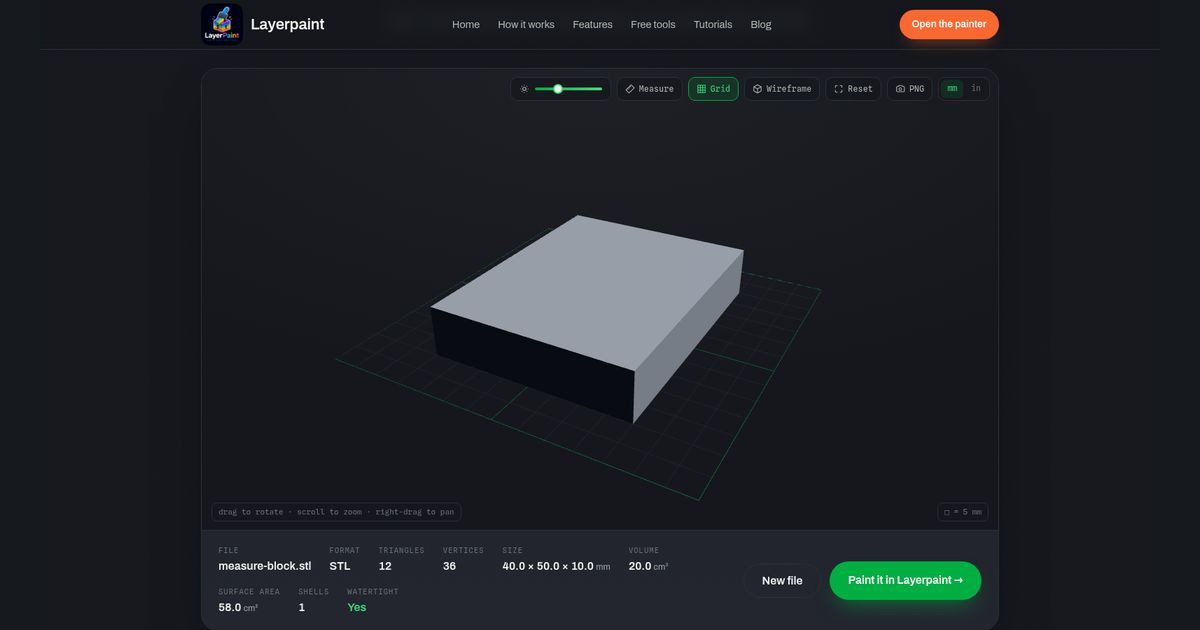
To measure an STL, first decide what you need: the size of the whole model or the gap between two points. In the Layerpaint STL viewer, Size gives the overall X, Y and Z dimensions. Measure gives a straight-line distance between the points you click.
Overall size and a point-to-point distance can differ without either being wrong. Use the steps below to read each one. You need an STL file and a browser. The viewer is free.
Read the whole model’s size first
Open the viewer and choose your STL file. Find Size in the panel below the model. Read the three numbers in X, Y, Z order. If the readout is in inches, click the mm / in toggle once to switch to millimeters. Compare the size with dimensions stated by the model’s creator.
The size describes a box around the whole mesh, aligned with the file’s axes. It includes every vertex, or corner point, in the file. It does not tell you the length of a single edge. A tab that sticks out can add to the overall size.
This type of box is called an axis-aligned bounding box. Think of it as the space the model spans along each axis. If the part was saved at an angle, these spans may differ from the lengths of its sides.
Dragging the view lets you look around the model. It does not change the file’s size. If the model seems far too small, use the separate STL unit-error guide before trying to fix it by eye.
Measure the gap between two points
- Click Measure above the model.
- Click the first point on the model’s surface. The readout asks for a second point.
- Click the second surface point. Read the bold distance and the X, Y and Z values beside it.
- Click again to start a new pair. To stop placing points, turn Measure off.
The bold value is the straight-line distance. The smaller X, Y and Z values show how far apart the selected points are along each axis. They are gaps between your clicks, not the full dimensions of the model.
The tool selects the surface under each click. It does not snap to the nearest corner. Zoom in when placing points, and check where both dots landed. A small change in where you click can change the result.
Why can the distance be larger than the X gap?
A line that crosses both X and Y runs diagonally. Its length can exceed either axis gap. The viewer uses straight-line distance between points, rather than distance along the surface.
Here is a browser check made for this guide on November 17, 2026. The sample STL block has an overall size of 40 × 50 × 10 mm. Two points were selected on its flat top, inset from the corners. Their gaps were X 30 mm, Y 40 mm and Z 0 mm.
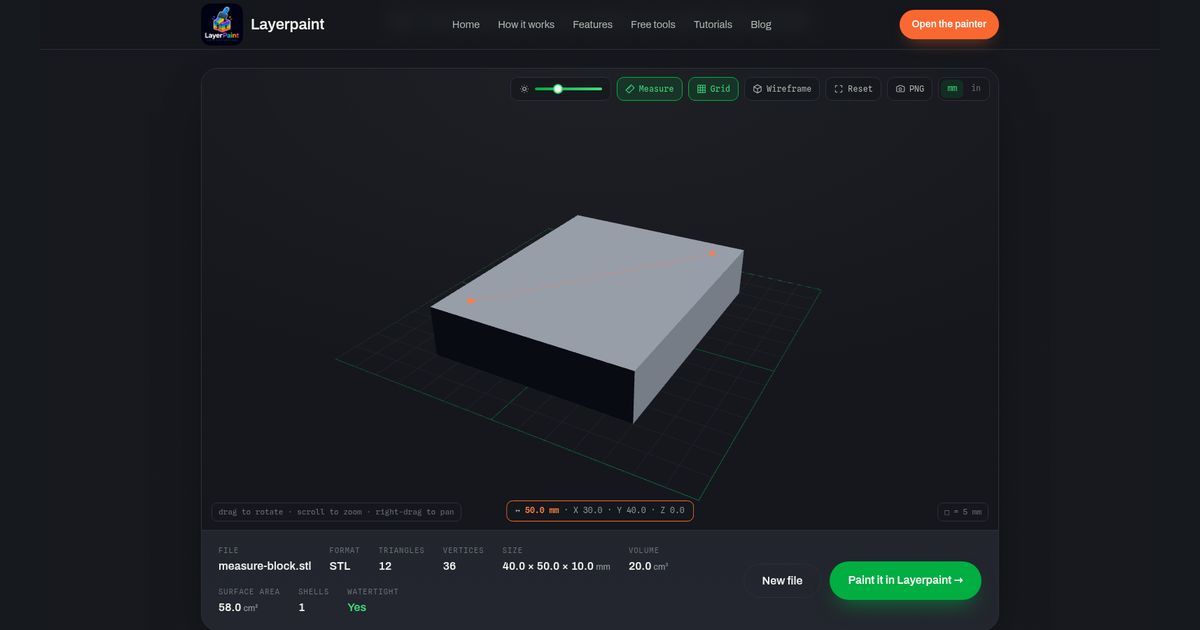
The numbers follow this calculation: 30² + 40² = 50². Both points are at the same height, so the Z gap is zero. If you try the sample, your clicks may land in slightly different spots. Expect the readout to reflect those spots.
Choose the reading that answers your question
- “How large is the whole file?” Read Size. Use all three values.
- “How far apart are these two surface points?” Read the bold Measure value.
- “How far apart are these points along X?” Read the X gap. Check that the points mark the feature you intended.
For an edge length, place both points at that edge’s ends. The viewer uses your clicked points, so treat this as a visual check. For a hole diameter, two casual clicks may miss the widest span. PrusaSlicer offers feature-based measurements, including circular features; see its measurement tool guide for the supported selections and limits.
Switching mm to in changes the viewer’s readout. It does not resize the mesh. This viewer is for checking a file; use the STL editing guide if you need to change the shape.
Once you have checked the model, you can open the Layerpaint painter to add color. Check the app’s export terms before starting that separate step. A measurement of the file alone does not establish how a printed part will fit.