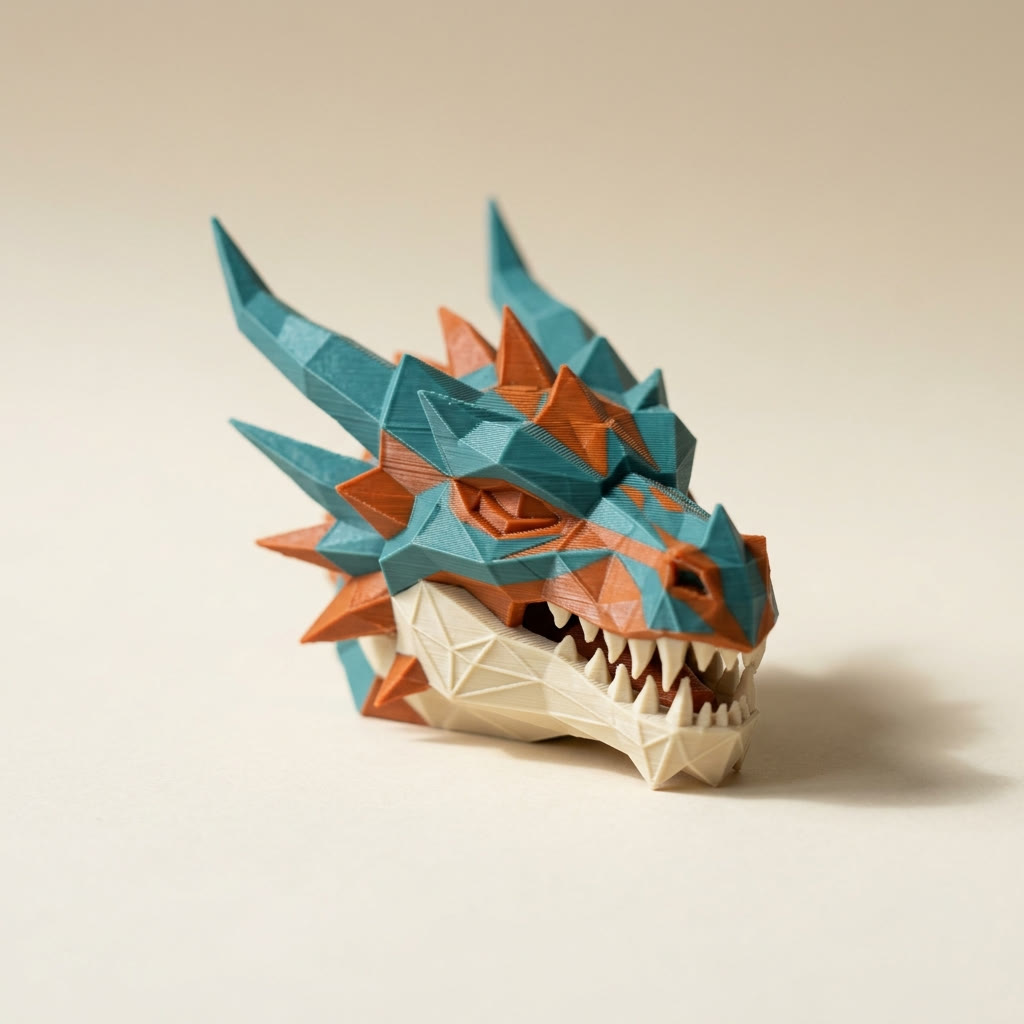
TL;DR: STL file repair means making the mesh watertight: every edge shared by exactly two triangles, every normal pointing outward, no triangles with zero area. Drop the file on a browser repair tool and it fixes the fixable defects in one pass. This guide explains what each error means, which ones are safe to ignore, and when a "broken" STL is really a modelling problem no repair can solve.
What is STL file repair?
STL file repair is the process of correcting geometry errors that stop a mesh describing a solid object: holes in the surface, edges shared by more than two triangles, triangles wound inside out, and triangles with no area. A valid printable mesh is watertight, meaning you could fill it with water and none would leak. Slicers need that property to decide what is inside the model and what is outside, which is the decision that produces every layer of toolpath.
Every STL file repair comes down to that one property. An STL stores nothing but a list of triangles. There is no notion of a surface, an object, or a solid anywhere in the file. "Solid" is something your slicer infers by casting a ray and counting how many triangles it crosses: an odd number means it ended up inside, an even number means outside. Every STL error in the list below is a way of breaking that count.
This is also why STL file repair comes up so often. The format has no structure to protect. Any tool that writes triangles can write bad ones, and nothing in the file objects. Newer containers like 3MF index vertices properly and carry units and materials, but they inherit the same geometry problems when the mesh underneath is wrong.
The five errors, and which ones matter
Open edges (holes)
An edge belonging to only one triangle is a boundary edge. A loop of them is a hole. This is the defect that actually breaks prints: the ray-crossing test gives a different answer depending on whether the ray passes through the gap, so the slicer produces walls that stop mid-air or layers that vanish.
Worth knowing: a hole is not always a defect. An open-bottom figurine, a vase, a cosplay shell scanned from one side — all of these are open by design and print correctly, because the slicer treats the opening as the model's boundary rather than a gap in a closed surface. This is why a good repair tool judges holes by size relative to the model and leaves the big deliberate ones alone.
Non-manifold edges
An edge shared by three or more triangles can't exist on a real surface. It usually means an internal wall survived a boolean union: two shapes were merged, and the faces where they overlapped were never deleted. The slicer hits that edge and has no way to know which side is meant to be solid.
Small counts are usually harmless. Hundreds of them, clustered in one area, tend to show up in the preview as a region with missing infill or a wall printed twice.
Flipped normals
Each triangle has a facing direction, set by the order its three vertices are listed in. Consistent winding means every triangle faces outward. When a subset is wound backwards, the model renders with dark or invisible patches, and the slicer's inside/outside test flips in those regions.
Modern slicers repair inconsistent winding silently and almost always get it right, so this one rarely reaches your print. It matters much more if you plan to edit or paint the mesh, because editing tools take the normals at face value.
Degenerate triangles
A triangle with zero area: three collinear vertices, or two vertices at the same coordinate. These come out of aggressive decimation and CAD exports with tight tolerances. They contribute no surface, but they corrupt the adjacency information every other step depends on, which is why STL file repair removes them first.
Multiple shells
Not an error at all, just information — but the one most often mistaken for a broken file. A shell is a connected closed surface. A model can legitimately have several (a body plus separate eyes). It can also have several because you imported the same object twice and one copy is sitting invisibly inside the other. STL file repair can make each shell valid; it can't know which ones you wanted.
Open edges in the hundreds, or a preview with missing layers, means repair before you print. A handful of non-manifold edges and some inconsistent winding on a model that previews correctly means print it and stop worrying.
How to repair an STL file
Drop the file on a browser-based repair tool for the fastest route: it analyzes the mesh on your device, reports the defect counts, and repairs them in one pass with no upload and no file size limit. Desktop options include Microsoft 3D Builder on Windows, Blender's 3D Print Toolbox for manual control, and Autodesk Netfabb for industrial work. Most slicers also attempt a silent repair at load time, which is why some broken files print correctly anyway.
For most people the browser route is the fastest STL file repair, because it costs nothing and takes about ten seconds. Layerpaint's free STL repair tool parses and repairs the mesh locally, so a 100 MB scan is fine and a confidential client model never leaves your machine.
If you'd rather work on the desktop, Microsoft 3D Builder repairs a mesh in one click on Windows, and Blender's bundled 3D Print Toolbox gives you a per-defect checklist plus manual control over what gets changed. Both are worth having when a file needs judgement rather than a single pass.

The STL file repair runs in this order: drop degenerate triangles and exact duplicates, resolve non-manifold edges by removing the flap faces, close holes by fan-filling their boundary loops, then make the winding consistent and turn any inside-out shell right side out. Vertices are never moved, so the shape you drop in is the shape you download. Openings that are large relative to the model are left alone unless you tick the option to close them, which keeps your vase a vase.
You get before and after numbers for each defect class. That matters more in STL file repair than it sounds: a tool that reports "repaired!" tells you nothing about whether the file had a real problem or whether the repair worked.
When repair won't help
Some models are geometrically valid and still unprintable. STL file repair has nothing to say about walls thinner than your nozzle, features too fine to resolve at 0.2 mm layers, or a model whose orientation needs supports everywhere. If a file repairs clean and still fails, the problem moved to slicing or to the design.
The other case is a mesh damaged badly enough that filling the boundary loops produces webbing rather than surface. Photogrammetry scans with large missing regions land here. At that point you need a remeshing repair that rebuilds the surface, and you accept losing fine detail in exchange for a closed mesh.
After the repair: color
A clean watertight mesh is also the starting point for painting one, which is the other reason STL file repair is worth doing. Region detection, flood fill, and boundary snapping all read the same adjacency information that holes and non-manifold edges corrupt — a mesh that repairs cleanly is a mesh whose regions are found correctly.
Once the file is repaired, you can open the same model in Layerpaint, assign a filament color per region, and export a standard 3MF your slicer prints in multiple colors. If you want to look before you commit, the free STL viewer opens STL, OBJ, and 3MF in the browser. For choosing between the two formats, 3MF vs STL covers the tradeoffs.
Common questions
Do I need to repair every STL error my slicer reports?
No. Slicers report defects, not consequences. Most modern slicers repair small holes and inconsistent winding silently at slice time, so a warning about a handful of open edges often prints fine. Repair matters when the count runs into the hundreds, when the preview shows missing or ghost layers, or when you plan to edit or paint the mesh, because editing tools are far less forgiving than slicers.
What does non-manifold mean in an STL file?
A manifold mesh is one a real object could have: every edge is shared by exactly two triangles, so the surface has a definite inside and outside. An edge used by three or more triangles is non-manifold, usually an internal wall left where two shapes were merged. The slicer can't tell which side is solid, so it either guesses or skips the region.
Will repairing an STL change the shape of my model?
A good repair doesn't move existing vertices. It removes triangles that describe nothing, adds triangles across boundary loops to close holes, and flips winding so normals point outward. Layerpaint's repair tool never moves a vertex, so the silhouette you drop in is the silhouette you download. Aggressive remeshing repairs, which rebuild the surface from scratch, are a different operation and do change fine detail.
Why does my repaired STL still look wrong in the slicer preview?
Check the shell count. A model that repairs cleanly but still slices strangely usually contains several overlapping closed shells, often a duplicate import sitting inside itself. Repair makes each shell valid on its own; it doesn't decide which ones you meant to keep. Delete the extra shells in your slicer, or re-export the model from the source without the duplicate.
Try it now
The STL file repair tool is free, runs entirely in your browser, and has no file size cap. Drop in an STL, OBJ, or 3MF, read the before and after numbers, and download the repaired mesh. When you want that model in color, Layerpaint paints it per region and exports a standard 3MF that Bambu Studio, OrcaSlicer, and PrusaSlicer open with the colors intact. Your first export is free.