TL;DR: Layerpaint turns a photo into a 3D printed chibi figure, right in the painter. Upload the photo, approve the concept sketch it draws, and the build lands on the canvas about two minutes later. Print it straight away in one color, or paint it first and print it in full color. The first figure's concept and build are free; after that a figure costs 4 AI credits. Exporting the print file for an AI-made figure needs an export pack.
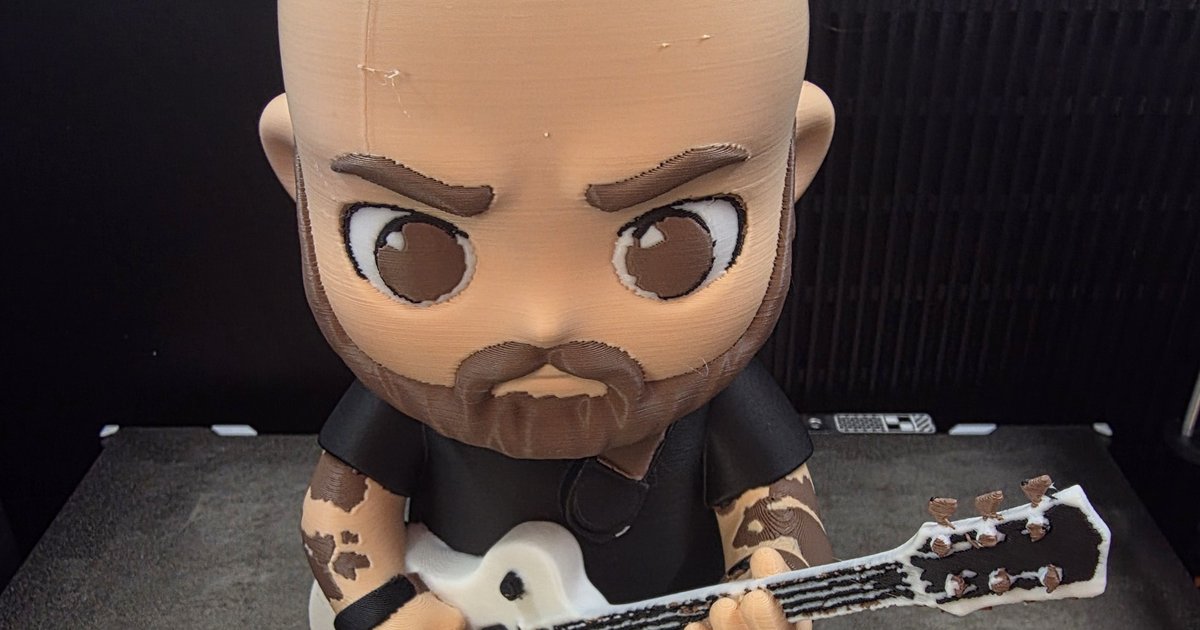
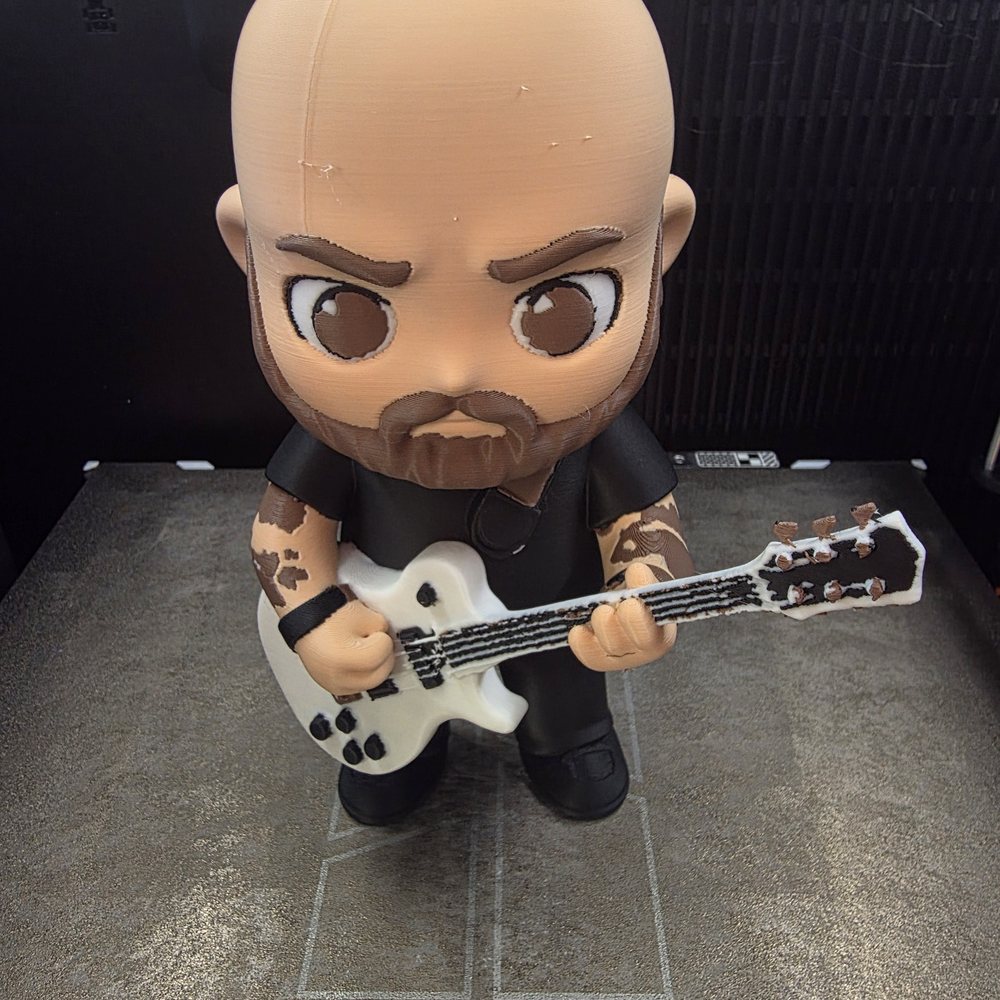
The chibi figure in the photo above started as a single snapshot: a guy with his guitar. No modeling, no sculpting, no commissioning anyone. The photo went into Layerpaint, a concept sketch came back a few seconds later, and the build was on the print bed the same afternoon.
If you've priced a custom chibi figure on Etsy, you know commissions run $50 and up and take a week or two, because a human sculptor is doing the work. This is the same idea with the sculpting done by AI and the printing done by you. Here's the whole process, start to finish.
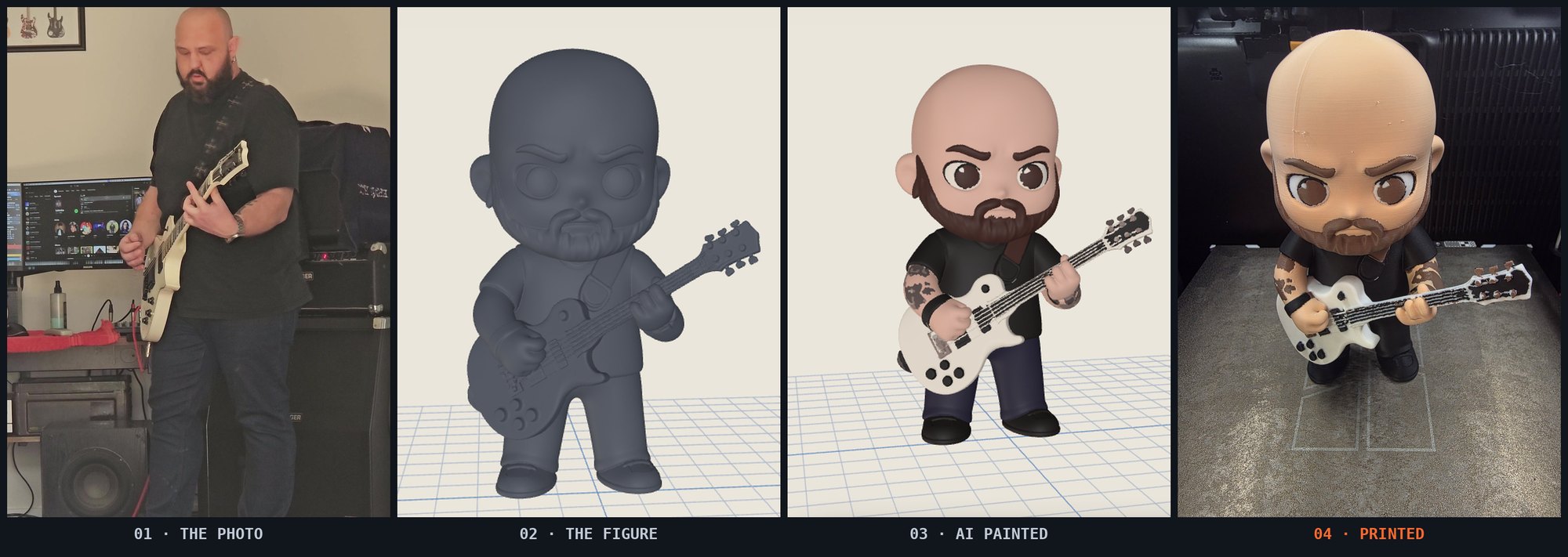
Step 1 — Open Chibi Figure and add a photo
Open the painter at layerpaint.app/app and click Chibi Figure in the left rail, then drop in a photo (JPG or PNG).
Photo choice matters more than anything else in this process. One person, facing the camera, decent light. Whatever is distinctive about them shows up in the figure: the beard, the glasses, the guitar. Props survive the translation surprisingly well, so a photo of someone holding the thing they're known for makes a better figure than a plain portrait.
Use a photo you have the rights to: you, family, a friend who's in on it. The safety filter rejects photos of recognizable public figures, so a celebrity photo gets you a refund, not a figure.
Step 2 — Approve the concept
About fifteen seconds after you add the photo, Layerpaint shows you a concept sketch: your photo redrawn as a chibi character, big head, small body. Nothing gets built until you say so.
This is the checkpoint. If the sketch nails the likeness, hit Build the figure. If it doesn't, try another photo — a different angle or better lighting usually fixes it. The concept is what the figure will actually look like, so judge it the way you'd judge the finished print.
Step 3 — Build the figure
The build takes about two minutes. You don't have to sit and watch it: keep painting something else, or close the tab entirely. When you come back, Layerpaint picks the build up where it left off and delivers the finished figure into the editor.
The figure arrives cleaned up and repaired for printing, standing upright on the plate. It comes in as geometry only, in a single color, and that's deliberate — the likeness lives in the sculpt, and the colors are yours to choose as real filaments rather than a texture your printer can't reproduce.
Step 4 — Print it as-is, or paint it first
From here it's a normal Layerpaint model, and you have two endings:
- Print it in one color. Export (AI-made figures need an export pack) and slice. A single-color chibi figure in silver or bronze PLA reads like a little statue, and it means this works even if your printer has no multi-color unit at all.
- Paint it, then print it in full color. Skin, beard, shirt, guitar — region fill gets you most of the way, and AI Paint can take the same photo you started from and color the figure to match it. That's how the figure in the hero shot got its tattoos.
Either way you export a Standard 3MF and open it in Bambu Studio, OrcaSlicer or PrusaSlicer. The mesh is dense, so Layerpaint sets its export Simplify pass automatically — the file slices like any other model.
How much does a 3D printed chibi figure cost?
In Layerpaint, the first chibi figure is free, concept and build included. After that, a concept sketch costs 1 AI credit and a build costs 3, so a complete figure is 4 credits — about $4.78 on the smallest credit pack. The print file then needs an export from an export pack (10 exports for $6.97, or $39.97 for unlimited), plus your filament.
Credit packs are $5.97 for 5, $19.97 for 20, or $44.97 for 50, and they're the same credits AI Paint and AI Create use. Compare that with what a sculpted commission costs and the math is short. The trade is that you do the printing, which is presumably why you're here.
Common questions
Is the first chibi figure really free?
The model is. Your first figure's concept and build are free, so you can judge the result before spending anything. The print-file export isn't: AI-made models need an export pack (10 for $6.97) or the $39.97 unlimited licence. After that a new concept is 1 credit and a build is 3.
What happens to my photo?
The photo is sent to a third-party AI service to sculpt the figure, and Layerpaint doesn't keep a copy. The upload screen says this at the point you add the photo, and the privacy policy covers the details.
Why does the figure arrive in one color?
Because the likeness is in the geometry, and color decisions belong to you and your filaments. A baked-on texture would show you colors your printer can't make. One flat color you can repaint beats a pretty preview you can't print.
What if the concept doesn't look like the person?
Don't build it — building is a separate, deliberate step. Try a clearer photo: front-on, one subject, good light. A new concept costs 1 credit and the button says so before you click.
Will the figure slice in my slicer?
Yes. It exports as a Standard 3MF, which Bambu Studio, OrcaSlicer and PrusaSlicer read natively — same as every Layerpaint export, for Bambu AMS, Prusa MMU3, Anycubic ACE Pro and Creality CFS.
Do I need a multi-color printer?
No. Skip the painting and the figure prints on any FDM printer in whatever filament is loaded. Multi-color hardware only matters if you want the painted version.
Make yours
Got a photo in mind? Open the painter — the first figure is on us, and the chibi figure tutorial covers every step above inside the app.