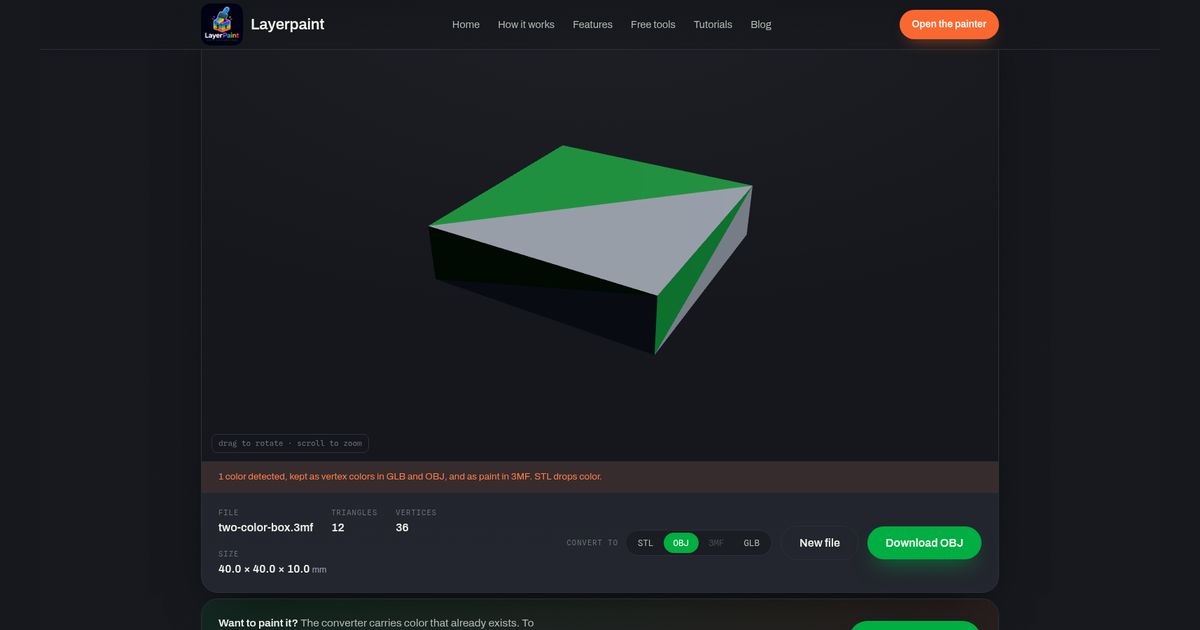
To convert a 3MF to OBJ with color, open the model converter, load your 3MF, and choose OBJ. Check the model before you click Download OBJ. The tool writes the colors it reads as vertex colors: color values stored at the points of the mesh.
Keep the source 3MF. The OBJ download has no MTL file (a separate list of surface materials) or image textures. Your next app must be able to read OBJ vertex colors. Also check the preview closely: in the test below, one source color was lost before the OBJ was made.
Convert the file and check the preview
- Open the converter and choose your
.3mffile. - Drag the model to turn it. Compare each painted area with the source in the app that made it. Read the color notice below the model.
- Choose OBJ under Convert to. If a source color has changed or gone gray, stop. Keep the source and use a tool that reads that file's paint correctly.
- When the preview is right, click Download OBJ. Open that file in your next app and check its shape, size, and colors there too.
The free converter reads the model in your browser. It merges the loaded objects into one mesh. Its OBJ output contains mesh points, faces, and any colors it read; it does not keep the 3MF's print settings or plate layout.
Why is there no MTL file?
This converter puts red, green, and blue values on the OBJ's vertex lines. A vertex is a point used to form the mesh. For a painted face, the tool writes the same color at all three corners of its triangle.
There is no separate material file to find. The converter does not write mtllib or usemtl lines, or make a texture image. If your next app needs an OBJ plus MTL and texture files, this export does not meet that need.
Check that app's import guide for OBJ vertex colors. Support for the OBJ shape alone is not enough. If the colors are present in the file but hidden in the app, check how the app displays vertex colors before you repaint anything.
A test that caught a missing color
On November 24, 2026, we loaded a small test box into the live converter. The source 3MF had orange and green faces, 12 triangles, and a size of 40 × 40 × 10 mm. It was a test mesh, not a printed part.
The preview showed green and gray. Its notice said one color had been detected. The downloaded OBJ had 36 vertex lines with green and gray values, and no MTL reference. Loading that OBJ back into the converter showed two colors and the same size. Orange was still missing.
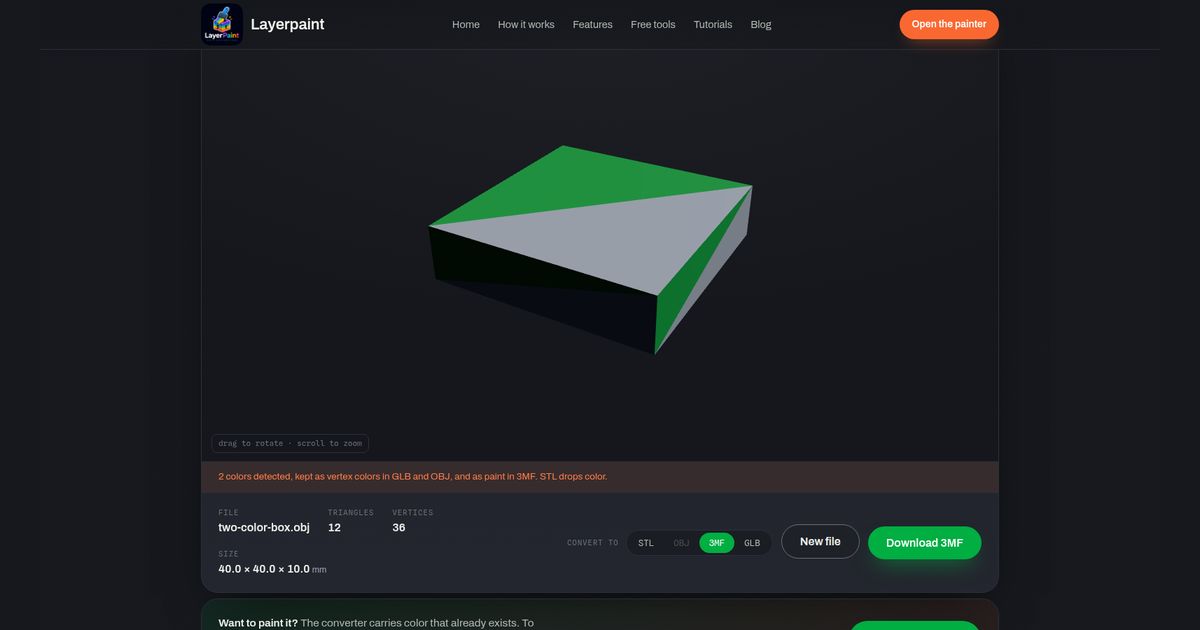
The source used the first entry in its color group for orange. The current importer treats that entry as unpainted. The 3MF Materials specification allows colors to be referenced by their position in that group. This is a converter limit to check, not a reason to remove orange from your design.
This check covered one simple file. It did not test a slicer or a printer. Compare the actual colored areas, even when the color count looks right.
Choose the file for the next task
If the next app needs OBJ vertex colors, use the checked OBJ. If it accepts GLB, the converter also offers that format. Switching output formats will not restore a color already missing from the import preview.
For more painting, open the Layerpaint painter with your source model. For printing, keep the source 3MF and check it in your slicer. Treat the OBJ as a separate copy for the app that asked for it.