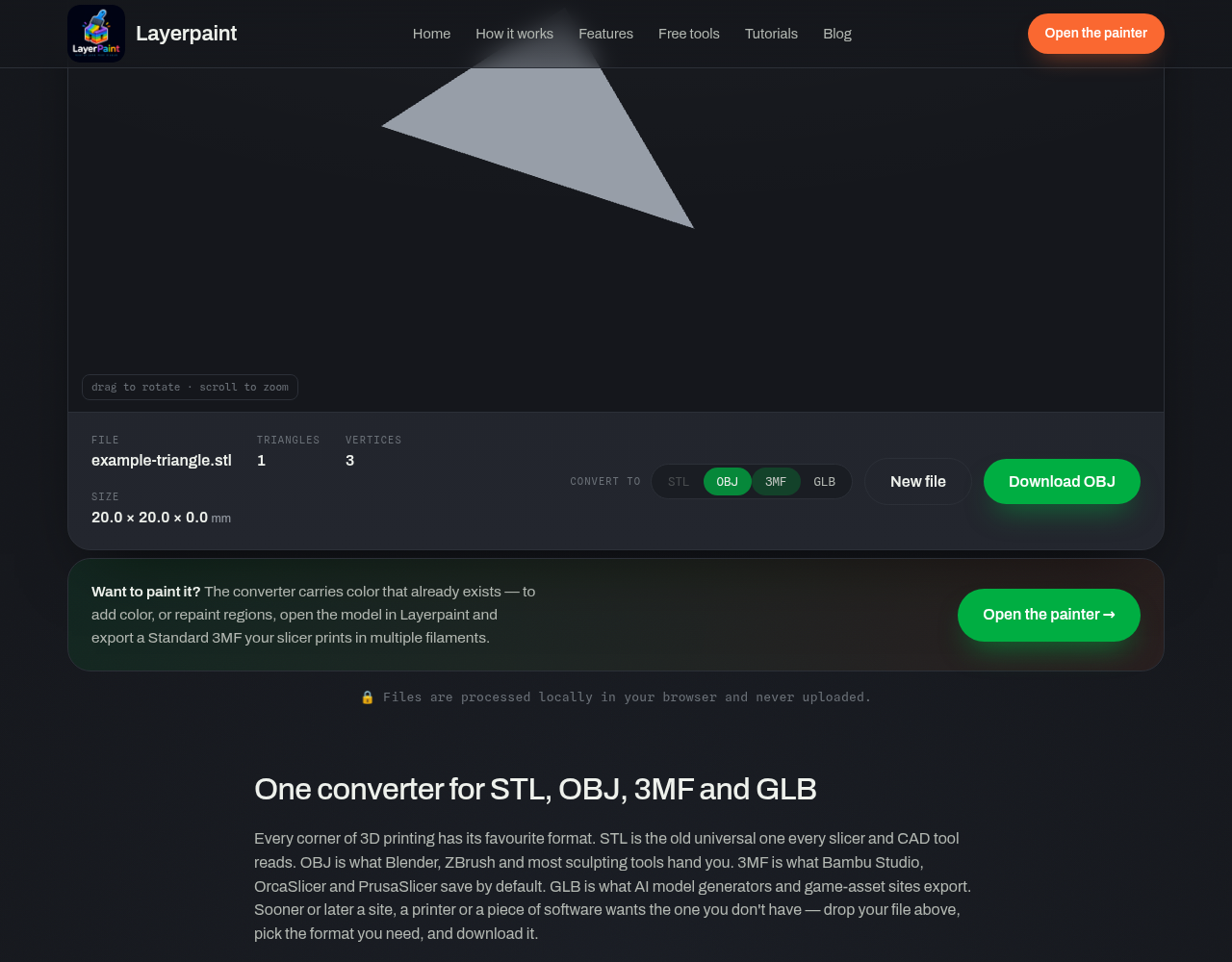
To convert STL to OBJ: open the free model converter, choose your STL file, select OBJ under Convert to, then select Download. The tool runs in your browser. It does not upload the file or require an account.
Open the STL to OBJ converter →
How to convert STL to OBJ
- Load the STL. Drop your file onto the converter or select choose a file. Wait for the model preview and the file information to appear.
- Check the model. Drag to rotate the model. Check the parts and note the size shown. STL has no set unit of length. Check the size again in the app where you open the OBJ.
- Choose OBJ. In the Convert to controls below the preview, select OBJ.
- Download and reopen. Select Download. Open the new
.objin the program you need it for, then check its shape and size against the source. Keep the STL until you have checked the result.
This free tool does not use a paid Layerpaint export credit.
What changes when you convert STL to OBJ?
The model uses a new file format. Its shape stays the same. A format swap does not smooth the mesh, bring back CAD features or fix holes. If you need to change the mesh, see editing an STL without CAD.
| Property | Result after conversion |
|---|---|
| Shape | The shape is kept in the OBJ file. |
| Color and texture | A plain STL has no texture to bring back. |
| Holes or unwanted parts | A format swap does not fix or remove them. |
| Dimensions | Check the scale and units in the next app. |
| File size | May change. It depends on how each file stores the mesh. |
Why is the converted OBJ still grey?
OBJ can link to texture files that add color. A plain STL has no such files. If the model once had a textured OBJ, ask for that file. Ask for its texture images and material files too. An STL copy cannot bring them back.
The Layerpaint tool can keep some types of color from other source files. It writes vertex colors: color values on the points of a mesh. These are not texture images. It does not write a .mtl file. Check that your next app can read this type of color.
For Blender, the official OBJ import and export documentation has more on these settings. The app’s display settings also affect how the model looks.
Do you need OBJ or 3MF?
Use OBJ when your next app asks for OBJ. Blender can also open STL. You do not need to swap formats to edit the shape there.
For a print with more than one color, first paint the mesh. Then check each color’s filament slot in your slicer. You can paint the STL in Layerpaint, then export a painted 3MF. Follow the 3MF export instructions and check the sliced view before you print. An OBJ format swap alone does not pick the print colors.
Read more in 3MF versus STL. Keep your source file as well as the new one.
Common questions
Does STL to OBJ conversion improve print quality?
A format swap does not add detail or fix a mesh. The model, slice settings and printer all affect the print.
Will the OBJ be larger?
It can be. OBJ stores text. STL can store text or binary data. The way each file stores the points of the mesh affects its size. There is no fixed size ratio.
Why is the model the wrong size after import?
Check the next app’s import scale and unit settings. Check a known width or height before you save or print.
Can I convert OBJ back to STL?
Yes. Choose STL in the same tool. Keep the OBJ and its texture files if you need them later. STL from this tool keeps the shape and drops the color.
Convert your STL to OBJ, then check the downloaded model in your next application.