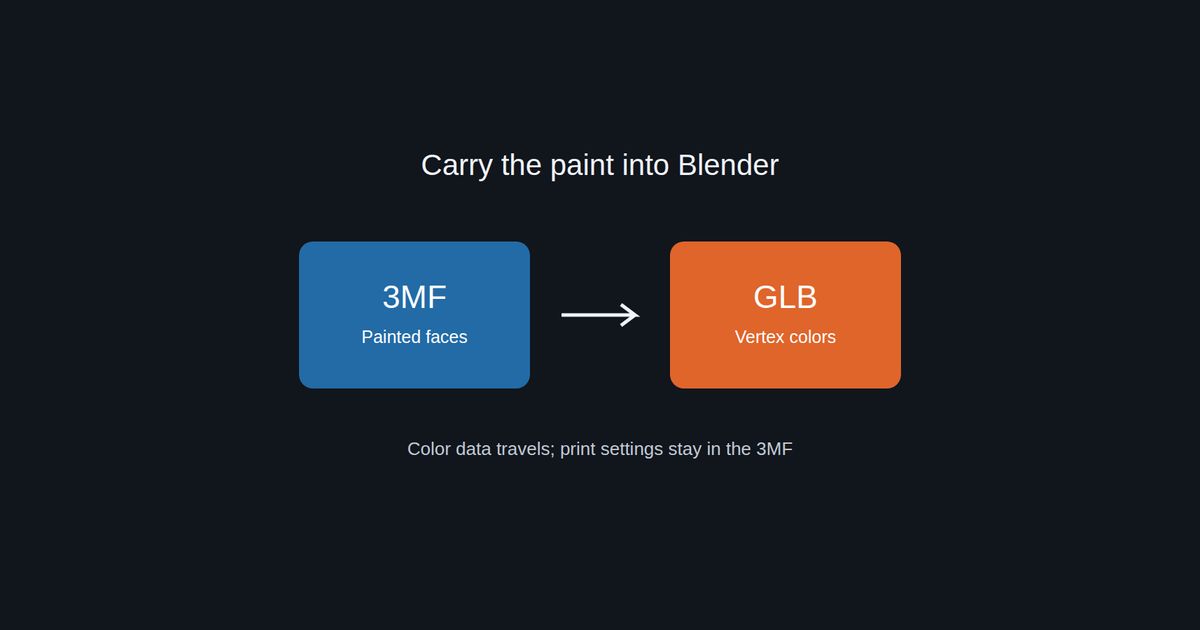
To bring a painted 3MF into Blender, convert it to GLB with Layerpaint's model converter, then import the GLB. The converter writes supported paint as vertex colors, which are color values stored on the mesh. In our test with Blender 4.5.3 LTS, the colors arrived as a color attribute and the importer built a material that already used them. Keep the original 3MF for printing.
Check the paint before you download
- Drop your .3mf into the converter.
- Turn the model in the preview. Check each painted area against your source file, especially small marks.
- Read the color notice below the preview. If the model should have two colors, check that the notice finds both. If it finds one, stop and check the source.
- Choose GLB under Convert to, then use the download button.
Stop if an area is blank or the wrong color in this preview. Blender can't bring back paint that the converter failed to read.
The converter reads 3MF color groups and Bambu/Orca face paint. It doesn't support Bambu/Orca paint that splits a triangle into smaller painted regions, so check the preview on your own file.
Our test: a two-color cube from 3MF to Blender
We made a 20 mm test cube in a 3MF with blue sides and an orange top, and ran it through the live converter on 3 November 2026. The converter reported two colors, 12 triangles and a 20.0 × 20.0 × 20.0 mm size.
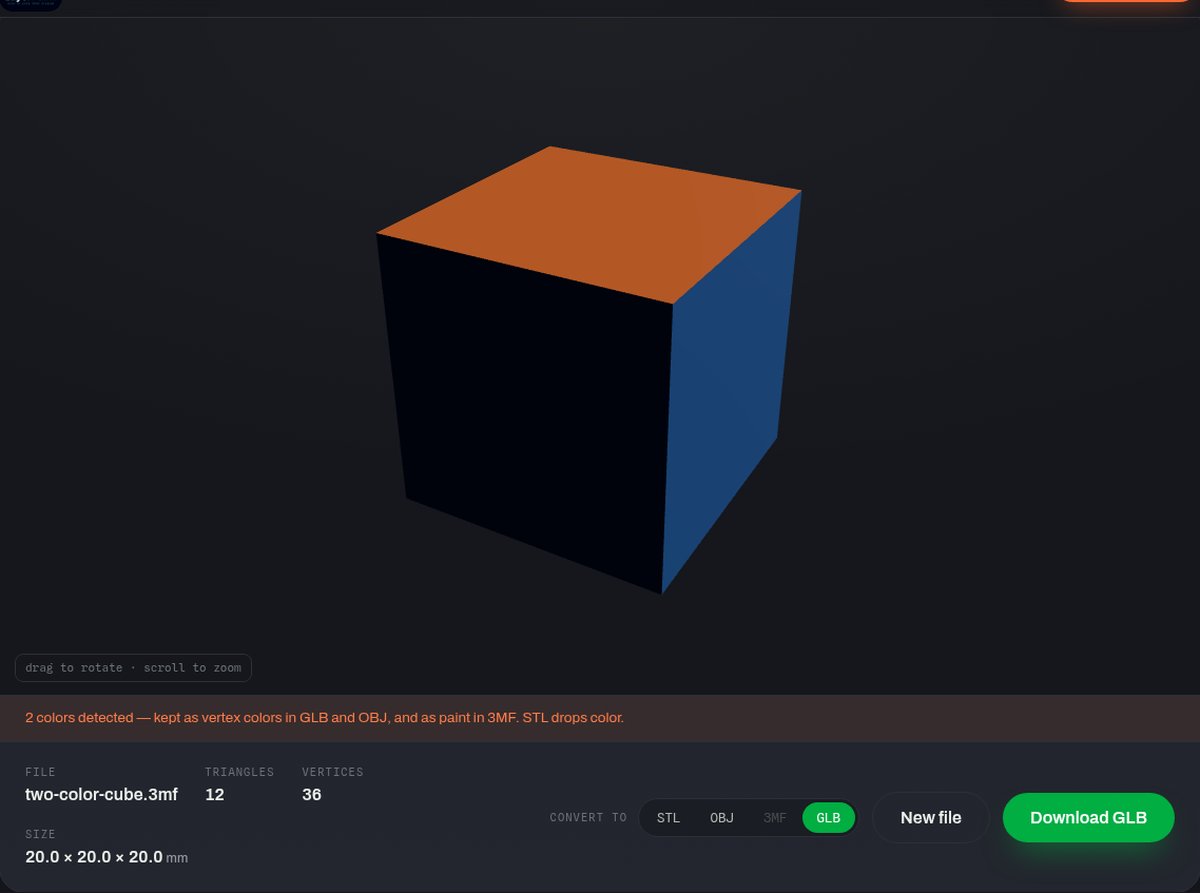
We then imported the GLB into Blender 4.5.3 LTS on Linux. Here's what came through:
- one mesh with 12 faces, 0.02 m on each side, which is the same 20 mm (the converter writes GLB sizes in metres);
- one color attribute called Color, holding the blue and the orange;
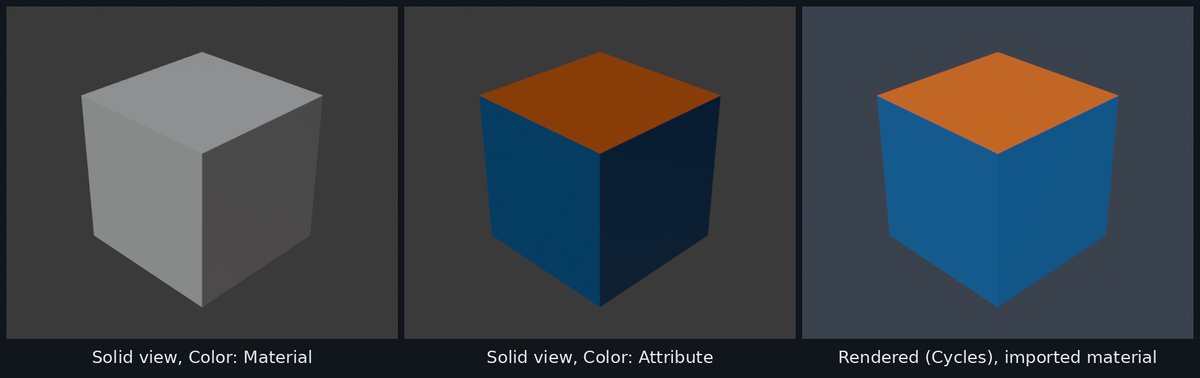
- a material the importer created, with a Color Attribute node already wired into Base Color.
Models now import standing upright, so the cube's orange top stays on top.
Open the GLB in Blender
Choose File → Import → glTF 2.0 (.glb/.gltf) and pick the downloaded file. Blender's glTF importer guide covers the options.
Don't panic if the model looks grey. Blender's default Solid view colors objects by their material's viewport color, not by the paint. Open the Solid shading popover at the top right of the 3D Viewport and set Color to Attribute. The painted colors should appear. Blender's viewport shading page lists these options.
A color attribute is a named set of colors on the mesh. It isn't an image texture, so you won't find it in the Image Editor.
Use the colors in a render
Switch the viewport to Material Preview or Rendered. In our test the colors showed straight away, because the importer's material already reads the color attribute.
If yours shows plain white or grey, build the material by hand:
- Select the model and open the Shader Editor. If there's no material, click New.
- Add a Color Attribute node and pick the imported attribute (ours was called Color).
- Connect its Color output to Base Color on the Principled BSDF.
- Check the Principled BSDF's BSDF output goes to Surface on Material Output.
See Blender's Color Attribute node and Principled BSDF pages for the details. If no attribute appears in the list, go back to the converter preview and check the source file rather than guessing a name.
Keep the print project as well
The GLB holds the merged mesh and its colors. It doesn't keep the 3MF's build plates or printer settings, and it doesn't turn the paint into image textures. Save the original 3MF alongside your Blender work.
If you need to change which areas are painted before converting, open the model in Layerpaint. For what the print file itself contains, read what a 3MF file contains.
FAQ
Can Blender open a 3MF directly?
Not out of the box. A fresh Blender 4.5.3 install has importers for glTF, OBJ, STL, FBX and others, but none for 3MF. Converting to GLB is the simplest route that keeps the colors.
Why is my imported model grey?
Usually it's Solid view showing the material color. Set the Solid shading Color to Attribute, or switch to Material Preview.
Why is my model lying on its side?
Models from the converter now import standing upright. Made your GLB before 3 November 2026? Convert the 3MF again, or rotate the GLB -90 degrees on X in Blender.