For GLB to 3MF with color, first check how the GLB stores its colors. Layerpaint's free converter reads vertex colors, but drops material colors and image textures. Even one solid vertex color is currently dropped. Here is how to check your file and choose the next step.
Open the model converter, load your GLB, and look at the preview. Choose 3MF under Convert to. If the colors are already missing there, downloading the file will not bring them back.
Why can a colored GLB turn gray?
A GLB can store color in more than one way. A model may look painted in one app while this converter reads only its shape. The Khronos glTF specification defines how material color, image textures, and vertex colors work together.
- Vertex colors: colors stored at the corner points of the mesh (the triangles that form its surface). The converter reads the GLB's
COLOR_0data. - Material color: a base color set for a surface. This converter does not carry that color into 3MF.
- Image texture: a picture mapped onto the surface. This converter does not turn that picture into print colors.
These limits apply to this tool. They do not mean that every GLB converter works the same way. A filename ending in .glb alone cannot tell you which kind of color it holds.
One solid color has a separate limit. The current converter treats a single vertex color across the whole mesh as uncolored. For a one-color print, choose that filament in your slicer. A slicer is the app that turns the model into print paths.
A cube test: what reached the file?
On November 10, 2026 we loaded three small GLB cubes into the live converter. All had the same shape. Only the color data changed. We then opened each downloaded 3MF as a ZIP archive and checked its model data.
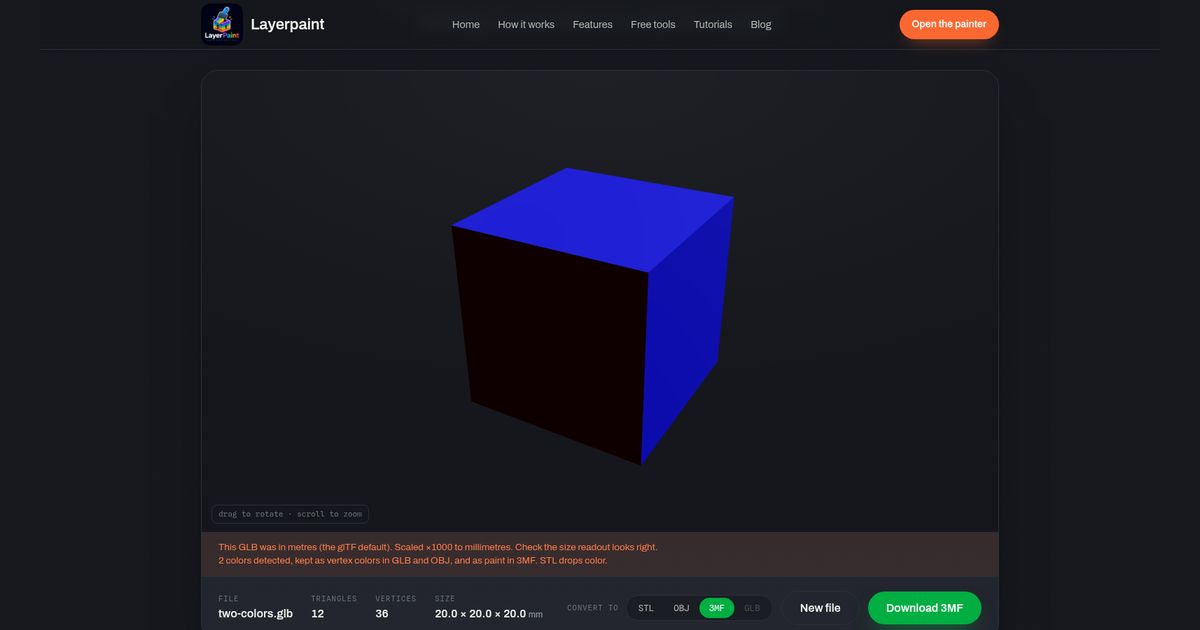
- Red and blue vertex colors: all 12 triangles kept color assignments. Six were red and six were blue.
- One red vertex color: the shape remained, but the 3MF had no color group or triangle color assignments.
- A red material, with no vertex colors: the shape remained, but the 3MF had no color group or triangle color assignments.
Each output measured 20 × 20 × 20 mm in its file data. The two-color file also held an unused gray fallback color. That extra entry was not a third painted region.
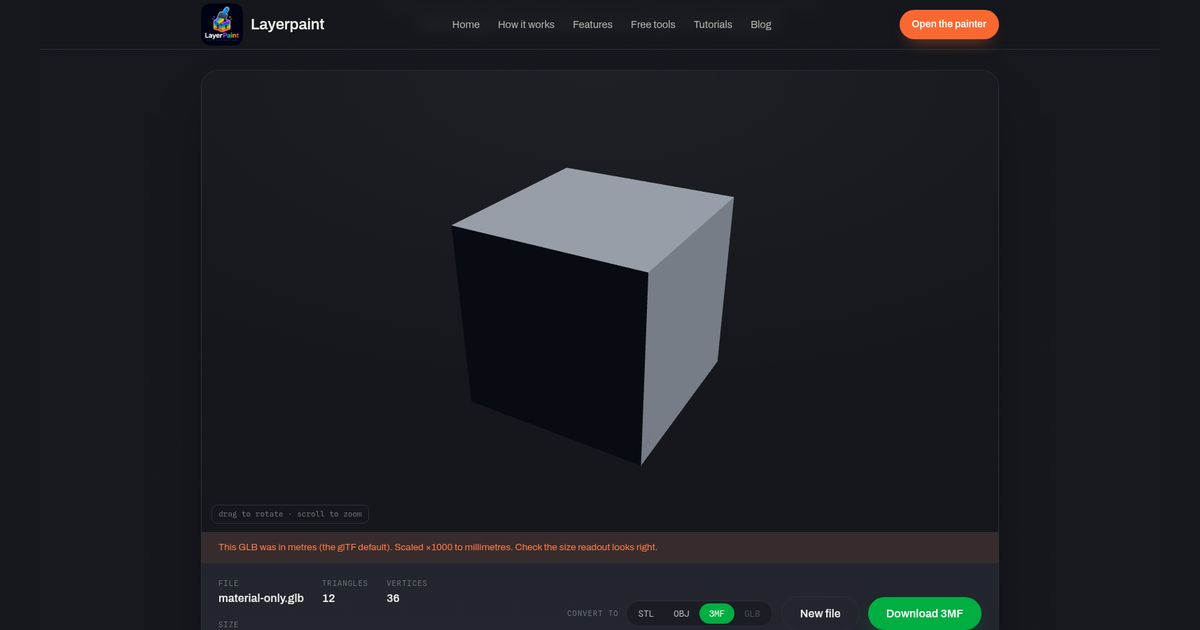
This test covers three simple files. It does not prove that a complex model will convert cleanly. We did not test a desktop slicer or a physical print.
Convert a GLB that has vertex colors
- Keep the source GLB. Open a copy in the free model converter.
- Check the preview and color notice. Turn the model to inspect each side. The two-color cube showed a notice that two colors were detected.
- Read the size. Check the millimeter values against your intended print size. The converter scaled the test cubes from meters to millimeters. Do not assume it will infer the right scale for every file.
- Choose 3MF, then Download 3MF. Keep this output beside your source file so you can compare them.
- Open the 3MF in your slicer. Check the size and color regions. Assign the colors to filaments you have, then slice and inspect the print paths.
The converter averages the vertex colors at each triangle's corners into one face color. It also limits 3MF output to at most 16 paint colors. That is a tool limit, not a claim that your printer can use 16 spools. Check gradients and small patches with care.
If color exists before slicing but vanishes afterward, use the separate guide to colors missing after slicing. That is a different check from losing color during GLB import.
What if the color comes from a texture?
Go back to the app that made the GLB and look at its export options. Check whether it can export vertex colors. “Include materials” alone does not mean vertex colors are saved. If the app cannot export them, choose a tool that reads textures or repaint a copy.
If you only need a few flat regions, you can instead convert the shape and paint it again. Download a 3MF, then load it in the Layerpaint painter. This is manual repainting; it does not restore the lost texture. The converter download is free. Painter export has its own access rules. Review those in the app before you repaint.
Keep the original file if you need its image texture. For an OBJ workflow, read the textured OBJ guide. For the reverse direction, see moving a painted 3MF into Blender.