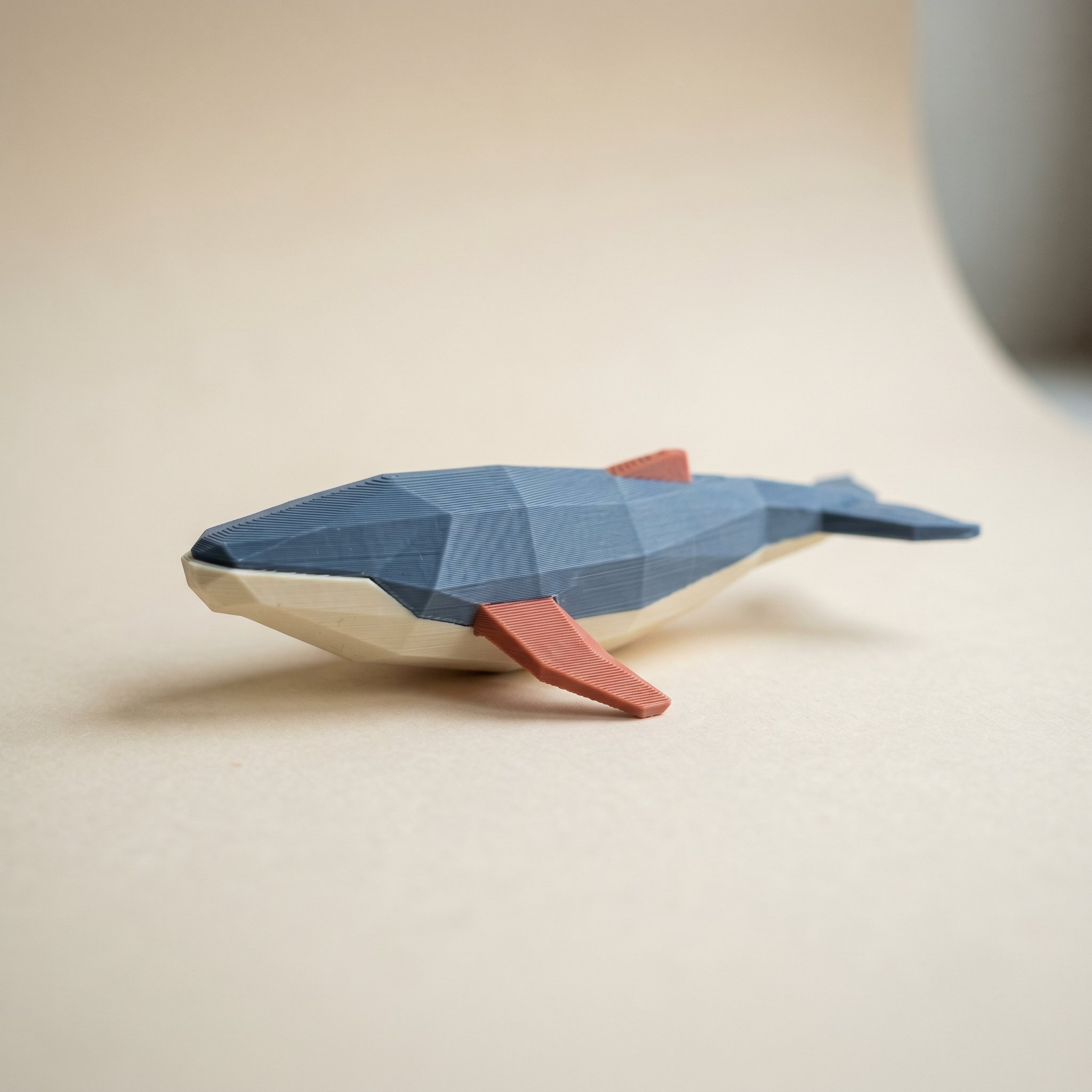
TL;DR: MakerWorld downloaders get your colors from the print profile, not the model file. A profile is a sliced Bambu Studio project 3MF, and that's where the paint lives. Paint the mesh in Layerpaint, export the Standard 3MF, slice it in Bambu Studio, print one copy for the listing photos, then attach the sliced project as a print profile on your model page. This guide covers the five steps, plus how filament mapping works for downloaders and what to do on Printables.
Does MakerWorld keep the colors from a painted 3MF?
Not from the model file alone. On MakerWorld, the colors a downloader actually prints come from the print profile, a sliced Bambu Studio project 3MF attached to the model page. That project file stores every face-to-filament assignment plus the slicing settings. So the reliable flow is: paint the mesh, open it in Bambu Studio, confirm the color mapping, slice, save the project, and upload that 3MF as a print profile. A bare STL upload carries no color information at all.
MakerWorld separates a listing into two parts: the model file (the mesh people can remix) and one or more print profiles (ready-to-slice project files with settings baked in). When someone taps "Open in Bambu Studio" on a multicolor listing, they're opening a profile. If your colors aren't in the profile, they don't exist as far as the downloader is concerned.
Worth opening the finished 3MF in the STL viewer before you upload it — it's the quickest way to catch a file that didn't export the way you thought.
That's the whole trick. Everything below is just getting your paint job into that file cleanly.
Step 1 — Paint the model and export a Standard 3MF
Open the Layerpaint painter in your browser and drop in the STL, OBJ, or 3MF. Paint with the Region tool for the big surfaces and the Brush or Wand for details, then hit Export 3MF. Layerpaint writes a Standard 3MF with per-triangle color groups via the Materials Extension (<m:colorgroup>), the exact format Bambu Studio's color parsing expects.
One thing to get right before exporting: the order you add chips to the palette is the slot order your colors land in. There's no drag-to-reorder, and removing a chip unpaints every face that used it, so settle the palette early. If you're going to share the model widely, it's worth a pass over palette ordering to cut purge waste first — every downloader inherits your swap sequence.
Step 2 — Open the export in Bambu Studio and check the mapping
Open the exported 3MF in Bambu Studio. The Standard 3MF Color Parsing dialog appears and offers to import the colors; accept it and each painted color lands on its own filament slot. If the dialog doesn't show up, here's how to fix Standard 3MF color parsing. It's almost always a settings toggle.
Before you slice, click through the filament list and confirm each slot shows the color you expect. This is the last cheap place to catch a mix-up; after you publish, fixing a wrong slot means re-uploading the profile.
Step 3 — Slice it and print one copy
MakerWorld's profile guidelines require at least one photo of a model printed with that profile, and Bambu says real print photos increase a profile's visibility. So slice, print one, and photograph it in decent light.
The test print is also a quality check. Look at where the color seams landed, and watch for painted patches that came out thinner than a nozzle width. Better you find that than your first commenter.
Save a .layerpaint project file alongside your export. If someone asks for an alternate color scheme later, you can recolor the painted model without repainting — swap the palette chips, re-export, and publish a second profile in minutes.
Step 4 — Save the sliced project as your profile file
With the plate sliced, use File → Save Project As in Bambu Studio. The resulting 3MF is a full project: mesh, per-face color assignments, filament list, and every slicing setting. That file is your print profile.
Name it something a stranger can parse: "fox-4color-0.2mm-AMS.3mf" beats "export(3).3mf". The filename shows up in the listing.
Step 5 — Upload the model, then attach the profile
On MakerWorld, create the model listing and upload your mesh as the model file. Then, on the model page, click +Add in the Print Profile section and upload the sliced project 3MF from Step 4. Add the print photos, and write a short note covering what filaments you used and anything the printer needs (AMS required, four slots, which slot is which color).
That note matters more than it seems. Downloaders can substitute their own filaments (Bambu Studio shows an AMS mapping screen at print time), but they can only make good substitutions if you tell them what each slot does.
Common questions
Do downloaders need the same filaments I used?
No. The profile stores color assignments by slot, and Bambu Studio remaps those slots to whatever the downloader has loaded in their AMS at print time. Your filament choices are a suggestion. The geometry of the color regions is what you're really publishing.
Can I upload the Layerpaint export itself as the model file?
Yes. It's a valid Standard 3MF, and remixers get the mesh with the color groups intact. But don't rely on it to deliver color to printers. Different viewers and slicers handle the Materials Extension differently, so treat the model file as the remixable source and the sliced profile as the thing people actually print.
Does the same flow work on Printables?
Mostly. Printables also lets you attach 3MF print files to a listing. Export from Layerpaint as usual, open the 3MF in PrusaSlicer, assign the colors to MMU or toolchanger slots, slice, save the project, and upload that as the print file. Same principle: the sliced project carries the colors.
What about Bambu's new Color Mixing profiles?
Different beast. MakerWorld doesn't currently accept 3MFs that use the new mixed-filament Color Mixing feature. A Layerpaint paint job isn't affected — it assigns one discrete filament per face, which is exactly what profiles have always supported. If you want the comparison, we wrote up when to use Color Mixing vs a painted 3MF.
Try it now
Layerpaint is free to try — no account, no install, no upload. Drop an STL on the painter, paint it, and run the flow above. When you're ready to export, your first export is free, then $6.97 for 10 exports or $39.97 unlimited. No subscription.
Happy printing. 🎨