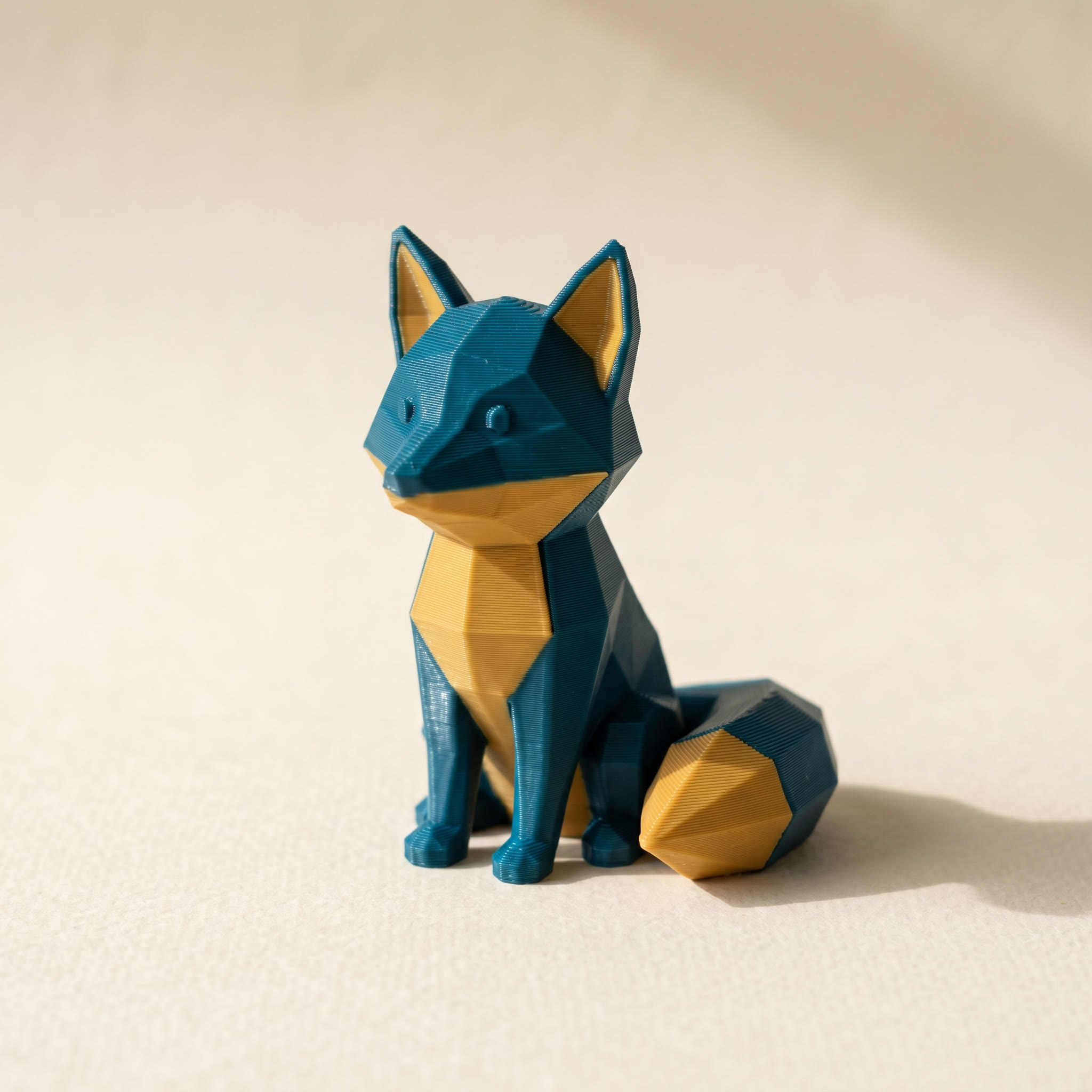
TL;DR: In Layerpaint's Palette section, the Swap color control reassigns every painted face from one palette color to another in a single click, without repainting anything. It edits the saved color assignment, so the change carries straight into your re-exported Standard 3MF. This post covers where the control lives, what it touches and what it leaves alone, how it differs from remapping slots in your slicer, and how to recolor only part of a model.
Can you change one color on a painted model without redoing the paint?
Yes. If a model is already painted in Layerpaint, you don't have to re-select regions or re-brush anything to change a color. Open the Palette section, pick the color you want gone and the color it should become, and click Swap color. Every face that used the first color is reassigned to the second in one pass. Re-export the 3MF and the new color is baked into the file your slicer reads.
This comes up constantly. A client changes their mind, a filament runs out and you want to substitute the spool you actually have, or two colors sit too close together once you see them on the plate. Whatever the reason, the paint work is already done. You just want a different filament in one of the slots.
Where the Swap color control lives
It's in the Palette section, right under the chips and the "Add from library" buttons. You'll see two dropdowns with an arrow between them and a Swap color button below. The left dropdown is the color you're replacing, the right is the color it becomes. Both lists are just your current palette, numbered #1, #2, and so on, so pick the one you want to drop and the one to put in its place.
Click Swap color and Layerpaint walks every triangle in the mesh. Each face assigned to the first color is reassigned to the second, and a toast tells you how many faces moved. On a figure where the gold covered a few thousand faces, that's a few thousand reassignments in the time it takes to read the message. If no face uses the first color, nothing happens and Layerpaint says so.
The swap works off your palette order, which maps to your physical AMS or MMU slots. If you're substituting because of what's loaded right now, swap into the slot you actually have spooled rather than reaching for "Add from library" and growing the palette.
What the swap touches, and what it leaves behind
If all you want is different colors on a 3MF someone else painted, you don't need the editor at all — the free 3MF recolor tool swaps the colors in your browser and hands the file straight back.
The swap changes one thing: the per-face color assignment. It doesn't merge regions, move boundaries, or alter the mesh. That's why it's instant and safe to undo.
One detail worth knowing. The old color's chip stays in your palette after the swap, now sitting unused. Layerpaint doesn't delete a filament slot for you. If you want that color gone from the print entirely, hover its chip and click the × to remove it. Because the swap already moved every face off that color, removing the chip unpaints nothing, it just tidies the slot list and drops the swap count. Leave the chip in place if you might want to swap back later.
If the swap wasn't what you wanted, undo reverses it in one step. Press Ctrl+Z (or Cmd+Z) and the colors return exactly as they were. The whole swap is a single history entry, not one undo per face.
Is swapping in Layerpaint the same as remapping slots in your slicer?
No. When you swap in Layerpaint, you edit the color assignment stored in the mesh, so the change is written into the Standard 3MF on your next export and shows up the same way in every slicer. Remapping a slot in Bambu Studio or OrcaSlicer only changes which filament that one slicer points at, on that one machine, for that session. It doesn't touch the file. Swap in Layerpaint when you want the recolor to stick to the model itself; remap in the slicer when you just need a quick filament assignment at slice time.
Both have their place. If you're handing the 3MF to someone else, or you want the file to be correct on its own, do the recolor in Layerpaint and re-export. If you've already got the file open and only need to nudge a filament for this one print, the slicer-side color remap is faster. The painted assignment that started it all came from your original paint job in Layerpaint, and the swap edits that source.
Recoloring only part of the model
The Swap color button is global. It hits every face of the chosen color across the whole model, not just a selected area. That's exactly what you want for "change all the gold to orange." It's not what you want if only the left pauldron should change while the rest of the gold stays.
For a partial recolor, paint that region to its own distinct palette color first, using the Region or Brush tool, then swap that color. Now the swap only touches the faces you isolated. Or, if it's a small area, just repaint it directly. The swap is built for the broad case where one filament becomes another everywhere it appears. Keeping your palette order tidy after a swap also keeps purge waste down, the same way it does when you order your palette to cut AMS purge.
Common questions
Does the swap change my exported file?
Not on its own. The swap updates the working model in the browser. To get the new colors into a printable file, export the 3MF again after swapping. The re-exported Standard 3MF carries the changed per-triangle assignment.
Can I swap a color back if I change my mind?
Yes, two ways. Undo with Ctrl+Z right after the swap, or just run the swap again in the other direction. As long as both chips are still in your palette, swapping is fully reversible.
What happens to the filament I swapped away from?
Its chip stays in the palette, now unused, until you remove it. Hover the chip and click the × to drop the slot. Since no faces use it anymore, removing it doesn't unpaint anything.
Will swapping mess up my regions or boundaries?
No. The swap only reassigns face colors. Your region splits, drawn boundaries, and crease detection are untouched, so the structure of the paint job is exactly as you left it.
Try it now
Layerpaint is free to try, no account, no install, no upload. Drop an STL, OBJ, or 3MF on the painter, paint it, and try the Swap color control. When you're ready to export, your first export is free, then $6.97 for 10 exports or $39.97 unlimited. No subscription.
Happy printing. 🎨