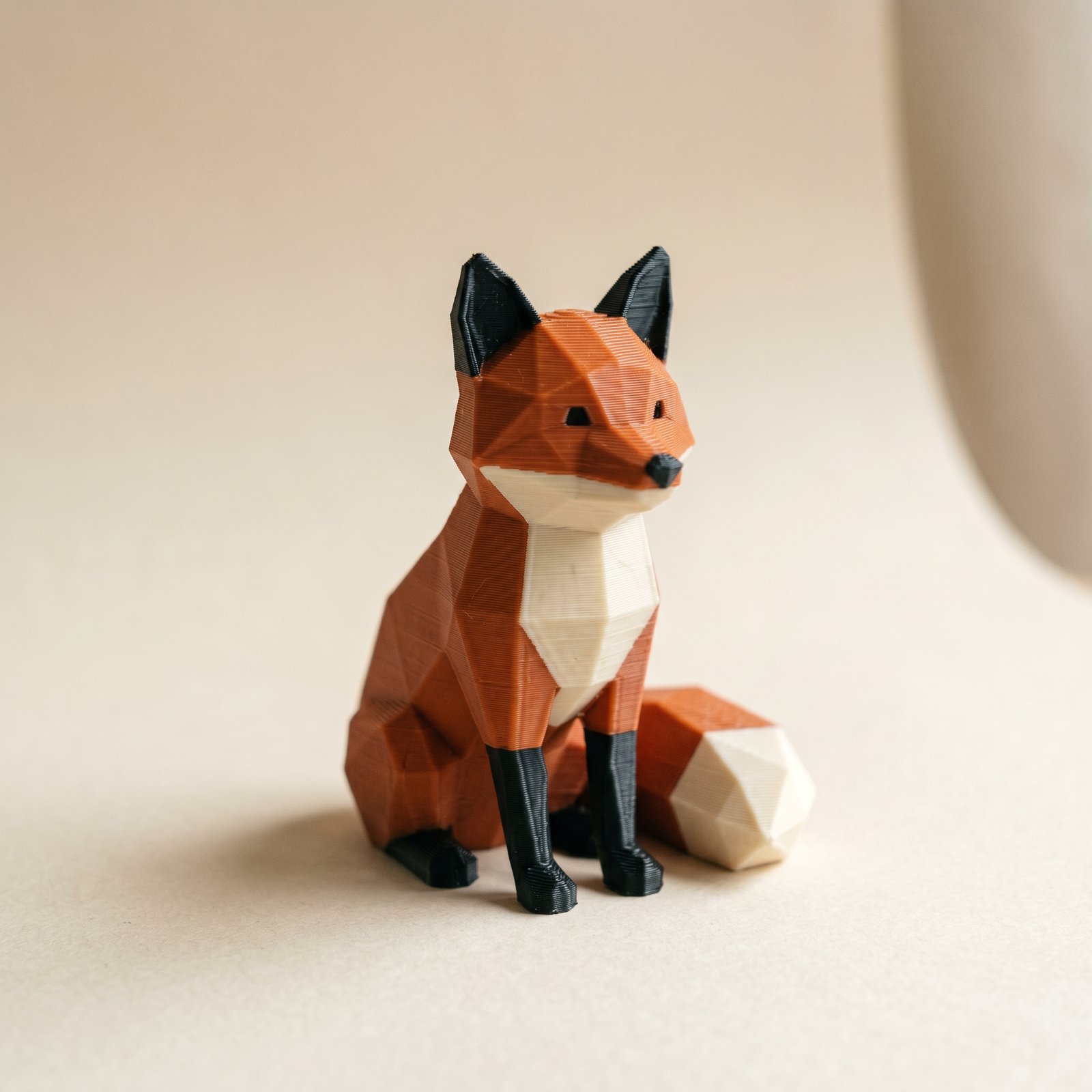
TL;DR: A light color over a dark body prints grey: the painted color is a thin outer shell, and the darker body shows through it. The fix is a paint decision, not a slicer setting. Dark filament covers light cleanly, but light barely covers dark, so make the light color the body and the dark color the details. Paint the body light on purpose instead of leaving it bare. Below: why translucency does this, how to assign your colors so coverage works, and when only your slicer can help.
Why do light colors print grey over a dark model?
Light filaments like white, pale grey, and pastels are slightly translucent, so painting a light region over a darker model lets the body show through and the color reads grey or muddy. Dark filament is the opposite: black, navy, and deep red are nearly opaque and cover almost anything in a layer or two. That asymmetry is the whole fix. Give the large areas to the light color and keep the dark for details and text, so every color sits over something it can cover. Light over dark only looks grey when dark is the body, so don't make dark the body.
What surprises people is that the painted color only sits on the surface. A painted 3MF stores one color per triangle, and the slicer fills the inside of the part with the base filament. So a light region is a thin skin, and a dark body behind it tints that skin. (For what the export does and doesn't store, see what a painted 3MF actually colors.)
White is the worst offender because it is the most translucent filament in most lineups, so it shows whatever sits behind it the most. The rule that falls out of this is simple: dark over light is easy, light over dark is hard.
Should the body or the detail be the light color?
Make the body the light color and keep the dark for details and text. Dark filament is opaque, so a dark accent covers a light body in a layer or two. Light filament is translucent, so a light accent over a dark body stays muddy no matter how cleanly you paint it. When the design lets you decide which color carries the large areas, give them to the lighter filament and reserve the dark one for small features. If the body has to be dark, treat the light details as a slicer problem, not a paint one.
This is a design rule, not a Layerpaint setting. The painter puts whatever color you choose on each face exactly, so the lever you control is the assignment. Paint the large areas with the light filament and the small ones with the dark. A black logo on a white body reads crisp. A white logo on a black body will not, however carefully you paint it.
Paint the body, don't leave it bare
The common mistake is to paint only the parts that change color and leave the main shape untouched, expecting it to print in some neutral default. In a Layerpaint export, anything you don't paint goes to a separate Unpainted filament, slot 1 in your slicer, which you map to a real filament when you open the file. The part's infill uses that same base slot. So if you leave the body bare and then map slot 1 to a dark filament, the body and the infill behind every thin wall print dark, and your light details sit on top of it.
Paint the body on purpose. Switch to the Region tool with 1 and click the body in your light color first. Layerpaint has already split the mesh along its creases, so the main shape is usually one or two clicks. Then drop the dark accents on top. New to the painter? The start-to-finish paint walkthrough covers the tools before you tune for coverage.
Check your color split before export. Give the largest areas to your lightest filament and keep the darks for details and text. If you catch yourself painting a small light shape onto a big dark body, that's the combination that reads muddy, and it's easier to flip the assignment now than to fight it at the slicer.
When you can't avoid light over dark
Sometimes the body has to be dark. A black faceplate with a white label, a navy badge with pale text: you cannot make the light color the body without changing the design. Coverage then stops being a paint decision and becomes a slicer one, because the painter only assigns the surface color, not how thickly it prints.
Two slicer settings do the work, and both live in Bambu Studio, OrcaSlicer, or PrusaSlicer, not in Layerpaint. First, raise the wall loop count and the top and bottom layers for the part, so more perimeters print in the light color and less of the dark body reaches the surface. Second, raise the flush volume for the dark-to-light change, since that swap already needs the biggest purge and white after black is exactly it. Our guide to calibrating flushing volumes walks through the numbers.
Common questions
What happens to faces I don't paint?
They go to a separate Unpainted filament, slot 1 in your slicer, which you map to a real filament when you open the export. The part's infill uses that same base slot. So if you want a light body, paint it light rather than leaving it bare and mapping that slot to a dark filament, which would put a dark body behind every light surface.
Why is white the worst color for this?
White and other light filaments are the most translucent, so they show the body color through the thin painted shell. Saturated darks like black, navy, and deep red are nearly opaque and cover almost anything in a layer or two. If you must put white on a dark part, plan to help it with slicer settings.
Can Layerpaint make the light color print thicker so it covers?
No. A painted 3MF stores one color per surface triangle and nothing about how deep it goes. How many walls print in that color is your slicer's perimeter and top-and-bottom setting, not something Layerpaint controls. Layerpaint's job is to put the right color on the right face. Coverage is a slicer setting from there.
What slicer settings help white cover a dark body?
Two. Raise the wall loop count and the top and bottom layers for the part so more perimeters print in white. Then raise the flush volume for the dark-to-light transition so the nozzle is clean before the white starts. Both are slicer settings, not Layerpaint features.
Try it now
Layerpaint is free to try, with no account, no install, and no upload. Drop an STL on the painter, paint the body in your light color, then add the dark details on top. When you're ready to export, your first export is free, then $6.97 for 10 exports or $39.97 unlimited. No subscription.
Happy printing. 🎨