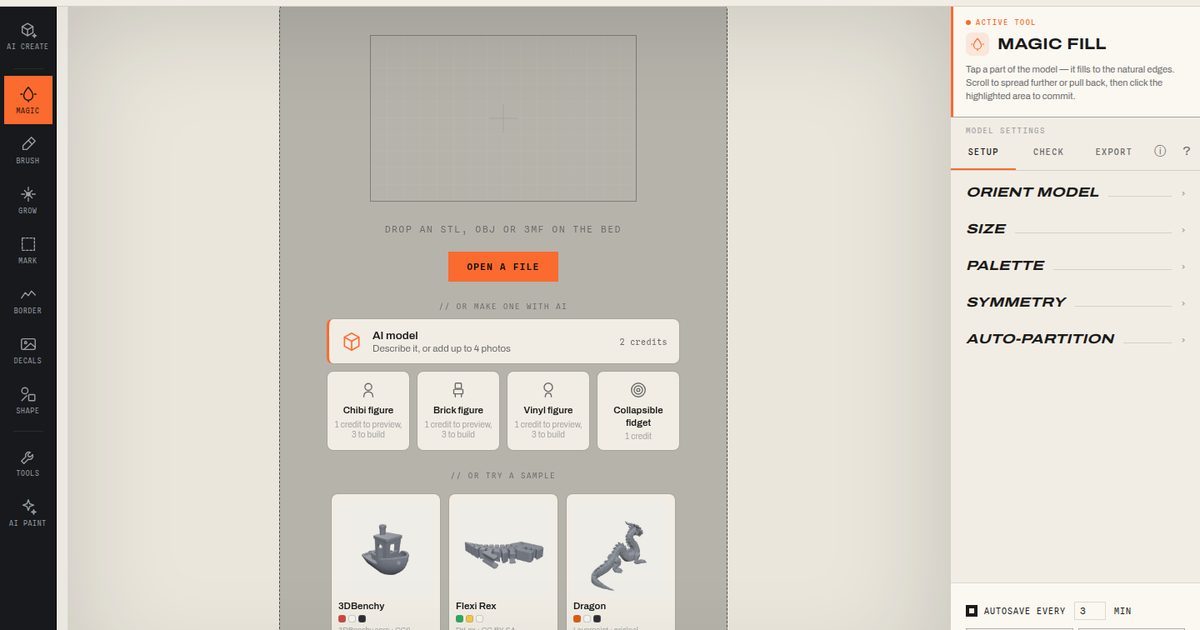
TL;DR: To turn a photo into a 3D print in Layerpaint, open AI Create and pick a generator. Photos of a person make a chibi, brick or vinyl figure. A photo of one subject on a plain background makes a collapsible fidget. Each lands in the painter as a single-color mesh that you paint and export as a 3MF. Your first AI generation is free.
Layerpaint now has an AI Create tile at the top of the left toolbar. The empty screen has the same options under "Or make one with AI". If you want to turn a photo into a 3D print, that is where you start.
What does AI Create make from a photo?
AI Create makes four things from your input. The AI model builds a mesh from a text description or up to 4 photos for 2 credits. The figure generators turn a photo of a person into a chibi, brick or vinyl figure. The collapsible fidget turns a photo of one subject into nested rings designed to print in place for 1 credit. Everything arrives as a single-color mesh in the painter, ready to paint and export as a 3MF.
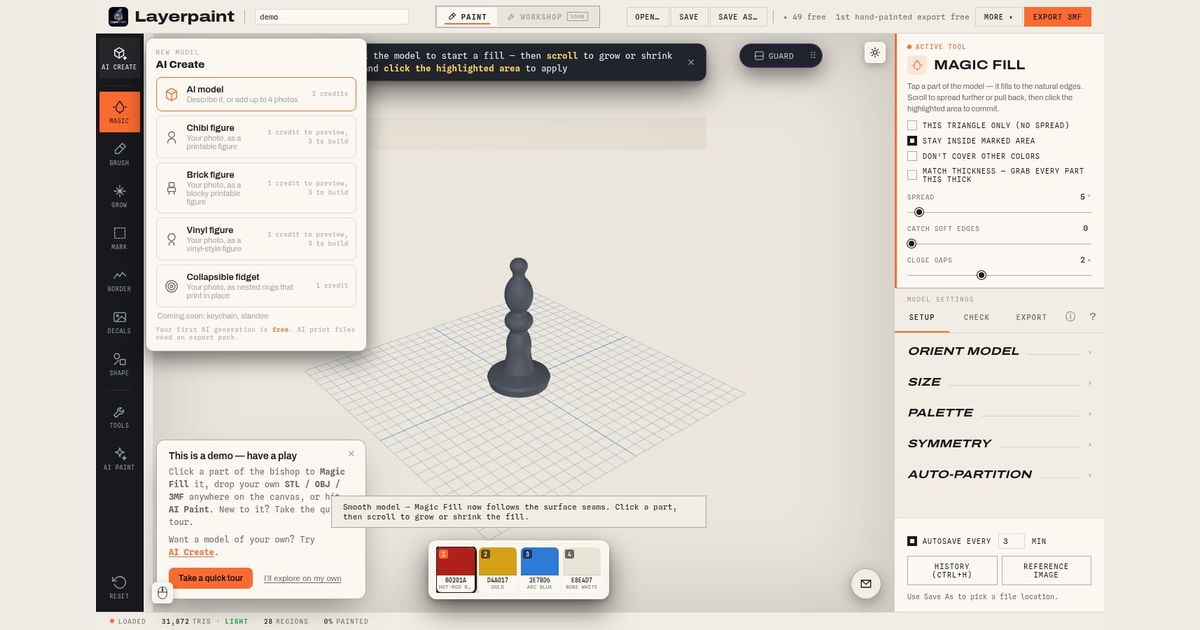
Photo to figure: chibi, brick and vinyl
All three figure generators work the same way. Add a photo of a person and Layerpaint draws a concept image first. You look at it, and only if you like it do you build the figure. A preview costs 1 credit and the build costs 3.
The chibi figure was already in the editor. It is now easier to find. Brick figure and vinyl figure are new, and they differ only in style: blocky and toy-like, or smooth like a collectible vinyl toy.
What to photograph: one person, face visible, decent light. Front-on works best. Skip group shots and heavy shadows across the face. If the concept image does not look like them, change the photo and preview again before you spend the 3 credits. The chibi figure walkthrough shows the full flow.
Collapsible fidget from a photo
If you want to turn a photo into a 3D print you can play with, try the collapsible fidget. You give it a photo of one subject, and it returns nested rings in that subject's outline. It is designed to print in place, so the rings come off the bed as one piece.
It takes any single subject, not only people. Your dog works. So does a cactus on a white table.
What to photograph: one subject, a clear outline, a plain background. Busy backgrounds and overlapping objects make the outline harder to read. The whole thing costs 1 credit.
The fidget arrives unpainted. Each ring is its own part, so you can color each ring in Layerpaint before you export.
How do you turn a photo into a 3D print in color?
Every AI Create result opens in the painter as a single-color mesh. Paint it with Magic Fill, the Brush or any other tool, assign each color to a filament slot for your AMS, then choose Export 3MF. The file is a Standard 3MF with per-triangle colors, which Bambu Studio, OrcaSlicer and PrusaSlicer read directly.
From there it is a normal Layerpaint model, so the usual painting and export steps apply. Use Magic Fill to color a region in one click, or the Brush for small details. If you want the model colored from your photo, AI Paint can do that too.
Then open the 3MF in Bambu Studio or OrcaSlicer, map each color to an AMS slot, and slice as usual.
Common questions
Which photos work best?
To turn a photo into a 3D print that looks like the subject, use one subject, a plain background and even light. Group shots and side-on faces tend to fail. If a generation fails, the credit goes back on your balance.
Is the first AI generation free?
Yes. Your first AI generation is free. After that, credits apply at the costs listed above.
Can I make a fidget of a person?
You can use any photo with one clear subject, a person included. The rule is one subject on a plain background. A group photo will not give you a usable outline.
Why does the model arrive in one color?
The mesh carries the shape only. You choose the colors in Layerpaint from your real filaments, so what you see is what you can print.
Do I need a multi-color printer?
No. A single-color print works on any FDM printer. A multi-color printer matters if you want to print the painted version, such as one color per fidget ring.
Make yours
Open the painter, click AI Create and add a photo. Start in the app: your first AI generation is free. The print file for an AI-made model needs an export pack: $6.97 for 10 exports, or $39.97 unlimited. AI credits are separate.