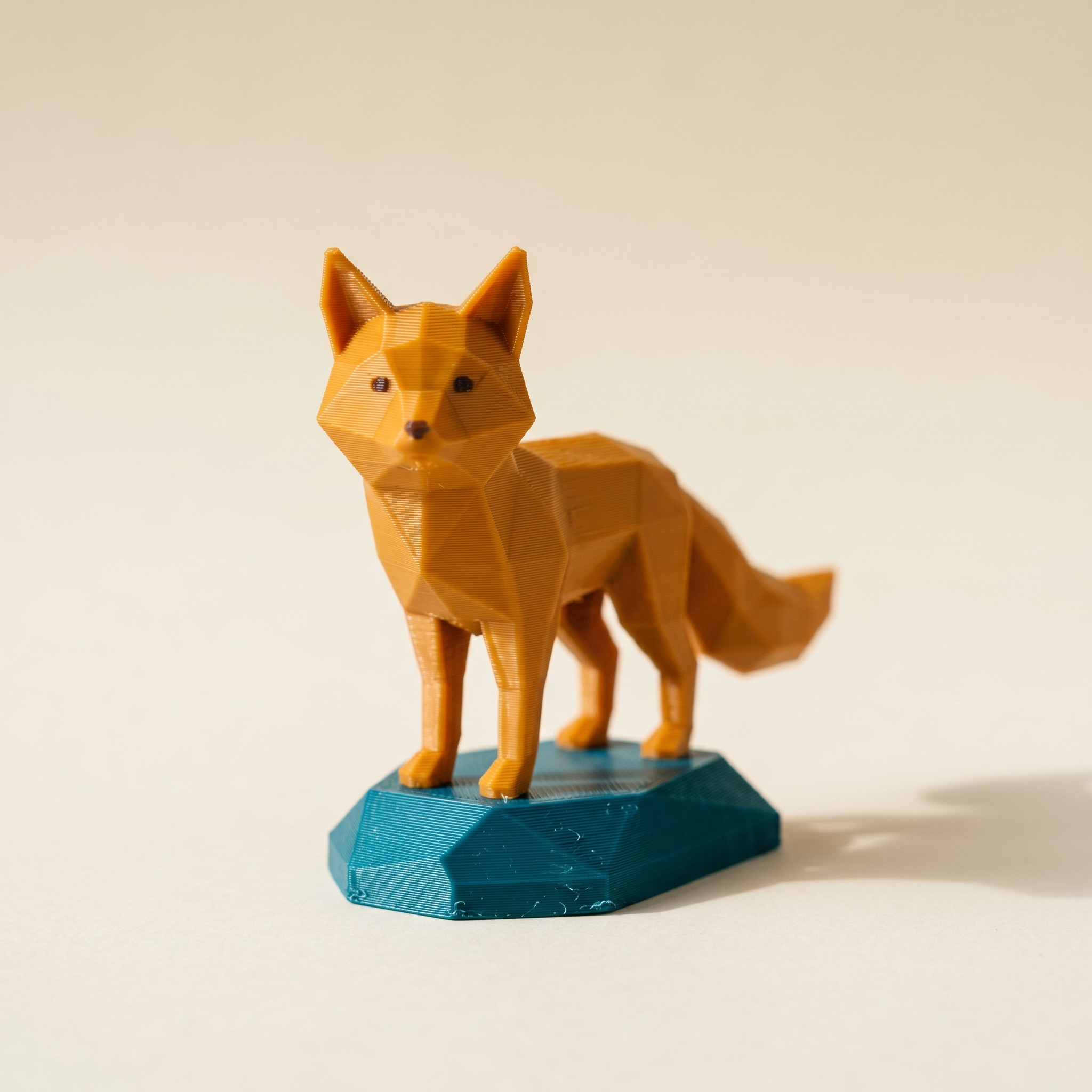
TL;DR: To color the bottom of a print, assign its underside faces a second filament in Layerpaint, then export a Standard 3MF. The slicer prints those faces from the first layers. Plane paint set to Below gives you a contrasting base band you see from the side; Direction paint set to Down marks the actual underside. This walks both, plus coloring an emblem that's modeled into the base.
Which tool colors the bottom — Plane paint or Direction paint?
They do different things. Plane paint set to Below colors every face under a height you choose, so the first few millimetres of the side wall change color, which reads as a contrasting base from the side. Direction paint set to Down (−Y) colors only the faces that point at the build plate, so the second color lives on the actual underside and stays hidden until you flip the print over. Pick Plane Below for a two-tone base, Direction Down for a maker's mark. Both write a per-triangle color that the slicer maps to a filament slot.
Most multi-color guides paint the parts you can see from the front. The base and the underside are different. The faces are easy to miss in the viewport, and the geometry there is usually flat, so the Region tool has no crease to grab. The two plane-and-direction tools handle exactly this case, and once you know which one does what, the job takes a couple of clicks.
Step 1 — Sit the model base-down
Models rarely load the way they print. A figurine might arrive lying on its back, a coaster on edge. Open the Orientation panel and step the mesh 90° around an axis until it rests flat on the grid, base down. Your paint, boundaries, and selections all carry through the rotation, so you can reorient at any point. Press R to reset the camera, then middle-drag to orbit under the model so you can see the face you're about to paint.
Step 2 — Paint a contrasting base with Plane paint
Pick the base color in the palette first. Switch to the Plane tool, leave the axis on Y · vertical, and set the direction to Below. Drag the threshold slider up from zero until the highlighted band covers the first few millimetres of the model. Click Paint with current color. Every face under that line is now the second filament, which reads as a colored base wherever the wall is visible from the side.
The threshold is a height, not a layer count. Watch the model, not a number. Stop dragging when the band reaches the top of the base or the first design break. If it grabs too much, nudge the slider back down and repaint; paint overwrites cleanly.
Step 3 — Mark the underside with Direction paint
A signature, a date, or a small logo on the bottom is a different job. You don't want the side wall, just the face that touches the plate. Pick the mark color, switch to the Direction tool, and set Facing to Down (−Y). Leave the angle Within around 30°, then click Paint faces facing this way. Only the downward triangles take the color. Tighten the angle if the print has chamfered bottom edges you want to leave alone.
Step 4 — Color an emblem that's modeled into the base
If your model has a real embossed or recessed emblem on the bottom, such as raised letters or a recessed crest, that geometry has edges Layerpaint can use. Orbit under the model, switch to the Region tool (1), and click the emblem. It snaps to the crease around the raised or recessed shape. For raised lettering, the Detail tool paints just the tops of the letters and leaves the walls alone. The technique is the same one covered in painting raised text and emblems a second color. The underside is just a matter of rotating to see it.
The catch: this works only when the emblem is actual mesh. A logo that was going to be printed flat, with no height difference, has no edges for the tool to follow. There's nothing in the geometry to trace. Model it as embossed or recessed text in your CAD tool first, or add it with your slicer's text feature after import. Layerpaint colors triangles; it can't invent an outline the mesh doesn't have.
Step 5 — Export and slice
Hit Export 3MF. Layerpaint writes a Standard 3MF with per-triangle color groups, and your slicer prints the painted faces from whatever layer they sit on, so the base and underside come out in the first layers of the print. The palette order is your filament slot order, so the base color lands in whichever AMS or MMU slot you put it in; reordering the palette to cut swaps is covered in reducing AMS purge waste by palette order.
One honest note on coverage: if you put a light color over a dark base and the dark shows through, that's a slicer layer-count setting, not a paint problem. Give the bottom enough solid layers in the slicer. Layerpaint's job ends at assigning which faces get which filament.
Common questions
Why doesn't my underside color appear in the slice preview?
Almost always the model isn't sitting base-down, so the faces you painted point sideways instead of at the plate. Reorient with the Orientation panel until the base rests on the grid, then re-check. The slicer prints painted faces wherever they physically are, so the orientation in Layerpaint has to match how the part prints.
Can I paint a logo that isn't part of the mesh?
No. Layerpaint colors triangles, so a flat logo with no height has no edges to follow. Add the logo as embossed or recessed text in your CAD tool, or use your slicer's text tool after import, and then the geometry is there to paint.
Will a light base color over a dark one show through?
That's a slicer setting, not a Layerpaint one. The number of solid bottom layers decides how opaque the new color reads. Layerpaint only assigns which faces get which filament. Bump the bottom-layer count in Bambu Studio or OrcaSlicer if a pale base looks muddy.
Does removing a palette color undo my base?
Yes. Removing a palette slot unpaints every face that used it, base included. Reassign those faces to another color before you delete the slot, or just leave it in place.
Try it now
Layerpaint is free to try — no account, no install, no upload. Drop an STL on the painter, orbit underneath, and color the base. When you're ready to export, your first export is free, then $6.97 for 10 exports or $39.97 unlimited. No subscription.
Happy printing. 🎨