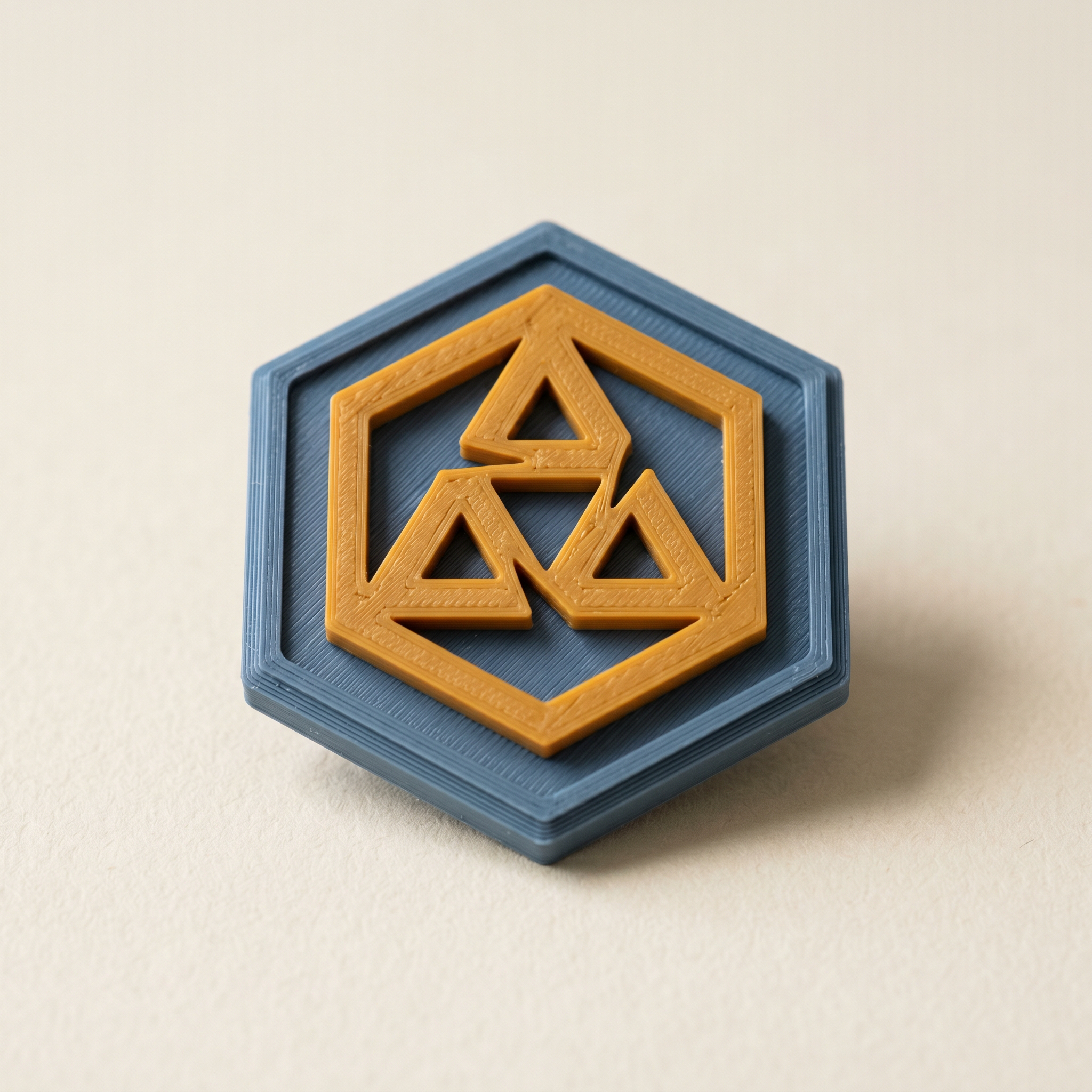
TL;DR: Raised letters sit higher than the surface they're on, so the fast way to color them is by height, not by hand. In Layerpaint, set a horizontal slice just below the letter tops with Plane paint, then paint everything above it in one click. The brush with Stop at crease on, plus the detailer, cleans up the few stray faces. Export a Standard 3MF and Bambu Studio, OrcaSlicer, and PrusaSlicer read it natively. There's also a section on engraved text, which is the harder mirror-image case.
Why is two-color lettering the job everyone gets stuck on?
Because a slicer's paint brush works by where you drag the cursor, and raised letters are small. The serifs, the counters inside an "a" or an "e", the gap between two words. A round brush can't follow those edges without catching the flat face behind the letters, and that face is the part you wanted to leave alone. The reliable trick is to stop painting by position and start painting by height: raised text stands above its background, so a horizontal cut plane separates the two with no hand-eye accuracy required.
This question comes up constantly on the Bambu and Prusa forums, usually phrased as "how do I print colored inset shapes or text." The honest answer is that the slicer brush is the wrong tool for it. You want a height-based selection, and that's what painting the mesh before it reaches the slicer gives you.
Step 1 — Load the model and pick your two filaments
Open the painter and drop your STL, OBJ, or 3MF onto the page. Click a palette chip to open the filament library and choose the two colors you have loaded: one for the body, one for the lettering. The library covers Bambu, Polymaker, Prusament, Overture, Sunlu, eSUN, Elegoo, Creality, and Hatchbox, plus Citadel and Vallejo references if you're matching a paint.
Paint the whole model the body color first. Press 1 for the Region tool and click the main surface, or just plane-paint the entire thing. Starting with a solid base means the lettering color only has to win the faces it covers, not fight unpainted grey.
Step 2 — Isolate the raised letters with Plane paint
Switch to Plane paint. A cyan overlay shows everything above or below a horizontal slice, and a threshold you drag up and down sets where that slice sits. Drag it until the cyan covers the letter tops and nothing else, which usually means parking the slice a hair below the top face of the text. A direction dropdown swaps the selection to everything below the slice, which you'll want for the recessed case later.
With your lettering color active, hit Paint with current color. Every face above the slice takes the color in one go. This is the same move that colors coin legends, plinth rims, and base coats, and it's exact because it keys off the model's geometry instead of your cursor.
If your letters have a chamfer or a domed top, the very edge of each stroke sits slightly lower than the center. Nudge the slice down a touch so the whole glyph is captured, then clean the small overspill on the surrounding face in the next step. It's faster to grab a little extra and trim than to chase a slice that catches 90% of every letter.
Step 3 — Tidy the edges with the brush and the detailer
Plane paint gets the letters in seconds, but a flat plane can clip a face it shouldn't, like the top of a raised border that sits at the same height as the text. Fix those by hand with two tools.
- Brush (
2) with the Stop at crease toggle on. With it ticked, the brush won't paint across a creased edge, so color stays on the letter and stops at the seam where the glyph meets the face behind it. Keep the brush small. The Depth cap, default 100%, also keeps it from punching through to the far wall. - Detailer drag-paints only the triangles whose normal matches the face you first clicked. It's built for telling recess walls from flat tops, so it's the right tool when you want to recolor the vertical sides of a raised glyph without touching the top. The detailer walkthrough covers when to reach for it.
Use the eyedropper (I) to pick a color straight off a painted face if you lose track of which slot is which.
Step 4 — Check the swap count and export
Two colors on a flat nameplate is cheap, but two colors that alternate up the height of tall letters means a filament swap on every layer the text spans. Turn on Show swap bar to see the per-layer tally before you commit. If the bar runs red through the lettering band, that's the print telling you the purge waste is real, and it's worth deciding whether the second color earns it.
When the paint looks right, hit Export 3MF. Layerpaint writes a Standard 3MF with a color group per triangle using the Materials Extension. Bambu Studio picks it up through its Standard 3MF Color Parsing dialog, and OrcaSlicer and PrusaSlicer read it on open with no extra step. If the slicer assigns the wrong slot to a region, the color parsing fix sorts it out.
What about engraved or recessed text?
Recessed text is the mirror image, and it's a little harder. The letters sit below the surface, so flipping Plane paint to "below the slice" will catch the recessed floors, but it also catches anything else low on the model. Set the slice just under the surface, flip to below, and paint. Then walk the edges with the detailer, which separates the recess floor and walls from the surrounding top face cleanly. Engraved text with sloped walls won't isolate as crisply as a raised glyph does, so expect a minute or two of brush cleanup rather than a single click.
Common questions
My text and a raised border are the same height. How do I color only the text?
Plane paint will grab both since they share a height. Plane-paint the lot, then switch to the brush, turn on Stop at crease, and repaint the border back to the body color. The crease at the base of the border gives the brush a clean edge to stop at, so the repaint won't creep back onto the letters.
Does the text need to be a separate body in the STL?
If the lettering came from somewhere else and you're not sure it's watertight, the browser STL repair tool will patch it before you paint.
No. Layerpaint paints per triangle, so it doesn't care whether the letters are a separate mesh or fused into one solid. Height is what separates them, not the file structure.
Will the colored text print as one filament all the way down?
Only the faces you painted change color, and color is a surface assignment, so the inside of a tall letter prints in whatever the slicer fills it with. For text that reads as solid color from every angle, paint the letter walls as well as the tops with the detailer.
Can I do this on a model I already painted somewhere else?
If you saved it as a 3MF with paint data, drop it back in and Layerpaint restores the existing assignment, so you can add the lettering pass on top without starting over.
Try it now
Open the painter at layerpaint.app/app, drop a nameplate or a badge, and plane-paint the letters in under a minute. Your first 3MF export is free; after that, $6.97 for 10 exports or $39.97 unlimited, no subscription, and your model never leaves your device.