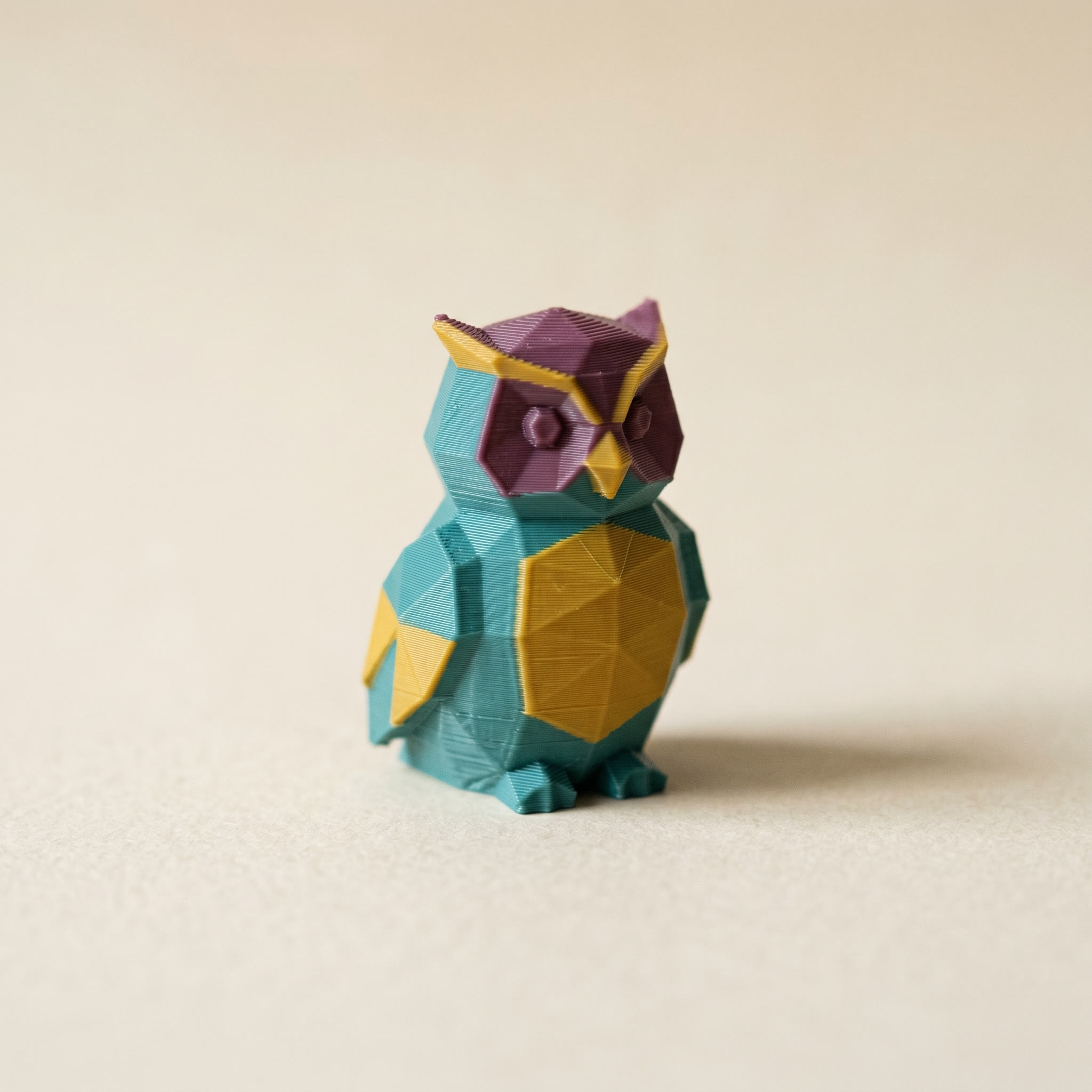
TL;DR: For most multicolor prints, matte filament is the safer pick. It diffuses light, hides layer lines, and keeps each painted color reading the same from every angle. Silk's metallic sheen shifts shade as you turn the part, so a multi-region scheme can look uneven. Below: why silk reads inconsistently, what matte fixes, when silk is still worth it, and how to set the finish per region in Layerpaint.
Why does silk filament change how a multicolor model reads?
Silk PLA has a reflective, semi-translucent sheen, so the color you see depends on the angle between the surface, the light, and your eye. Turn the model and one teal panel reads bright near the window and dull in the shade. On a single-color print that looks rich. On a multicolor model it works against you: each painted region shifts on its own, so a scheme you balanced on screen can look patchy on the bench. Matte PLA diffuses light evenly, so every region holds the same color from any angle.
The sheen also magnifies the surface. A reflective finish acts like a spotlight on every ridge, so layer lines and small defects stand out more on silk than on standard PLA. Curved and sloped faces catch the light at different angles across a single panel, which is why silk parts often print in visibly different shades across one surface. None of that softens the boundary between two colors. The edge stays crisp. What moves is the color inside each region, and that is what makes a careful paint job look less controlled than it did on screen.
What matte filament does for a painted model
Matte PLA has a powder-flat surface that scatters light instead of bouncing it back. Layer lines fade. The part reads like it was cast or painted rather than printed. Most useful for multicolor work: a matte color looks the same whether you hold it to the light or set it on a shelf, so the relationship between your regions stays exactly as you painted it.
That makes matte the steady default for figures, terrain, mechs, and any part where you assigned several distinct colors. If you want seams that hold up on a tabletop figure, matte gives you fewer ways to go wrong, the same attention that goes into tight color seams on anime figures or a small recessed detail.
Silk is more translucent than matte. A light silk color painted as a thin shell over a dark body can let the dark show through, printing greyer than the swatch. If you are layering a light color over a dark one, matte hides the body better. The same trap applies to any light filament: see stop a dark body showing through your light colors.
When is silk filament the right choice?
Silk earns its place when shine is the point and the part is one color, or when you want a single accent to catch the light against matte. Think a silk-gold trophy, a silk-red car body, or one metallic emblem on an otherwise matte figure. Keep silk to large, near-flat or gently curved panels where the sheen reads as intended, and avoid putting two silk colors side by side, which makes both look unsettled. For everything else on a multicolor model, matte is the steadier pick.
The single-accent move is the one worth remembering. A matte body with one silk highlight gives you contrast in finish as well as color, and the eye reads the shiny part as the focal point. Two or three silk colors fighting for the same light usually just looks noisy.
Set the finish in your Layerpaint palette
In Layerpaint, each palette chip is a named filament from the library. The matte side gives you Bambu PLA Matte, Overture Matte PLA, Polymaker PolyTerra Matte, and eSUN ePLA-Matte. The silk side gives you Bambu PLA Silk, Sunlu Silk PLA, Elegoo Silk PLA, and Creality CR-Silk, among others. Click any chip to browse them by brand. There is no separate finish toggle or filter. You pick the named chip, and that chip is your reminder of which physical spool goes in which slot.
Worth knowing: the app shows a flat color swatch, so a matte chip and a silk chip of the same hex look identical on screen. The finish difference only shows up on the printed part. The exported 3MF carries the color, not the finish, so the plan is simple. Paint the body and most regions with matte chips, drop a silk chip on the one region you want to pop, then load the matching matte and silk spools into those AMS or MMU slots and export. If you are new to the workflow, the first multicolor 3MF paint job walks the whole thing end to end.
Common questions
Can I mix matte and silk filament in one print?
Yes. They are separate spools in your AMS or MMU, so you assign a matte chip to most palette slots and a silk chip to the accent. The only thing to confirm is each filament's own temperature in the slicer, since matte and silk lines from the same brand sometimes want slightly different settings.
Does silk filament hide layer lines better than matte?
No, the opposite. Silk's reflective surface magnifies layer lines and surface defects, while matte's light-diffusing finish hides them. For color regions that look clean without sanding, matte is the more forgiving choice.
Will my Layerpaint 3MF be different for matte versus silk?
If you're trying to hit a specific color with what's on the shelf, the filament color matcher finds the closest real filament to any hex or photo.
No. Layerpaint exports per-triangle color, which is the hex value, not the finish. The file is identical either way. The finish comes from the physical filament you load into each slot, so pick the spool to match the chip you assigned.
Which matte filaments are in the Layerpaint library?
Bambu PLA Matte, Overture Matte PLA, Polymaker PolyTerra Matte, and eSUN ePLA-Matte, alongside silk lines like Bambu PLA Silk, Sunlu Silk PLA, and Elegoo Silk PLA. Click any palette chip to open the library and filter by brand.
Try it now
Layerpaint is free to try — no account, no install, no upload. Drop an STL on the painter, assign your matte and silk chips per region, and see the scheme before you commit a spool. When you're ready to export, your first export is free, then $6.97 for 10 exports or $39.97 unlimited. No subscription.
Happy printing. 🎨